June 23rd, 2010

Blogger Tutorial: Different Backgrounds for Different Pages

Now that you can easily add multiple pages to your Blogger or Blogspot blog, you might have wondered if you can have a different background for each page, thus giving your pages their own unique look. Good news! You can! And this tutorial will show you how to do it in just one easy step. This tutorial was shared with me by Carolyn M. @ Pat Loves Carolyn. Thanks so much for the cool tip, Carolyn!! :)

Blogger Tutorial: Different Background for Different Pages

{ demo }

See this tutorial in action on my Blogger Test Blog. Click on the Home and Recipes links up in the top navigation bar and see how they have different backgrounds! :)

Ready to try it yourself? First you’ll need pages on your blog. Here’s a super quick tutorial to get you all set up. It also includes tons of page ideas to get you started! :)

Next you’ll need a background. Here are my top 4 favorite free background sites:

Shabby Blogs
The Cutest Blog on the Block
Allie Brown’s Layouts
My Style Backgrounds

Or you can make your own personalized background using my tutorial right here! :)

{ tutorial }

From your Blogger Dashboard, click on Design, then Edit HTML. Look in that box of code and scroll down until you see </head>

(Quick Tip: Click CTRL-F to search for </head> to easily find it in all that code)

Just above that, copy and paste this:

<b:if cond='data:blog.url == &quot;http://YOURBLOG.blogspot.com/p/PAGE.html&quot;'>
<style>
body {
background-image: url(http://DIRECT_LINK_TO_BACKGROUND_IMAGE.com/IMAGE.JPG);background-position: center; background-repeat:repeat; background-attachment: fixed;
}
</style>
</b:if>

Two things to change:

1. http://YOURBLOG.blogspot.com/p/PAGE.html

Change this to your page’s link – the link to your new blog page where you want the custom background to appear. This is the address up at the top of the screen in the address bar.

2. http://DIRECT_LINK_TO_BACKGROUND_IMAGE.com/IMAGE.JPG

Change this to the link to your background image. If you are using Photobucket to host your background, it’s the Direct Link.

Click SAVE TEMPLATE and that’s it!! You’re done!!

Blogger Tutorial: Different Backgrounds for Different Pages

Note: As always, be careful- one tiny little wrong space, quotation mark, or typo in the code can cause the whole thing not to work, so if it’s not working for you, double and triple check your work for typos! :) Make sure your code looks exactly like mine, except with your page and background links! :)

If you got it working on your blog, leave me a link! I’d love to see it! :)

Thanks for looking! :)


Filed Under: blog design59 Comments


August 11th, 2009

Add a Signature to Every Blog Post on your Blogger/Blogspot Blog

If you have a blog, you may be wondering how to add your signature after every post on your Blogger or Blogspot blog. This simple tutorial will show you how to do it in just a few easy steps! :) This method of adding a signature will add your signature after *every* post- even posts you’ve already written! This is not like the “template method” of adding a signature, which will only add your signature on the new posts that you make- and not the old ones. Oh and stay tuned ’til the end of the post- there’s also a tutorial on how to add a post divider after your blog posts! :)

So, to add a signature, first, you’ll need to create a signature image like the one above (click here for a tutorial on how to do that) and upload it somewhere like Photobucket, TinyPic, Flickr, etc. Then…

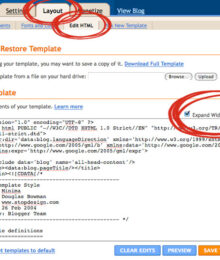
1. Go to your Blogger Dashboard and click on Layout then Edit HTML.

2. Check the Expand Widget Templates box.

add signature to blogger

3. Click CTRL-F and copy and paste the line below in the search box to search for it in your code.

post-footer-line post-footer-line-1

It may say :

<p class='post-footer-line post-footer-line-1>

OR

<div class='post-footer-line post-footer-line-1'>

Or something similar- either is fine. Just look for that line.

4. Under that line, paste this code and change IMAGE URL to the url address of your signature image (it’s the Direct Link on Photobucket).

<img src='IMAGE URL' style='border: none; background: transparent;' /><br/>

add signature to blogger

5. Preview it and Save it! You’re done!

If your blog background isn’t white…

This tutorial doesn’t cover the making of the actual signature, but I will give this tip for blogs that don’t have white backgrounds- here’s how to make a signature so it doesn’t have a white background around it and it will blend in with any background! :)

If you use Photoshop, when you create a new image, make sure the “Background Contents” says Transparent. Then create your signature, and when saving, go to File > Save for Web and Devices.

Make sure you save the file as a PNG-24 and that Transparency is checked. The white and grey checkerboard must be around your signature for it to work! :) If you save it like this, then no matter what background you put your signature on, it will blend in (and not have a white background around it).

add a signature to blogger

Want to know how to add a post divider after your blog posts?

Add a post divider to blogger

Follow this super-easy, thorough, and beginner-friendly tutorial from Megan at Shabby Blogs!

While you’re there, take a look around! :) Don’t forget to check out her *awesome* shabby blog backgrounds and shabby blog extras!! :)

Here’s one of the new backgrounds she just added. Wouldn’t this make the *cutest* recipe blog background *ever*??? :)

recipe blog background

If you’ve been thinking about starting a recipe blog, now is the time to do it!! And gosh darn it, send me the link to it ASAP!!! ;)

Thanks for looking!! :)


Filed Under: Tutorials, blog design114 Comments


April 27th, 2009

How To Use a Custom Font for Your Entire Blogger/Blogspot Posts

Okok. So you want to change your *entire* posts to a funky font. Well, it can be done… Sort of.. I can’t figure out an easy way to change the font of your existing posts, but it can be done for any new posts you write.

click here to see a live demo of what this tutorial does

First- the boring stuff. Disclaimers. Warnings. Etc.

  1. This tutorial is a continuation of my How To Use a Cute Font for Your Blogger Post Titles, so you’ll have to do all the stuff in that tutorial before this one will work. :)
  2. I don’t really recommend writing every single post, all the time, the entire thing, in a custom font.
  3. sIFR is best used for changing titles and headers, not entire blocks of text.
  4. It will make your page load slower.
  5. It will make your page be all jumpy and crazy-looking as it’s loading.
  6. It won’t look perfect- you can only use one font color/size for everything you write and there may be some extra spacing/padding at the bottom, but there’s no that I know of to get rid of it (see what I mean about the padding on the demo).
  7. I kinda like plain, easy to read fonts for the main content of a blog anyway.
  8. If you created an account with Geocities, be sure and read this!

So! If that doesn’t bother you and you’re totally ok with all of that and you still really want to change the font of your entire blog posts… Then this tutorial is for you. :)

First, if you want to use a second font, different from your post titles for your main blog posts… Go to your blogger-sifr.js file and find the lines that look something like this:

var kevinandamanda = {
src: 'http://username.webs.com/fontname.swf'
};
sIFR.activate(kevinandamanda);

Copy and paste a duplicate of that right underneath it.

1. Convert and upload a new SWF font file, then replace the URL for the current SWF file with the URL to the new font.

2. Change the two instances of kevinandamanda to blogpostfont.

So when you’re done, it may look something like this:

var kevinandamanda = {
src: 'http://username.webs.com/fontname.swf'
};
sIFR.activate(kevinandamanda);

var blogpostfont = {
src: 'http://username.webs.com/anotherfont.swf'
};
sIFR.activate(blogpostfont);

Next, paste this down at the bottom of your blogger-sifr.js file:

sIFR.replace(blogpostfont, {
selector: '#main-wrapper h3',
fitExactly: true,
tuneHeight: -5,
css: ['.sIFR-root { color: #000000; font-size: 24px; font-weight: normal; }'
,'a { text-decoration: none; }'
,'a:link { color: #000000; }'
,'a:hover { color: #000000; }'
],
wmode: 'transparent',
ratios: [6, 1.93, 10, 1.92, 13, 1.86, 17, 1.82, 21, 1.8, 29, 1.79, 32, 1.78, 33, 1.77, 36, 1.78, 43, 1.77, 44, 1.76, 47, 1.77, 70, 1.76, 71, 1.75, 74, 1.76, 75, 1.75, 76, 1.76, 1.75]
});

Now if you didn’t use a second font and just want to use the same font you’re using for your blog post titles, then you’ll need to change blogpostfont back to kevinandamanda.

You can still play around with the font size and color.

Save the blogger-sifr.js file when you’re done customizing.

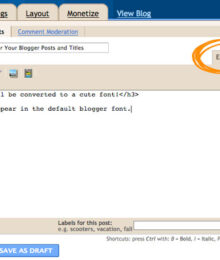
Next, to get this to show up on your blog: Write a new post and  switch over to the Edit Html tab.

use a custom font for your posts and titles on your blogger/blogspot blog

Wrap any text that you want to appear in your custom font with <h3> tags, so it might look something like this:

<h3>This text will be converted to a cute font!</h3>
This text will appear in the default blogger font.

That’s it! :)

click here to see a live demo

I will try and answer questions in the comments. (Please leave a link to your blog, or send me an invite if it’s private.)

If you got this to work on your blog, please post a link to your blog here so others can see an example! :)

If you found this tutorial helpful, I’d love it if you put one of my blog buttons on your blog! :)


Filed Under: Tutorials, blog design84 Comments