

This easy tutorial shows you all the tips and tricks on How to Take The Best Sharp Action Photos! You’ll never have to worry about blurry pictures again!
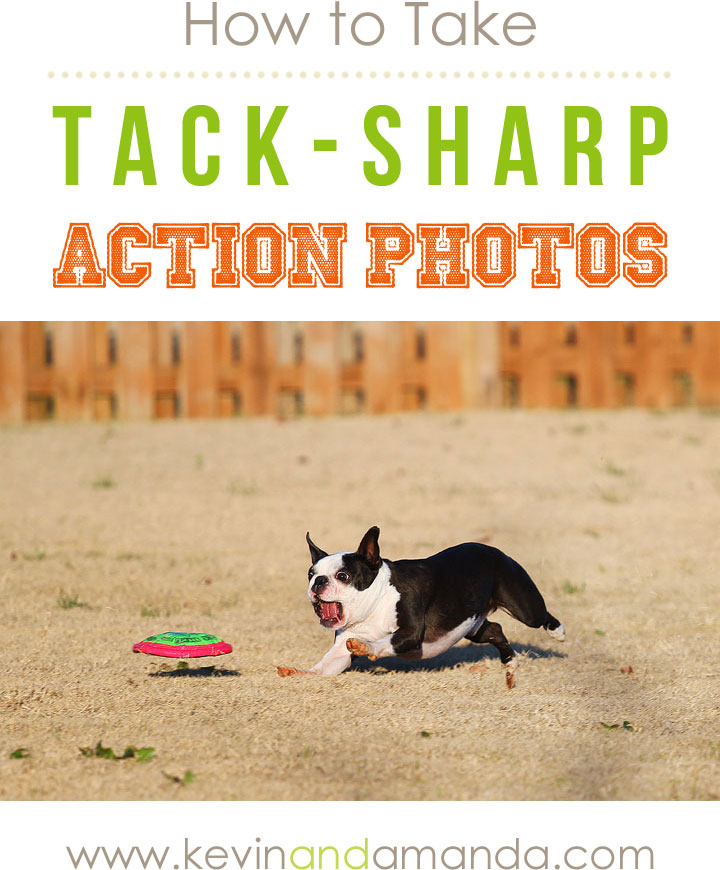
How to Take Tack-Sharp Action Photos
You guys know I love taking photos of Miley and Howie running around like lunatics in the backyard. If you’ve ever wondered what the best settings to use to get action photos sharp and in focus were, here’s my go-to recipe for tack-sharp action photos. I use these five simple settings every single time. I still take a lot of photos, and I still get a lot of out of focus shots, but with these settings I get a whole lot more in focus than out of focus, and playing with my camera in the backyard with the pups is a much more pleasant experience. ;)
Ingredients For Perfect Action Shots
*These are the “ingredients” I personally use for my action photos, but you can definitely achieve similar results with the equipment you already own.
1. Canon 7D
For my money, the Canon 7D is one of the best cameras out there for fast action photos. The 7D can capture 8 frames per second (aka 8 fps). This means the camera can take 8 photos in one single second! It’s practically a cinch to get action photos with features like that. There are much fancier and more expensive cameras out there that don’t even come close to 8 fps. This is the number one reason why I chose the 7D. So when camera shopping, if action photos are a priority to you, be sure to look at the fps capabilities.
2. Canon EF 70-200mm f/4L Lens
Now, of course you can use any good lens for action photos (especially a fast lens with a low aperture number), this just happens to be my lens of choice for outdoor action photos of Miley and Howie, so it’s the lens you’ll see me use most.
3. A bright, sunny day or lots of light.
You’ll need lots of light for action photos, which requires a fast shutter speed.
Directions:
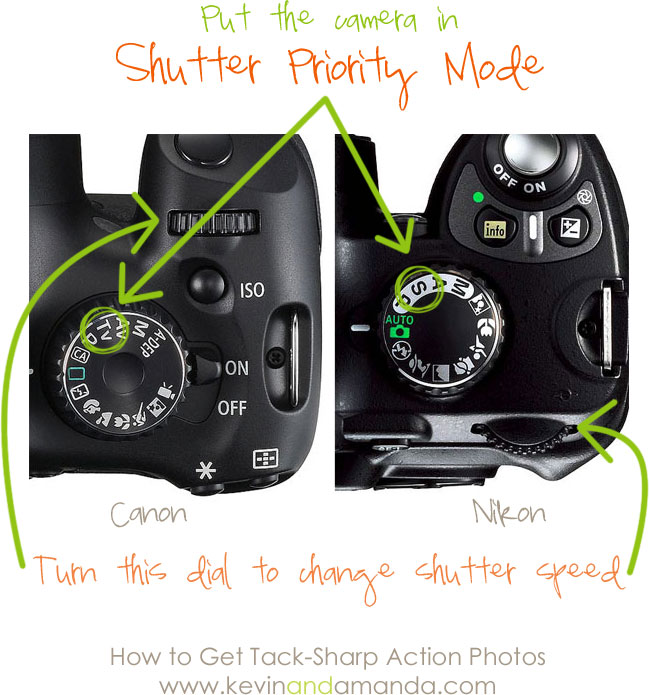
1. Put the camera in Shutter Priority mode.
- On a Canon, turn the dial at the top to TV.
- On a Nikon, turn the dial at the top to S.
Shutter Priority mode means we’ll be setting the shutter speed manually while the camera takes care of the rest of the settings. Shutter speed is how fast the camera records a picture. A very fast shutter speed will stop action, just like we’re trying to do today. A very slow shutter speed causes blurry images (which can be a cool effect if you’re taking photos of waterfalls or car light trails) but requires a tripod. Today we want to stop action, so we’ll tell the camera to use a very fast shutter speed.
2. Set the shutter speed to 1/1000
In addition to the labeled dial, you’ll see an unlabeled black dial on your camera. Use this dial change the shutter speed. Crank it left for lower and slower, right for higher and faster. The higher the number, the faster the shutter speed! Set the dial to change the shutter speed to 1/1000. It may also just say 1000. That is a very fast shutter speed. This means the photo that the camera captures will show what was happening in that one one-thousandth of a second. That’s pretty fast!
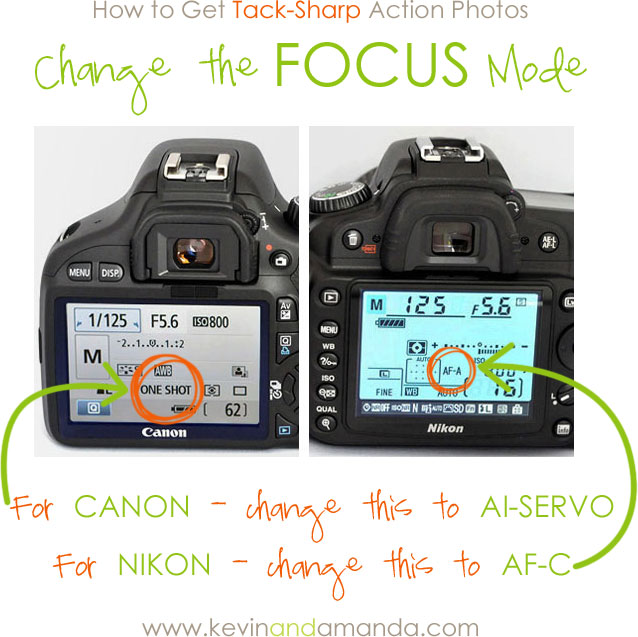
3. Change the focus mode to AI-SERVO
*AI-SERVO is known as AF-C on Nikon or “continuous focus.”
Now, you can take pictures as fast as you want, but they’ve got to be in focus, or it won’t matter how quickly they were taken. AI-SERVO is the best mode to use when taking picture of moving subjects. In AI-SERVO mode, the camera quickly refocuses on the subject as it moves before taking each picture. This greatly increases your chances of getting your subject in focus! AI-SERVO mode is predictive — it predicts where your subject will be and how fast it’s moving — so to fully optimize, press the shutter halfway down and start tracking your subject’s movement BEFORE you take the picture, then press all the way down when you’re ready to shoot.
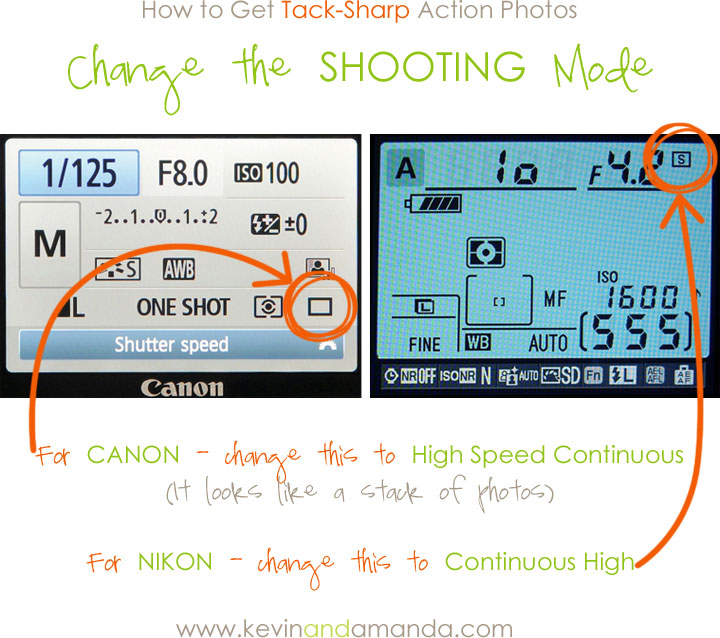
4. Set the shooting mode to High Speed Continuous
In continuous shooting mode, you can press the shutter button and hold it down to take several photos in a row without lifting your finger. In High Speed Continuous mode, the speed at which the camera takes the pictures is much faster. The get the full 8 fps capability of the Canon 7D, the camera must be in High Speed Continuous mode.
5. Change the Focus Point
The focus point tells the camera where to focus.
- Auto Select is best for photos with one subject (by themselves) in the frame. The camera will pick where the focus will be and what it will focus on. If there’s anything else in the background, the camera might get confused as to what to focus on.
- Manual Select Zone will change the focus to concentrate on the middle of the frame. If you’re having a hard time getting the camera to focus on the right subject, try using this mode and keep your subject in the center of the frame. This mode is still best for a single subject.
- Manual Select Single Point is best when there are many subjects in the frame (like a team sport), and you only want one of them in focus. Manually select your point, and be sure keep your subject in that point.
And that’s it! These are my preferred settings for outdoor action photos.
The Quick Version:
How to Take Tack-Sharp Action Photos
- Put the camera in Shutter Priority (TV or S) mode
- Set the shutter speed to 1/1000
- Change the focus mode to AI-SERVO
- Change the shooting mode to High Speed Continuous
- Set the focus point to right in the middle (Zone or Point).
More Photography Tips
For a refresher course on Aperture, Shutter Speed, ISO, and Focusing, be sure to read A Quick Guide to Understanding Your DSLR.
For more DSLR tutorials, like What Lens Should I Choose? and What Settings Should I Use? Check out the Photography Tutorials category of Kevin & Amanda.
If you’ll be posting your action photos online, be sure to use this tutorial to fully optimize and sharpen your images for web-sized viewing: Saving and Sizing Your Images for Blogging
In most cases, you can change all of these settings from the screen on the back of your camera. If you can’t figure out how to change a certain setting, try checking the manual.
I use a Canon exclusively, so if any of the above information is wrong for Nikon, please feel free to correct me in the comments and I will update the post.
Hope this helps! Thanks for looking! :)
Tack a pither
Great advice, what do you set your canon EOS 7D for in metering mode? I tend to lean towards evaluative metering, I shoot high school, baseball/soccer/football, night, partial day, no flash allowed
I am shooting track and field sprinters and wonder if av is a good thing to put your camera in or is tv better? I tried the auto sports mode and it was blurry.
Thanks! Really great article :)
Thank you, this was a good balance of explantation and simple to follow steps.
Just learning to use my new camera (upgraded 6 months ago but have been too afraid to learn) which is daunting.
The few things I don’t know how to do yet like the even changing the shutter speed I youtube for simple help.
Your simple guide just made my second round of tester pics way better. Excited to shoot now :) Thank you
Thanks for the help, it was a good refresher on what I should of remembered!
Thx
This helped a lot and a good refresher on what I should of remembered!
Thx
Hi there,
I am trying to shoot a high school football game under the lights and I can not figure out any right settings. They are either too dark, too blurry, etc. What is the trick?? I am just a proud mom and was asked to take pictures at the games and post for the players and family to see, unfortunately, I can’t seem to figure this out. My pictures come out beautiful if during the day. I have the Nikon D40, and for the most part, I use the Nikon DX 55-200 lens. Please help :0) Any info is greatly appreciated!!
I am having the same problems. I have a canon rebel xs and have tried adjusting my settings and my pictures are either blurry or so dark I can’t see them. Any advise is appreciated. TIA
I have this same problem too. I shoot with Canon 7D. My pictures are great during the day, but as soon as those lights come on, I have blur issues. Any thoughts? Thanks
Finally someone who speaks English!! I’m so happy that I found you!! Question: I am trying to shoot red birds n my yard. What focus point should I use. I have a 70-200 lens. Canon 50d. If I use the center spot it’s so difficult to keep them n focus even with a trop pod. Maybe cause they r so small. What if there r more than one bird on a fence?How do I get both birds n focus?? Definitely will will view your videos. Thanks sooooo much.
New cannon camera for Xmas and this is the best site of found to help me with digital photography. I’m sure as I read other articles they will also be go great assistance, well done
Not only was this tutorial (and all of your DSLR guides) mind-blowing-ly HELPFUL, it is also so beautifully laid out! The visual aids and diagrams are excellent! And the concise step-by-step numbered guide makes it easy for me to commit these settings to memory.
The only reason I got a nice DSLR camera was for my puppies lol. Of my many challenges right now, I’m vexed by the white balance for my Siberian Husky in 5:00PM EST daylight (on a Fall day…but let me amend that to any time of day per season daylight), and capturing any clarity of my black lab. I put together a post about the black lab. If you have time, I’d love for you to check it out! And if you have even more time (though I hope I’m not pushing my boundaries here), any tips/tricks/how-tos/advice are much appreciated!
http://monicalamity.blogspot.com/2014/11/puppy-photography-and-my-canon-rebel.html
I love your website!
I’m shooting football and cheer (mainly cheer) under stadium lights. The pictures are too dark and I have a hard time getting more than one subject clear. Any tips?
Also, if I am taking a photo of a line of 8 people and I use my 55-200 lens, it will only fit maybe 5 people (along with my problem of only one subjects face coming in clear). Are there wide lenses that have a zoom?
Thank you so much for this article! I have a 7D and for the first time I got some really great action shots! Thanks!
Tack a pither
Ok – my husband’s family is from Alabama; we’re from New Jersey. Anyway, love how much you share and really appreciate your tips and tricks. Best to y’all!!!
Y’all are really great. Thank you for sharing so much. I love all your pictures and appreciate y’all sharing the settings. It means alot from an ameatuer from NJ! Love you guys and wish you all the best!! XO
Thanks for the tips. I too have a 7D and LOVE IT! I have a tamron 70-200 lens. I shot sports photography. Mainly high school football. And of course it is at night under the lights. I shoot in manual. I also shoot in raw. I prefer that over jpeg. For the simple reason it makes editing easier for not so great photos. Would you recommend shooting in TV as well for sports at night under the lights? What would you recommend for shutter and ISO? Spot metering is probably not a good idea right?
Thanks
I was out on a shoot in Manchester with a few other guys. One of them told me about your tutorials and furthermore reccomended them. I did, and have. Tiredness, prevents me from looking at any more today, however, as in the words of Arnie, “I’ll be back.”
Thanks for the tips,
Kind regards,
Stephen.
http://www.dupreeplusthree.com/home/2014/4/26/photography-manual-mode-action-shots
Your content is being used by this girl.
Naturally, she steals work and never gives credit.
Just wanted to say thank you for the tips. I can’t wait to try them out. I use a Nikon D5000, 300mm and your pictures for the settings were dead on. My daughter has an upcoming cheerleading competition at the beach and I am so excited! I’ve been trying to get tips to ensure I get good photos. I hope to get there early enough to “practice” on other teams before her’s goes on. Just praying for no rain.
I have it set on shutter priority, 1/2000, continuous focus. I also have it set on “3D” but am not sure about that setting. I’ve never bothered with it before just trusting the camera. If you have any thoughts on that, please pass them along. She has an indoor comp this weekend so I’ll see how they look even though the lighting will be completely different. Thanks again!
Thank you thank you thank you thank you thank you thank you THANK YOU SO MUCH.
This helped me out a lot! : )
Yay!! So glad!! :)
Hi, thanks for the great tips for getting fast action shots, but if you’re shooting in shutter priority on the Canon 7D, then your aperture will change to match the shutter speed and I would think that the whole point of having an expensive lens (with a low aperture number, say f2.8) would be to utilise this feature as much as possible to get the sharpest photos as possible? Especially if you need to zoom in (i.e. wildlife photography). Please advise which is more important, having a fast shutter speed and a higher aperture or a slower shutter speed with a lower aperture? Which is going to make for a better photo?
thank you this is great and you make it so its understandable :)
Hi,
I was looking your web (which is great, you made “hard” thing very simple.
Unfortunately I didn’t “find” answers to my problem.
When I take picture in Church (light good or not so good) and I’m taking picture of choir, orchestra and conductor. And conductor is always “moving” so its blurry.
I know this is a piece of cake for you BUT you will HELP ME A LOT.
Thank you very much.
Ivan
Thank you for the great information and the ease at which one can understand it , you have made my photography much more enjoyable and the results more rewarding , thank you both .
Hi!
Thanks so much for taking the time to document these tips. I’m glad I found your page.
We have fostered numerous rescue litters and always have the challenge of providing good pics for the website. While taking pics outdoors in good light conditions is much easier, we were wondering if you have any tips for photographing young puppies under indoor light conditions. We have a D5000 and it seems to take forever to focus, and we can’t do rapidfire since the flash takes too long to recharge. Based on this article, I will try the following combinations – bump up the ISO a/o A priority and try to skip flash, also CF w/ something like 20 or so points of focus.
Any other ideas?
Thank you for all your good tips, as I am a beginning DSLR user and need help. I have a new Canon T5i with three STM lenses: the kit lens, 18-55mm, the 40mm pancake, and the 55-250mm telephoto. I feel like I have a good camera and lenses but may need another lens for my very young grandkids, running around the house, sometimes in good light out on the patio, but mostly indoors under “table lamp,” yellowish light. Even the overhead ceiling fan light has kind of a yellow cast to it in the evenings. Do you have any suggestions at all for my situation? My camera can get 5 fps (not as good as yours), and I can change the settings like you suggested, but what lens do I need? BTW, getting my grandkids to pose or even smile at the camera for any length of time at all is practically nonexistent. At this point, I would just settle for some cute shots of their antics…. Thanks a bunch!
@engela
if she has a 70-200/2.8 set at 2.8, the aperture doesn’t change when she zooms. That is the samelens I use to shoot night football games with a d300s. The aperture closing up is an issue on lenses that show their aperture like my 28-300/3.5-5.6. On that lens, if you try to take a shot at 3.5 then zoom in it will allow less light in. Linda might try a higher ISO. The 5000 should be good to at least 800 with no grain. If it is a 7000 she can go slightly higher before grain even shows. Unless selling professionally a little grain and having the memories is better than no memories at all.
I just love this! You are awesome!
I almost gave up on my camera (not DLSR though) because it seems that I am not able to achieve a clear picture of fast moving objects.
Thanks for the useful tips.
Great tips, thanks! I’m shooting outdoors in a HS soccer stadium and some games are under the lights. Once it got dusk/dark and the stadium lights were on the pictures were dark and gray. If I’m in these same settings you prefer, what else do I need to change in order for these to come out correctly?
Thank you!
This has been incredibly helpful! I finally understand how to achieve real action shots! Can’t thank u enough :) :) :)
Hey Thanks for the tip…very useful!!!
Thank you so much! This has helped me take great action shots of my son playing baseball!
Thank you so very much for posting totorial. I just recently purchased my 7D. Your recomendations were very concise and easy to follow. A great help to those of us just starting out.
Your tutorials are FAB!!! Thanks so much for sharing and inspiring!!!
I was wondering if Linda with the Nikon D7000 could just shoot in the sports mode? Thanks
Fabulous tutorial! Thank you so much!
I am pretty sure even if I used your “recipe” my shots would NOT look that good, but I still love seeing those crazy dogs’ faces running around trying desperately to snag a frisbee out of the air. Hilarious.
Great tips…I have an idea for your readers as well, I took a photo of the Quick version to keep on my camera so I can always refer back to it if I need to! Just occurred to me tonight LOL
What a great idea! :)
I love these posts. I always learn something, no matter how long I’ve been screwing around with my big, hulking camera.
Thanks for the tips! I am trying to nail this with my kids.
Thanks for the tutorial. It worked with my camera…now I just need to get outside and see how well I do. I’d love to see other tutorials for different settings (indoor low light, holiday lights, etc.).
Thank you so much for responding…I am in Florida, but it was a little overcast yesterday…they are bright enough, but not sharp, the lens is not fast enough I believe. I do not have a filter on the lens. I’ll have to try over the weekend to start shooting at 3 and see if I can get the shutter speed fast enough. Want to love the lens.
Linda, the 2.8 is when the lens is zoomed all the way out. When you zoom in, less light gets into the camera, which makes the lens slower. Try zooming out and physically moving closer to your subject instead of zooming in, and see if that helps.
Amanda, I’m using the 70-200mm 2.8 on the Nikon D7000. I’m trying to take photos outside, of a toddler—similar in action to puppies…I can’t get the shutter speed fast enough and I have the F-stop down to 2.8 or 3.2, ISO at 400; any more than that and it will get grainy…Anyone have any suggestions? I thought this lens was great in low light situations, and I’m outdoors at 5pm…Thank you.
ooopss…sorry I forgot…I have been using the D5000…and I can’t go up as high in ISO on that…
At f/2.8 and 400 ISO your lens should definitely be fast enough for 1/500 or 1/1000 shutter speed in full sun. Is it still really bright outside at 5pm where you are? This time of year 5pm is too dark where I am. I try to start taking photos at between 3-4pm. Do you have a filter on your lens? Is the problem that the shutter speed is not fast enough or that the photos are not bright enough? If they aren’t bright enough, try bumping up your exposure compensation to +2/3 or +1. Good luck, hope this helps!
Thanks for your continued generosity and sharing.
Oops, just re-read the tutorial. Shutter priority on Pentax is TV so settings are a mixture of the two. Tv and af-c. Thanks for looking at my pics Amanda x
Hi Amanda
Great tutorial. I thought I would add if any of your readers are Pentax camera users (there are a few of us out there), the settings are basically the same as Nikon. The shooting mode is called Continuous Shooting (Hi).
Thank you Ruthie!! That’s great to know. Your photos are gorgeous!! :) Everyone needs to check out Ruthie’s action photos :)
http://www.flickr.com/photos/ruthieh/
Thanks Amanda! I get so focused on shooting Manual, I never think to use Shutter and Aperture Priority! AND for action I always for get to change focus mode!
you rock!!
Hi Amanda,
Thank you so much for all your helpful tutorials and yummy recipes! I would like to get a good lens for taking pics of my son’s baseball games and one that would be good for dance competitions. Do you have any recommendations?
Thanks!
Fantastic! Thanks for this. Easy to follow. Made perfect sense. Love that.
This is fantastic. My Saint Bernard/Border Collie mix LOVES to fetch sticks & I am always having a hard time capturing him in focus!
Thanks so much, I’ll be giving this a try next! :)
-Krys
Thank you for making this so understandable and for the visual aids- it makes a world of difference!
SO awesome! I have the 7D and my only problem is that I was messing around with it once and the back screen went blank. (the screen that looks like step four) and I cannot figure out how to get it back. I look in the small, tiny screen on the top, upper right corner of my camera now..and I don’ like it. Help? Thanks! :)
I press the Q button (on the top left side of the back of the camera) to get that screen to come up. Hope this helps! :)
Great tips, as always. Thanks so much!
Yes this DOES help! It is so helpful to see the cameras and settings as you’re writing about them. It helps a “wanna-be’ photographer like myself ;) I love posts like this–keep ’em coming!
Thanks, as always, for your photography posts and tips, Amanda. Immensely helpful and I love how you break things down, use screenshots, keep it simple and understandable for everyone, no matter their level or camera. Thanks for these!
Thanks for the great tips Amanda!
Thank you for posting this! My husband and I are having our first baby this summer, and I’m sure I’ll need to master snapping pictures of a moving target once this little one is mobile! :D
Thank you for this tutorial! I love that you give instructions for both Canon and Nikon! I love taking pictures of my pets and this helps so much!
Thank you so much for the tutorial and the visual. They help so much. I just upgraded to my first dslr and I am really enjoying it. With your tutorials I am much more able to understand it.
Thank you SO much for sharing your knowledge! This is such a clear and concise tutorial + is so helpful! :-)
great tips thanks!
Amanda, I just got my first DSLR & I’m a visual learner so your tutorials are wonderful for me! I was curious if you had any tips for taking indoor action shots with low light. I’ve got a family birthday party to attend & the light in the party location is horrible, I think I got two decent pictures the last time. Thanks!
Stephanie – I’ve got a few suggestions. Could you perhaps bring along an extra lamp to illuminate the area you’ll be shooting in? If that would be too intrusive, then bring a white sheet of foam core to bounce available lamp light from. You can buy them at the dollar store and they are really handy for modifying lighting. Also, try and experiment with roughly the same lighting situations at your house and work with your camera to maximize the available light using different settings. If you practice ahead of time, you’ll probably come up with settings that work for your camera and you’ll feel more confident at the party…good luck!
Guess what I’ll be doing this weekend? Taking backyard pictures of my (foster) Boston Terrier, obviously. Thank you so much for these tutorials, they are tremendously helpful to an amateur like me!
Windy
Amanda,
First, as a visual learner, I LOVE your visuals. Plus you “talk to me” like I am a learner not an idot OR worse I already speak photo. My goal this year is to get to know my Canon Rebel xsi. I have a 18-55 lens on right now and a zoom as well in the bag. I am interested in getting a macro lens as a 3rd lens. Would a macro be a good 3rd lens and if so, which do you recommend…
speak S L O W L Y.
I absolutely love your photo tutorials. You make it seem so easy. Makes me wish it would warm up so I could take my puppy outside and try this stuff out!
Great tips!
Thank you!!!
Nika