

This simple tutorial teaches you How to Add a Pinterest Mouseover Button to Your Blog Photos. This easy step-by-step guide has got you covered!
Follow Kevin and Amanda on Pinterest.
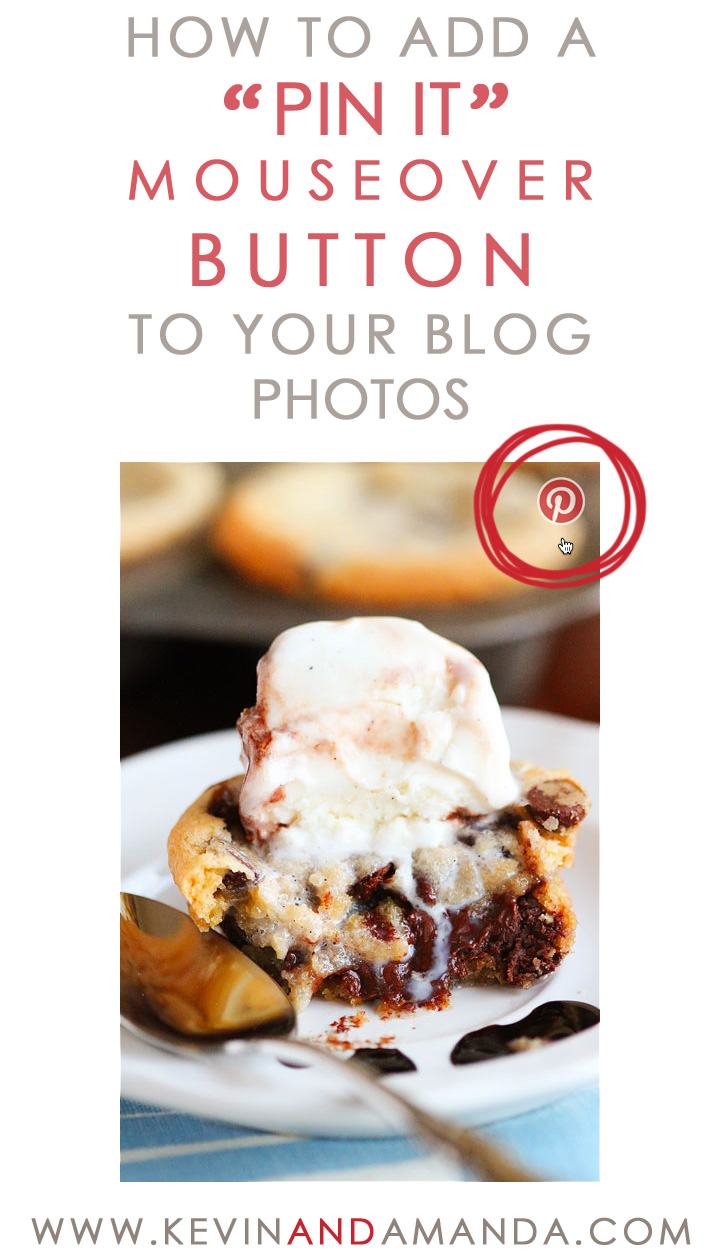
Have you noticed this trend on blogs lately? This is a new feature I’ve seen popping up everywhere. When you put your mouse over an image on the blog, a Pinterest logo pops up prompting you to “Pin” the image. At first I wasn’t sure if I loved this feature or hated it. But after giving it a chance, I’ve decided I love it. :) I don’t know about you guys, but most of the blogs I visit have SO many gorgeous photos to pin. It seems like every photo is “pin-worthy!” Sometimes I have a hard time choosing which image from a post I want for my Pin board, and by the time I finally make the decision, hit the “Pin it” bookmarklet in my toolbar at the top of the screen, and the Pinterest pop-up screen appears with all the tiny square thumbnails, I’ve forgotten which image it was that I wanted to pin – or worse, I can’t tell which image I wanted to pin because the thumbnails are too small! So this is a feature I’ve grown to immensely appreciate, since now I am able to simply pin the image I want right there from the blog post while I’m reading.
If you’ve got a blog and want to add this feature to your photos, here’s how you do it.
WordPress
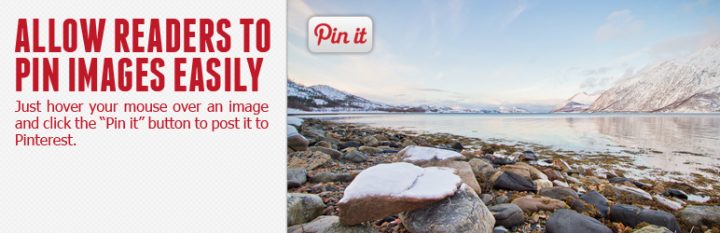
If you’ve got a self-hosted WordPress blog, you can use the Pinterest Pin It Button For Images plugin.
- Simply download the zip file from the above link, go to your WordPress Dashboard, click Plugins > Add New > Upload and upload the zip file.
- Activate the plugin, then from your WordPress Dashboard, go to Settings > Pinterest Pin It.
- Under the heading Show “Pin It” button on following pages, click All Pages. Click Save.
This plugin comes with the default “Pin It” button as seen in the image above. If you like it, that’s it!
You’re done! :)
You now have a Pin-It button that will appear when a reader puts their mouse over any image on your blog.
If consider yourself tech-savvy and you’re up for a little bit more of a challenge, you can also choose to use your own button style in just a few easy steps.
Customizing Your Button
You can make your own personalized button, or here is a link with some gorgeous, free Pinterest buttons. You’ll probably want to make sure that the button you choose has a transparent background and is saved as a PNG file, otherwise, if it has a background, it will be white on your image. Once you’ve chosen your image, here’s what you do:
- Open the pinterest-pin-it-button-for-images.zip file you downloaded.
- Drag and drop the new Pin It button into the pinterest-pin-it-button-for-images folder.
- Open the ppibfi_pinterest.css file in Notepad or Text Edit and find the following code (it’s right there at the top, very easy to find! :))
.pibfi_pinterest .xc_pin {
width: 80px; height: 50px; /* Please note that the button is 80px x 50px. If you use a different size button, change this */
background-image: url(‘ppibfi_button.png‘); background-repeat: none; /* This is the buttons image. Image can be found in the plugin folder */
It’s easy going from here. As the instructions say, if your button is a different size, change the code to your button’s width and height. Then change where it says ppibfi_button.png to the name and filetype of your image. Save the file.
If you’d like your button to be in a different position, look just underneath the previously mentioned code and find where it says
top: 5px;

margin-left: -1px;
Change these numbers to shift your button to a different position. I changed mine to top: 15px; margin-left: -15px;. You can also change top to bottom to have the button appear in the bottom corner.
Once you’re done editing, save the ppibfi_pinterest.css file, then zip up the pinterest-pin-it-button-for-images folder.
- On a Mac, you can just right-click on the folder and choose Compress.
- On Windows, I believe you can right-click on the folder and select Add to Zip, although I haven’t used a Windows computer in a good seven years, so my information might be a bit outdated. :)
Then follow the previously mentioned steps to install the plugin to WordPress, starting with Step 1.
That’s it! You should now have your own customized Pin It button that will appear whenever anyone puts their mouse over an image on your blog. :)
NOTE: If that all sounded like Greek, you can always just use the button that comes with the plugin. It looks great! :)
My Thoughts on This Plugin
- What I really like about this plugin is that if the image is a link to another page, you can still click on the image to get to the link. For example, you can click on any photo on my blog to see the camera, lens, and settings used to take that photo. Also, when I share links or lists and use an image, I will link the image as well so all you have to do is click on the image to get to the page. This plugin does not interfere with that. It will only Pin the image if you click on the actual Pinterest button in the corner of the image. Click anywhere else on the image to be taken to the link.
- When someone pins an image from your blog using this plugin, it will automatically fill in the description box with the title of your post. This can be a good and bad thing. Some bloggers (myself included) prefer to write their own description for each image, which may include hashtags or a link back to their blog. This plugin overwrites any custom description you may give your images and replaces it with simply the title of the blog post. So that may not be ideal. However, for older blog posts where you may not have set up a custom description (which is probably the majority of your blog posts, if you’ve been blogging for any length of time) this can be a great thing. It will now automatically fill in the description box with your post title. So as long as you have descriptive post titles, you’re golden!
Blogger / Blogspot

If you’ve got a Blogger or Blogspot blog, there’s a super-easy tutorial to get this working for you as well.
- Follow this tutorial at BloggerSentral.com: Pinterest Pin It Button On Image Hover.
- See this in action on my Blogger Test Blog. (Please excuse the mess! I just use this blog as a place to test out code when I’m writing tutorials for you guys. :))
What do you do if you’re not a blogger and a blog you love doesn’t have this feature?
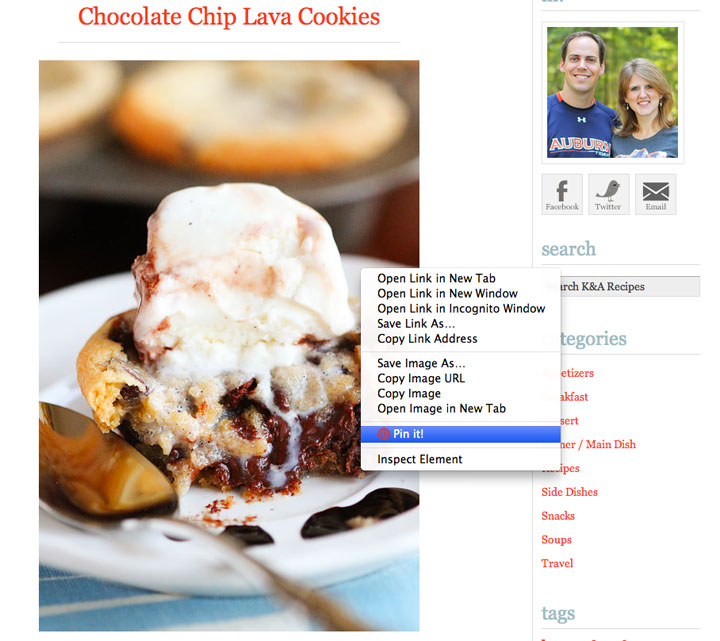
Great news! If you love this feature but visit a blog that doesn’t have it, there’s an easy solution. If you use Firefox or Chrome, you can install a plugin where all you have to do is Right-Click on any image to Pin it.
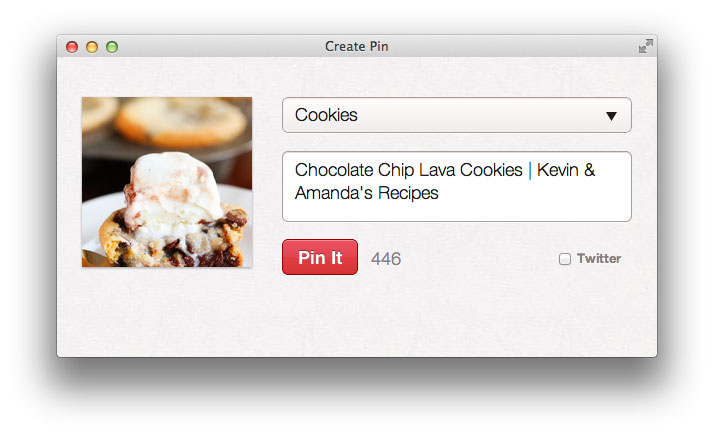
As you can see in the image above, the Chrome plugin automatically fills in the description box with the post title and the name of the blog. I love this! With the Firefox plugin, the description box is blank. Boo!
If you use Safari or Internet Explorer, I’m afraid I couldn’t find a plugin for this trick. If you know of one, please feel free to leave it in the comments! However, you can always install the Pin It toolbar button at the top of your screen.
So what do you think?
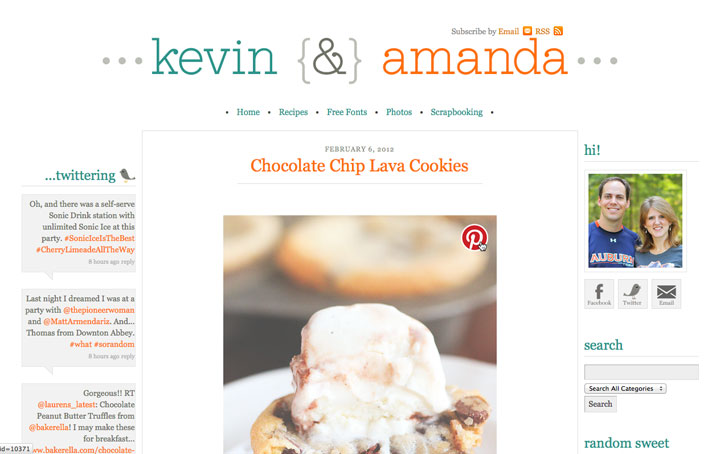
I’ve installed this plugin so you guys can see it working on my site. Feel free to pin any image from this post! I haven’t decided if I’m going to keep it yet though. What do you guys think of Pin It buttons that pop-up when you put your mouse over an image? Is it annoying and “in your face” by saying “Pin me! Pin me!”? Or is it a helpful tool that makes pinning quick and easy? What are your thoughts?
Follow Kevin and Amanda on Pinterest.

Works great, thank you!!!!
Wow, thanks, guys! that`s what I am looking for! Pinned! Pinned! Pinned! Pinned! ??????
Julie,
https://www.julieannepeters.com/
Thank you SO much for this post! I was having so many issues trying to customize plugins as a novice blogger. This was so helpful and easy to follow!
Thank you for the tutorial. However, when I pull this up on my iphone, I am unable to see the pin. Help! TIA.
Thank you so much! I have been trying out different Pinterest plugins, but never getting it quite right. This was super simple and helpful!
I followed your directions to add the PINT IT button to all pages and I clicked “save” and it won’t save for some strange reason! It changes after I hit save and that box becomes unchecked. what do I do? thank you so much! this was a great article!
Thank you so much I’ve been trying to figure out how to do this :) :) :)
Thank you. I know how to do the job now.
Thank you for the post. I know how to do the job.
Thanks so much I almost lost hope to put in the pint buttom!
Thank you! Thank you! Thank you! Adding a Pin It button to my images was at the top of my blog To Do list I created this weekend.
Hi there!
I love this plug-in–but it changes the justification of my pictures in my blog!
I like to have all of my photos centered while my text is left-justified. With this plug-in, all the photos become left-justified!
Any help you can give me I would appreciate!
Thanks!
Okay so question… I used the blogger tutorial about a year ago but noticed recently it has two “pin it” buttons showing up. I was able to remove the one but not the other. I tried going through all the code to see if I had missed some and no luck. I was going to comment on the original tutorial but he closed the comments section. Any ideas on why I am not able to get rid of it?? Any help would be oh so appreciated! Thanks!!!!
Thank you for this easy tutorial! Just read someone else’s post about the same exact plugin but they were instructing to change the code for EACH picture. This is much easier–Thank You!!
Nice article.
Thak you very much :)
Thank you for helping me accomplish my goal today in a matter of minutes. A quick google search led me to you and because I have a self hotsed word press blog it took me literally seconds to add the plug. Thank You
Any step by step process for Tumblr users? I have been wanting to add this feature to my blog but can’t find a sufficient tutorial.
Appreciate any help you can provide:)
Joanne
I really like the idea of having the pin it button on all images for easy pinning/sharing but when I installed it, some of my larger images (which had been reduced to a smaller view on the pages) were reset to their original HUGE size… Is there a workaround about that?
For now I’ve deactivated the button and left the original pin it button I had on the pages…
Thanks!
Hey, thanks! Amazingly helpful post…
Thanks for this tutorial! I’d been trying to figure this out for a few weeks and your tutorial helped me through it in just a few minutes.
So what if we don’t use wordpress? Is there a way for Blogger?
I CANNOT find the “body” tag( trying to add this to my blogger page) I am looking for! Is there a way to search for it..it’s step 1 and I can ‘t seem to find it :(
I just deleted my plugin that added the “pin it” button to the bottom of my posts. I was hoping this would work for me, but doesn’t seem to. I installed and activated it, but I don’t see the button on my images when I hover over them. Super frustrating. Any ideas?
Thanks so much!
Hello, thank you for giving clear steps on adding a hover it pinterest button to my images. I run a self hosted blog on wordpress.com and I don’t have a plug ins option on my dashboard (anywhere), I have a select few to choose from in widgets and any other items I add I use the html code and place it into a text box. Can you please guide me through steps on how I can include this Pinterest hover button on my images. Much appreciated!
Thanks for the tutorial. I am running a self-hosted blog on wordpress.com and do not have a plug-ins option on my dashboard. The widgets I can use are also limited to their selection. Hoping you can help me navigate another option to include the Pinterest hover button. Thanks!!
Thank you so much for this! I was having trouble finding how to add the pinterest pin it for images for WordPress. Was only finding blogger info. This worked great! Thank you for your help :)
Hi there!
THis was one of the easiest things I’ve been able to do! Great, simple tutorial. I just have one problem. WHen I activate it I get this message : “Your maximum image width is thought to be 1024 pixels. This might be incorrect and might affect the functionality of the Pinterest Pin It plugin. Please check the plugins settings.”
I haven’t a clue how to find out my max width! Do you know how I can find that out? Obvi Im new at this wordpress thing!
THank you!
Thanks so much – this was REALLY easy! Got my blog up and pinning in like 5 minutes! THANK YOU!!!!!
Brittnee
http://beautyproductaday.blogspot.com
I just did this and it worked! I love it! Thanks so much for the quick and easy tutorial.
Thanks a lot for the tutorial! The hover button works like magic! :)
This tutorial is exactly what I was looking for.
However, I can’t find the Plugins in my wordpress dashboard…
I love your tutorial, however, that plugin is not tested on the most recent version of WP. I was wondering if you had played with the jQuery plugin and could that one be customized? Or any new plugin you would recommend for this effect now?
Amanda,
Once again you have been super helpful. I saw this post when it first came out and I was not actively blogging. I am now and went back and used this post. I also found on their support page that you can make it so when it posts to Pinterest it will use the title of your image instead of the title of your post. Here is the link. http://wordpress.org/support/topic/display-the-title-of-the-image
Hope you find it helpful. I was able to get it to work on my site. Now I am off to figure out how to center my pinterest logo when hovering. :)
http://www.Snyderiffic.com
This tutorial was so very helpful! I have searched and searched and tried several other tutorials to no avail. Thank you!
At a blogger’s conference I attended last month, your name and blog were mentioned by one of the presenters. It seems you are quite the big deal in the blog world. :)
I have tried to do this a few times and can not get it to work… I am using a Mac and have a WP website… any suggestions? :)
Thanks :)
Like Shelby’s comment above (april 16), my ‘pin it’ button will, too, only show up if I hover the mouse over the top right corner of the image where the button shows up – is there a way to fix this? I’m not sure why that’s happening…. thanks!
For some reason, the file I downloaded is only a folder and there is no .zip file inside. Any suggestions?
UPDATE: While logged into my WordPress account, I was able to search for the plugin and get it uploaded, but I can’t find out how to get the logo on each of my images. There is no Settings/Pinterest Pin Button option or anything. I’m sort of stuck!
Great Post! I just followed your instructions, changed the icon for the one I wanted and it worked!
THANK YOU!!!
This is an awesome post! Thank you so much for the helpful tips!!! This is very useful!
http://www.buttercreambakers.com
I successfully installed this widget but have been getting complaints because it also appears over my print/pdf friendly button causing people to be directed to pinterest instead of printing or saving the recipe. How do I prevent it from appearing on tiny images like that?
Hi Erin!
You can try adding a piece of code to your print button image like this:
class=”nopin”
So right after where it says![]() Pinterest Pin It then look under Advanced > Exclude classes and confirm that nopin is there.
Pinterest Pin It then look under Advanced > Exclude classes and confirm that nopin is there.
This should make the button not appear on your print button image.
Hope this helps!
I found that code but cannot figure out where to add it for my print button, since I use a widget to form the print button as well. I tried digging through the html formatting but it’s a bit confusing haha.
Wow, thanks. Your tutorial was easy enough for this noob to understand! My nerd kids keep telling me I need to learn html – ha ha. Oh well, very thankful for people like you who can assist with these great tutorials. I even figured out how to place my own custom Pinterest button!! Come on – somebody high five me already!?! LOL.
Great! I saw Pinterest in one of my favorite blog and I was like Ghoss! this stuff is so good. Actually, I wanted to say that the P sharing icons that appears on your blog images are much better. It’s kinda stylish like your blog and I like it.
Thanks, I really appreciate…
Hey guys,
Many, many thanks for the tutorial. I am making my site Pinterest-friendly, and your tutorial has helped me in boosting my image shares on Pinterest.
I like your round Pinterest rollover button – so I use it for my image, too – check it out: http://www.noobpreneur.com
Cheers :)
I would love this feature. How would I do this for a Weebly based site?
The link for the blogspot one works great on my free blog but again using the plugin for my self hosted wordpress was a no go. Which is a same cause I like the pin it button it shows better than the only one I have found to work. Thank you so much for the link for the blogspot one!
Is there a way to make it work on a WordPress.com site? There’s no plugins section on my WordPress.com site. Thanks!
What do I think? I think I need chocolate chip lava cookies! :D
It worked! The first time!!! Thank you! laura
Very VERY nice plugin! Very nice and very light weight. Love it!! Nice work!
Thank you so much! Worked perfectly!
Hey, it’s been days and days since i’m trying to get it right on my blog images but can’t find a way :(
The thing is : I upload my blog posts images via Picasa (through a picasa plugin) and not directly via wordpress . Maybe anyone could help me with that ? I’d be soooo incredibly grateful !
here is my blog :
http://www.myordinaryoutfit.com
Xo Mandy.
Thanks for this! Super helpful.
In the end, this plugin seemed to conflict with some of my other plugins. So, I ended up using this similar one: http://wordpress.org/plugins/pin-it-button/
So far so good. Also, if the “Title” field is blank in your image info, the button won’t work. So be sure to go in and fill that out…
Thanks for the tip…so easy!! Yay! Had to tweet about this one!
Shawna
Should of known it was gonna be pretty simple. Thanks for the recommendation on a great plugin. Just installed it on my blog this morning!!
ummm i would need to use the blogger tutorial…thanks for sharing the link to bloggersentral, will try that out on mine!
Thank you so very much for this easy post. I was able to do this in a matter of moments.Awesome :-)
http://goosebumpmoments.blogspot.co.nz/
Does adding a “pin it” button only work for WordPress self-hosted blogs? Mine is not self-hosted (yet!)
Hi thanks for sharing a great post I am just feeling my way with pinterest and this plugin will be of great help. I have tried to share photos on pinterest…., really nice and i also installed extension in my browser!!
This is an awesome feature, but my question is if it’s possible to change the description of the image being pinned from just the title to something like title + link to the article. It would be awesome if you could help me with this. Thanks. :D
Thanks for the tutorial! Very useful :)
This is fantastic – I’ve been looking everywhere for this
Thanks so much for sharing :)
It works on my blog yay Lavender Collective Blog
Hi Amanda! I tried using the blogspot totorial- but my blog is just empty after I save it….
any advice?
i posted the text on top of …. not sure what I did wrong.
thanks!
How about tumblr users?
Just wanted to say thank you for sharing! Super easy to follow, and now I’ve got a super cute custom Pin It button on all of my images. Thanks! :)
Wonderful tutorial! If it wasn’t for this tutorial the plugin wouldn’t be installed as it was conflicting with a different plugin. With the editing, I was not only able to move the button, but customize the image. I will say that I backed up my original file and then edited the file directly on the server (no need to zip and reload the plugin). Thank you very much!
Does this work on Tumblr too?
Thank you so much! I have a vacation blog and pictures are the lifeblood of the blog. However, all my blog posts feature multiple images so this is a great solution to those wanting to pin single images.
Thank you so much Amanda. I have been searching for this ages ago. You are always detailed oriented which I love and truly care about sharing. Thanks again!
Thank you so much for this tutorial!! Found this link on Pintrest, of course, and thanks to this easy guide I was FINALLY able to get the button on my images!!
Thanks again!
Definitely book-marking this for when our office sets up their architectural website. I have a WordPress-hosted site. Does it work for that one too? Or just wordpress self-hosted?
Hey, I was just wondering if I want to do it on my blogger, where do I put it? Would it be possible to give the instructions then? THANKS xx
This was so helpful to me just now — thank you for writing such a clear, easy-to-follow tutorial!
I wish I could get this to work…. it finally was able to save onto my html but it still does not add the pin button anywhere even when I mouse over my photos :( Im going to sadly have to wait for blogger to add it as an easy gadget, I am so bummed everyone else had no issue….
OK – Now that is cool. I can’t believe I was able to customize mine. I don’t like the position so I have to go back and tweak the position but thank you!!!!
Found a problem. If you have images smaller and centered it moves off the image. ???
I followed the link to the blogger tutorial – I’m not an HTML gal AT ALL and I’ve got it uploaded onto my blog in less than 2 minutes. Thanks for sharing the link & the tutorial! I’ll be checking out your other blog resources.
Thanks for this great tutorial. Gonna try this for sure in my blog. Thanks again
Please, would you suggest how i can add such a button on weebly. thanks.
I second this
This is awesome, thank you. I have been looking at how to intergrate something like this for a while and this has worked perfectly. I have installed it and going to trial it to see if it helps people to PIN from my site. Thanks :-)
Great tutorial! I installed the plugin and it works great! Thanks! :)
Do you charge for adding the mouse over button? I can’t seem to get it to work for me. Thanks.
Hi! :)
Quick Q…I just installed my pin it button {AWESOME!} however it’s only grabbing the first word of my blog title instead of the entire name of the post when I go to pin it…any suggestions? My blog address is:
http://blog.clickimagery.com/
Thanks so much in advance! :)
~Amy
Thank you! Just what I was looking for. And so easy.
I really don’t like the idea of the blogger recommendation you make here because of the advertising folks are putting in their htlm along with his hover pin. It would have been better if you knew more about this to take out his ad and offer up a clean looking code to put in your html.
Fabulous tutorial! Thanks so much. :) I gave it a try, works great. Gave me an excuse to blog about it and share a link back to you!
So appreciate this!! Quick question…my button only appears when I hover over the upper right corner (where the button is located) Do you know if there’s a way to adjust the CSS to have the button appear if someone hovers anywhere on the image (it seems this is how it is working on your blog)?
Thanks so much for your help!
This is absolutely helpful post. It worked on my both websites. I love how the pin button pops up in the middle of my pix every time the cursor hovers it.
Thank you very much kevin and amanda! Cheers
http://etc.soundsfunny.ws
http://www.intheeyesofblackberry.com
Thanks for the tip and the clear tutorial. I rediscovered my inner geek again.
Thank you! The Blogger tutorial worked perfectly and I can highly recommend it to anyone. Never thought it would be so easy because normally I wouldn’t play around with html. Now I have another string to my bow.
Wow! This was so easy. I just added the pinterest mouseover button to our blog. Thank you much for this one. I’ve also tweeted to share with others. Happy Day.
Hi! This is really cool, and you do a great job of writing tutorials. :) I tried it on my Blogger blog (using the instructions linked), but I can’t get it to work. I host my images on Flickr, and use html to link to them in my posts. Do you think that’s why it doesn’t work? Thanks!
Ooh! I just got it to work! :) I had deleted the jQuery line as suggested in the instructions because I thought I already had it in my template for something else, but I tried it again with the jQuery, and now it work! Woo-Hoo! :) Thanks again!
Love this feature. What about TypePad users? Thanks for your help.
Hi. Thank you for the link to the blogger Pin it hover code. I’ve tried pasting the code exactly as given several times and it just will not work. Help.
Thank you so much for this tutorial, Amanda. It works beautifully!
I have been seeing this more and more and I am glad you posted this. I can’t wait to add it … when I finally move to a self hosted site. :)
Thanks for sharing!
Thank you so much for this tutorial!
It was beyond helpful and excited for it to work. I use wordpress and the plug-in has been activated, however, is this plug-in retroactive? A pin-it button does not appear on any of my photos from previous posts before activating the plug-in. Are those posts hopeless?!
I tried doing this several times and I just can’t get it to work!! I’m so bummed..help?
It installed fine, I can see it in the settings area, and I checked the specified options and saved…nothing.
Hi! Do you know an option for wordpress.com for installing this option? WordPress.com doesn’t have the ‘plugins’ tab.
Kind regards,
Brooke
Amanda thanks for the code, I will give it to my programmers and see if I can add it. I can do it myself but because of the nature of my platform (it’s not opensource) I have to check about all codes, particularly javascript, before I can add it. Appreciate the reply, thanks very much.
Guys I have a site that doesn’t fit any of the descriptions you’ve outlined above, but I can do it via an image and link below my images. Do you know what the URL link or code is if I just wanted to create a link to it? My site has over 5000 food and cooking images I’d like to add the pin it image and link to under the image.
Would something like this work? Add a “Pin It” Button to Your Posts
Worked like a charm thank you for the tutorial. Its Awesome!
This worked perfectly for me on Blogger! Thanks so much!!
Hi Amanda!
Thanks so much for this tutorial! I have a question though… for some reason, the button appears when I hover over my images, but when I click on the button, it just opens the image on its attachment page (like in the url, there’s the /content-upload/…etc bit). I’m not sure if it’s just me, or my browser (Chrome). I’m currently testing it on this page: http://eat-spin-run-repeat.com/2013/03/21/what-to-feed-a-dragon/ and that seems to be the result every time. I’ve tried re-installing the plugin and am wondering if it’s just not compatible with my theme (Switchblade by WP Scientist). Any ideas? Thanks!
It works for me, you have to click on the actual “Pin It” button that appears, not just the image itself :)
Hope this helps!
Worked flawlessly the first time. Perfect instructions for this week long WP user :) Thanks!!
Thank you. The links for the blogger platform were so helpful!
Hi.. I have a foodblog which is not a self hosted one. Will I be able to use the ‘pin it’ button for my images?
Hey Amanda (or anyone else) , could you please tell me how to do this on a WordPress hosted blog… that is, as I said before, not a Self hosted one.
This was really helpful! Thanks for sharing!
Hy Amanda,
thank yuo for you tips regardig the pin botton.
As you can see I insert it on my blog.
Could you please be so kind helping me with few things:
* How can I write my personal description for each image on my blog?
* I want the pin botton not appear/disappear on each image, but I want it just to stay. How can I do?
Sorry for my english :)
Thank you
Love from Capri Island (Italy)
THANK YOU!!!!!!
I was so looking for this, especially since Pinterest changed something on the Pin it button builder and it didn’t work at all lately! Now it does and even with the mouse over effect!!! Thanks for your awesome description!
(Now I only have to find or make a button that suits my blog!)
Greets, Janina
Love this tutorial – and so easy to follow too! I have linked back to this article from my blog post on using pinterest to find tips on prettying up your blog. Hope that’s ok :-)
Thank you so much for your terrific tutorial! I greatly appreciated being able to follow it through step by step! Much appreciated!
Hi I tried to upload it to my wordpress.org, but I am getting this message: “your maximum image width is thought to be 1024 pixels. This might be incorrect and might affect the functionality of the Pinterest Pin It plugin. Please check the plugins settings.” I tried to adjust my image settings in media, but it is just not working. Any ideas why?
Thank you!
Wow- thanks so much! Just added it but am getting the following error message: Your maximum image width is thought to be 1024 pixels. This might be incorrect and might affect the functionality of the Pinterest Pin It plugin. Please check the plugins settings.
I am not sure how to fix it, I did choose to show on ‘all pages’ but don’t see the icon on my images, am I doing something wrong?
Thanks for your help!
Olivia
Hi Amanda! This is a great post and I am glad so many found it useful! However, is it possible to add the hover button on a wordpress.com site? I noticed a few other had the same question but I was unable to find an answer. Any help would be greatly appreciated! Thanks!
Thanks so much! I followed your directions exactly and it worked like a charm! I never unzipped the file, so I did not have to recompress it before uploading it to WordPress. Thanks so much for taking time to share this!
Very helpful post. I tried once but the alignment did not come correctly. As you said, I should tweak the css a little to suit my needs. By the way, what is the revenue model of Pinterest?
Thanks very very much. I am a complete novice in all things technical, and failed at four other attempts to add a pinterest button. Now I feel so successful, I’m off to go write some code. Not really, I’m off to make lunch, but thanks!
wow it works, thanks for such a nice idea, Bravo.
Thanks for this, Amanda. The Pin It image plugin was giving me all sorts of hassle and just wouldn’t work. When I deleted it and followed your instructions, it worked like a charm! :) Thank you!!
Thank you for the pin it button tutorial. I have a question about it, though. I got this message ~Your maximum image width is thought to be 1024 pixels. This might be incorrect and might affect the functionality of the Pinterest Pin It plugin. Please check the plugins settings. ~ and I’m not sure what I need to do to fix it. I have a Mac computer {and I’m just a few months new to blogging}. Any help you can give me will surely be appreciated.
Did you figure it out, Lori? I am having the same problem and the button won’t show up!
No Allyson. I never did figure it out and I think the plugin kind of messed up my blog so I just deleted it for now. I do want to have a mouse-over pin it button, though, so hopefully I’ll get it worked out.
Yeah! It took awhile to get this to work, but I got it! Thanks for all the great information you provided at Build Your Blog. Loved meeting you!
So glad it worked! So great meeting you at the conference. Be in touch!
Thank you! Very helpful!! I love it!
Check out my blog where I used the code! zoeburtondesign.com
I’m in the process of setting up a new blog on wordpress (self hosted) and I installed this plugin, activated it, updated my app preferences (pixel size, & pin on all pages) but the plugin isn’t working. Any ideas why? Before I downloaded it, the plugin said it hasn’t been tested with the most recent version of wordpress – could this be why?
Mine won’t work, either, Andrea. I keep trying to check the box for “All Pages” and it unchecks the box once I hit save. Not sure why it won’t work. :(
Andrea – I got it to work finally by checking everything EXCEPT All Pages. For some reason it won’t let you check that box, but it lets you check the other boxes. I tried it and looked at a post and the pin it buttons showed up on all the pictures. Hope that helps!
Allison
Awesome!! Thanks so much for sharing, worked perfect!
Fotini
Thank you so much for this! I had a pin-it button plug-in on my site, but it was below the images and always included smiley faces and things, messing up my formatting. I prefer this hover by a ton. My only question is that with the other plug-in, I had the option of a counter that would let me know how many times that post had been pinned. Do you know of a counter that works with this plug-in? Or do you use something else to track pins? Or do you not worry about tracking the pins?
YAY! This is awesome and I actually installed it and it worked the first time. You guys are so awesome for sharing such amazing tutes on your site:)
One weird thing….ever since I installed it any images in my posts that I added with html are showing up vertically, like in a long list, instead of in a row and centered as they were appearing prior to this installation.
Do you think it had something to do with this installation or have I mucked it up somewhere else?
Thanks a bunch, Kim
Thank you! Thank you! Great tutorial! I have my ‘pin it’ button on all my images now….yay!!
Hi! Thanks for this post. I host a blog on WordPress.com and can’t find the code for the pinterest hover button. Can you help me with that? So sorry if you’ve already answered that question.
Awesome! Very thorough article….
I love the idea of a mouse-over pinterest pin–anything that gets more links leading back to your blog out there is a great thing for bloggers!
This is a great tips indeed, today I was looking for “how to add pin it button on images”, then I got this valuable stuff and believe me this worked in seconds for me, thanks a lot.
This is a great tip! I’ve noticed a few blogs with this feature recently and was wondering how to do it. Now if I can just get my sorry butt off of Pinterest long enough to install it on my blog…..lol!
it keeps saying it failed to download
Love to know if you have something that works with Typepad. I love this idea and want to use it but have not had any luck finding a way on typepad. Any help?
M.E.
You.Are.Awesome.
Can I just tell you how much I LOVE that you gave the blogger tutorial as well?!? There are still some of us out here…and sometimes I feel like I can’t do all of the stuff like the cool kids do.
*MWAH*
Hi,
Thank you so much for this post. I was looking for this exact plugin! I appreciate the detailed explanation. I like your site too!
Best,
Bob
holy yes yes!!! I could kiss you. I didn’t know it was that easy. I was expecting a long, drawn out process!
Thank you so much for posting things like this for newbies like myself. I’m currently using blogger or blogspot to host my blog. I don’t do any advertising or anything like that just seller showcases some recipes and other randomness. I actually have another question for you and maybe you can write a separate post about it. Why did you decide to go with your current setup? This is your own custom made design right? I would like to build my blog more and have increased views but want a more professional layout plus there are some bugs with the blogger design template series which is what I’m using. For instance I can’t pin my blog posts at all. Doesn’t work. If you can respond in any way shape or form that would be greatly appreciated. Love your blog! Sincerely, Liz
Thank you! It worked for my wp self hosted blog and I just want to give you a big hug. :) You are amazing!
Do you have the pin it code for a non-blogger or non-wordpress blog? I have a blog that allows me to add code to the bottom of a blog post, and I have a pin it button at the bottom of my post but not on the individual images. I am trying to get a pin it button for each individual image as you have above. Thanks,
Shaun
Awesome!! My Pin it button had stopped working and that’s kinda a big deal for a DIY blog!! UGH!! but your tutorial was fast, easy and it WORKS!! Thanks so much for sharing your wisdom!!
Hugs & Smiles, T
Can you explain me this? I don’t know what number to choose: The plugin needs to know the width of the content area in pixels to place the button (only numbers).
That means how wide your pictures can be. For example, you pictures can be 800px wide. If they were any bigger, they would be too big for your blog. So you would use 800px. Hope this helps!
I’m assuming it won’t work for a WordPress-hosted blog, correct???
Thanks for the tutorial! I’m trying to get the code to work on a Blogger blog, with no luck :( I get the hover image but when I go to Pin it, the picture and text box is blank…any thoughts at all?
I personally quite like this function – makes it quick and easy to pin an image from a blog/website and would love to be able to implement it properly!
Love your tutorials, they’re always very well laid out and easy to follow.
Your images from Flickr are blocked from Pinterest. Try changing your settings in Flickr to allow your photos to be pinned. Hope this helps! :) I like the custom Pin It button you are using! :)
Thanks Amanda…I’ll do that for Flickr, although, still have the same problem with the ones hosted on Blogger too :(
I hate keeping a non-working script there, as it puts people off :( But I’m hoping to find a solution soon!!
this is a great tutorial, however I use Typepad’s blogging platform. Do you have any tips on incorporating it on other blog formats other than WordPress and Blogger? Thanks. :)
Thank you so much Amanda!!! I love it. I use my ipad to pin more times than not, and I recently found instructions how to add a pin it button (bookmark) for easy pinning. I bet there’s a better way, but this one worked beautifully for me so thought I’d share.
~Caroline
http://heresthethingblog.com/2012/03/19/add-pin-button-ipad/
Wow. Thank you for making this easy to understand and simple to follow. Appreciate it!
Quick question – I installed this the other night and I’m loving it! My question is that when I mouseover my photos seem to “scootch” over a tiny bit. It does it on all the photos, and the photo stay scootched over after you move the mouse. It’s not that big of a deal it’s just kind of weird! Was wondering if you’d seen anything like this? Or know how to stop it?
THANKS!
Yay! Thank you guys, thank you thank you thank you!!! So well explaind and so easy to do. Can you do more step by step tutorials like that? I like that pinterest plugin very much.Thank you again x
May I ask?Is there an easy way of explaining how to link a download file from my computer to my wordpress blog? I’m so lost in the whole / put it in FTP file, make it public, don’t put it in the subfolder, is there an easier way to let my customers download a file (jpg) from my desktop? Sorry to bother you but I loved the easy step by step explanation from you guys and it worked and it waeasy to find. BRAVOOOOOO!!!Thx Cristina
I love this feature…I used to write a list of what recipes I saw on what site to go back to but now with Pintrest I don’t have to do that, I pin tons of stuff and I like that the title and blogger name is usually on the pin, if it isn’t I will type it in. I like being able to just click on the picture where I am and pin stuff instead of searching thru a page of thumbnails! Thank you for your very educational and entertaining blog :)
Hi there! I have been trying to do this for the last week, but finally found out that (SO unfortunately!) this only works for WordPress.ORG sites. I have WordPress.COM, and it’s a no go there. I’ve had the .com version for several years, so there’s no switching now. :-( It’s great that you offered up this tutorial, though. I’m sure it will be helpful to a LOT of people!!! Happy New Year!
Very cool. Not sure if I’ll use it, but I like having the option. :)
Love this! I have had the plug in for awhile but didn’t know how to customize it! Thank you!
For some reason, this didn’t work for me. Probably a theme thing or one of my other plug-in’s. I will spend more time with it and see why it isn’t working for me.
I was also wondering what you are doing to get the camera info on your pics. Is that a plugin?
Thanks again, Amanda, for all the info.
i can not seem to get it to work either
THANK YOU!!! Love how easy this was! And, it puts the right words in as the photo’s title. Installed and running in less than 5 min. Thanks for sharing.
Ok, so I have it on my blog also, but I’m not sure that I like it. There’s something … off. Maybe I just don’t like the icon I’m using, or I need to change the colours or the size or something. Huh. I like it on yours, though. Convenient and rather darling!
Amanda!
Thank you so much for this post! You have inspired me so much! At times when I felt like giving up on my blog, your posts have kept me going. WordPress.org is so foreign to me, even the tutorials are difficult to understand, but you explain it so perfectly! When you are in Southern California next, I’d love to buy you a cup of coffee and a cupcake and say Thank You in person!
Looking forward to your next post.
Mary
Awesome, easy to follow instructions. I just added to my blog and wrote a post linking to your post for instructions.
Thanks!
This is really useful, thank you so much! I thought it would be much harder!
All the best!
Noelle
Thank you so much for showing us this!!! I’m always looking for ways to make my blog better. I enjoy getting to see all of your pictures, recipes and just getting to know you (or at least that is how I feel! Thanks for everything I continue to point people to your blog!
Thank you SO MUCH, Amanda, for all of your tutorials! I especially enjoy your photography and Lightroom tips–especially regarding white balance. (I need that software, pronto!) This Pinterest tutorial is just what I need and you have saved me considerable time from doing all the research. Thanks muches! xoxo
Oh my goodness!!! THANK YOU for this!!! I have been searching high and low for a tutorial like this and I couldn’t find a thing. I was starting to lose hope and happened to stumble upon this via Pinterest tonight. I just installed it – so easy!! THANK YOU!
Thank you for this tutorial. Can’t wait to give it a try :)
I like the Pin It pop-up – I would use that
Thanks for this post! I’ve meaning to do this to my blog, your tutorial was really helpful. Thanks again!
Thank you for sharing these tutorials. Super easy!
I’ve been following your posts for a long time now and I always aspired to have a blog like yours!
I’ve tried desperately and just really feel that I am struggling with content, photos, and getting recognized. I wonder if you could share your story of where you started with blogging and how you got where you are now. What clubs you are part of to have found so many wonderful friends along your journey.
Thank you for the little joy you bring to me every time you post!
Do you think this will work on wordpress.com blogs, or only .org ones? I really just need to make the switch over to .org…
This post is so helpful! I’m hoping to do this to my blog this afternoon. I really appreciate your photo and blog tutorials! Please keep it coming!!
thanks so much, will try this today- also is it possible for you to get a practice blogger account and show us how to do it over there too? thanks a bunch!!!!!!
Blogspot and Blogger are the same thing, so the Blogspot tutorial about will work for Blogger. Hope this helps! :)
got it- I did not see that far down and thought you only did it on wordpress- thanks-saved me some googling!
Great tutorial! Right now I manually add a pin it button under each image and it takes a lot of work to add url/image/text, but it has been helping to convert into pins. This also visually looks so much prettier!
THX Amanda, I’d been coveting that feature for a while but hadn’t had time to investigate which plug-in made it happen. You just saved me a few hours and for that, I’ll buy you a chocolate chip cookie.
It looks great Heidi!! :)
Thank you for such an awesome (and easy to follow) tutorial! I can’t wait to add it to my blog. :)
I love your tutorials, I always get so excited whenever I see one!! Great job and can’t wait to post something ‘pin’ worthy. Thank you.
Thank you sooooo much for this! I have been trying to figure it out for a while now.
<3__Jessica
As a beauty blogger, I can’t thank you enough for this! <3
Amazingly helpful post… I tried to install it but was unable. But am going to keep trying! I love how you have an option for everyone! :)
That is a pretty cool feature Amanda. Thanks for sharing!
Thanks Amanda! I just installed this on my blog. Great tip! :)
Awesome! Thanks so much for sharing. Doing this today!
Hey, thanks! Just did the blogspot version and it works, woo hoo!
Looks great!! :)
oh Amanda you are just simply awesome. the end.
I think I like it , Amanda. Folks are kinda lazy, at times – myself included. It just seems easier to pin directly from the pic and you are pinning the photo that you want to pin without having to choose from ALL of the photo’s on the page.
Unfortunately, it must be flash based so doesn’t work on my iPad. I would guess that anyone with a tablet that uses flash would be able to see it put not sure since no tablet uses an actual mouse. I also don’t see the camera settings because of no mouse ability.
Just curious, are you using WordPress for your site? I really enjoy your site, especially the photography posts. I have found them very helpful. Thanks.
It’s not flash-based, but it doesn’t work on the iPad because there is no mouse to mouseover. :) You don’t need a mouse for the camera settings feature though, just click on the image and it will open the settings in a new page. There are no photos to test it out in this post, but you try it out on these photos :)
http://www.kevinandamanda.com/house-and-home/house-and-home-shopping-fun.html
I used WordPress! :)
Thanks so much for the tutorial. I’m still trying to decide if I like it too but good to know if I wanna jump on board I have a reliable resource to go to, as usual! ;-)