

This tutorial shows you How to Make a Custom Blog Background! Check out my useful guide on how to create the awesome background you’ve always wanted!
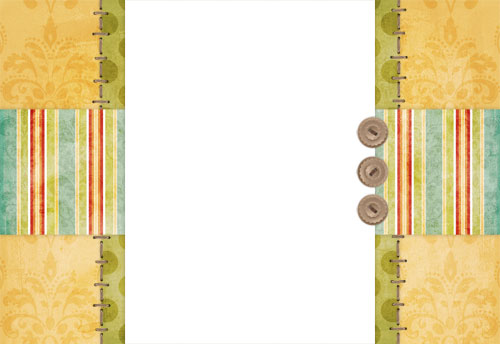
How to Create Your Own Blog Background
As you may have noticed from my constantly changing blog themes, I’m a background making maniac. Like to hear how I do it?
I don’t want to do all the work, I just wanna download the background!!
{ get it here }
I took one look at the tutorial and there’s no way I’m gonna read all that! Just gimme the template, I’ll figure it out myself!
{ download the full PSD file with all the layers }
Now if you’re brave enough…
Things to Note
Stuff to know – This tutorial was written using Photoshop CS3 on Mac OSX. Things might be slightly different if you’re using Windows or a different version of Photoshop, but hopefully you’ll still be able to follow along. ;) Also, any time I refer to shortcuts, I will probably say something like CTRL-C (copy) or CTRL-V (paste). On Mac, use CMD (or the apple key) instead of CTRL. Even though I use a Mac now, I still say CTRL because I am just so used to Windows and I just recently switched. :)
In this tutorial, I use rulers and guides. I just found out that Photoshop Elements does not support rulers and guides. If you’d still like to try making a background, but don’t have a full copy of Photoshop, I would suggest using The Gimp. The Gimp is a free download that is very similar to photoshop. You can use layers, guides and rulers in the Gimp. Setting the guide is a little different, you don’t go to View > New Guide. All you have to do is open up your document, and on the side and top you will see the rulers. Click on the ruler and start dragging over to your document. This will make a guide. You’ll have to manually drag it over until it gets to 400 or 1200 or where ever you want it to go, but at least it works and you’ll have the guides!! :) I love the Gimp, it’s a great, free alternative to Photoshop. And I love free. :D
But enough about that.
This tutorial uses my Spring Mini Kit Freebie.
Blog Background Design Tutorial


{ click on any image to see a larger version }
Go to File > New to create a new document and set your width at 1600 pixels and your height at 1100 pixels. Make sure the Background Contents is set to Transparent.

Now before we get started, you probably want to check and make sure your rulers are set to pixels instead of inches. Go to Preferences (on Windows it may be Options?) then Units and Rulers and make sure Rulers is set to pixels.
So, now we have a nice big blank canvas. The first thing we’re going to do is set up some guides for the part that will be behind the actual blog. I like to make this space 800 pixels wide, it’s a good size and works well with most blog themes, especially the Blogger Minima theme.

Go to View > New Guide and enter a vertical guide at 400 px.

Then do that again and set a vertical guide at 1200 px.

This is what it looks like so far…

Now using the Rectangular Marquee Tool, select the entire area inside the new guides you just made.

Right click in the middle of the selection and click on Fill from the menu that pops up.

For the Contents, use White.
Now, if you prefer, you could fill that area with a patterned paper or another color, but I like white. It’s nice and easy on the eyes when reading blogs. :D
But we do need a little decoration for the sides. So let’s open up the yellow damask paper from the kevinandamanda Spring Mini kit.
First thing we need to do is resize it for the web.

Go to Image > Image Size…

…and change the width and height to 1600 pixels. Hit CTRL-A to select the entire yellow damask paper and CTRL-C to copy it. Go over to the blank blog background document and hit CTRL-V to paste the yellow paper.

It will cover up the white background you just made, but if you look over in your Layers palette you should see the yellow layer and the white background layer. Just click and drag the yellow layer to go under the white layer. (if you don’t see the Layers Palette, look up in the menu bar where it says Windows and make sure Layers is checked)

That was fun, let’s do more! :)

Open up the green dots paper from the same kit. This time we’re going to resize it to 1100 px. CTRL-A to select the green paper, CTRL-C to copy, then come over to the blog background. If you look in the layers palette and make sure the yellow layer is selected, when you paste the green paper, it will paste it right on top of the yellow paper, right where we want it to be.

As it is right now, it’s a little too wide. We need to cut some off the sides. You could just take the selection tool and “eyeball it”, that is, select what you wanted to cut off and the hit Delete to delete it. But I’m kind of a party pooper and like things to be exact. And even.
So let’s set up some guides. I love using guides. Go again to View > New Guide and set a guide at 325 and then another one at 1275. For you math majors out there, that’s 75 pixels away from where we did our first guides. 72 pixels looks roughly about 1″ on most screens. In my experience. That was just for free.
So now we have our guides, and we can select the green paper that’s on the outside of the guides and delete it. I love how the selection tool snaps to the guides. If that ever gets annoying, you can easily turn it off and on by going to View and either checking or unchecking where it says Snap.
We can’t stop now, we’re almost done. Let’s put some stripey paper horizontally behind the green paper. And because I like to be all orderly, and exact and type-A, we’ll set up our guides first.

This time, when you’re setting up your guides, make sure Horizontal is checked! Go to View > New Guide and set a horizontal guide at 350 and 750.

So now we have a horizontal bar right in the middle of our blog background that’s 400 pixels tall. Let’s fill it with the stripey damask paper from the Spring kit. Open it up and resize it to 800 pixels wide (and high too, for that matter). Then you know the drill. Select all (CTRL-A) and copy (CTRL-C).
Over on our blog background, make sure the top (white background) layer is selected in your layers palette, then CTRL-V to paste the striped paper. It’ll paste it on top of the white paper (unlike what’s pictured.. Sorry, I must’ve been day dreaming at this point cause the layer order of the papers is a little funky for the next couple of pics, but try and stay with me here). Drag it over to the left, hit CTRL-J to duplicate it, and drag the duplicate over to the right.

Now if you look over in your layers palette, you should see these two layers. I like to go ahead and merge them right now. Makes it easier.
Now that they’re merged, drag that layer under the white background, but over the green paper.

Make sure the striped paper layer is still highlighted, the use the selection tool and select any paper that is outside of the guides. And delete it.

Yay, I finally got my act together and the layers in the right order.
Cool! That’s all for the paper, now for the embellishments…. Let’s open up the light brown stitches from my kit. Yes, were going to resize these too. I use stitches a lot on blog backgrounds, and I always like to set the longest side (in this case, the height) to 1200. Technically, we only need it to be 1100, cause that’s how tall our background is, but I like to give myself a little extra room to work with. And it makes it look like it’s stitched off the page. So that’s kinda cool. :)
So resize, select all, copy and paste the stitches onto our blog background. You’re getting to be a pro at this. Can you recite all the shortcuts for me right now? Oh, and make sure the white paper layer is highlighted when you paste, or else it’ll paste it behind it and then you won’t be able to see it. But if you do that, you could just press CTRL-T and that would select it for you so you could move it. Just in case.

Drag the stitches over to the left side of the green paper. It should snap into place. Arrange the layers in the layers palette so the stitches layer is just above the green paper layer. And below everything else. Hit CTRL-J to duplicate the stitches and drag the duplicate over to the right. Now just for kicks, I always like to hit CTRL-T to select the duplicated stitches, then right click on it and go to Flip Vertical. This just flips the stitches so they don’t look exactly like the ones on the left do. Yeah, I’m a maniac like that.

Look how awesome our background is looking!! Now, I want to add some stitched buttons to the right side of the background. But since I was a loser and only gave ya’ll plain buttons in my kit, I’ll just have to show you how to make your own. You already have all the tools you need right there in the kit.

First, let’s open up the light brown button and resize it a bit… 200 pixels for the width/height.

Now, let’s open up the brown stitches, and grab one… Select a single stitch, and copy and paste it over on the button.

Hit CTRL-T to put a transform box around the stitch. Rotate and resize the stitch until it looks right to you.

After you resize it, click the check mark up in the top tool bar to “set” it. You may need to move it around a bit to get it just right, and you might need to turn off Snap for this. Just go to View > Snap to turn it on and off.

Now. CTRL-A to select the button, but this time, instead of CTRL-C to copy it, we need to go to Edit and click on Copy Merged. This will ensure that we copy both the button and the stitch. But if you don’t believe me, you can do CTRL-C and try to paste it and see what happens. I always forget and do that anyway. Every. Single. Time. But that’s another story for another post!

So copy merged, then paste it onto the blog background.

Even though we resized the button earlier, it’s still too big! hit CTRL-T to bring up the transform box, and look up in the top toolbar. Set the W and H (that’s width and height for the newbies) to 50%. Click the checkmark to the right and that should be juuuust right. Now we need 2 more buttons, so just hit CTRL-J twice and it’ll make 2 more buttons magically appear. Drag and arrange them over on the right side of the blog.

After you get them where you want, you can hit CTRL-T to bring up the transform box and you can rotate the buttons in different directions. Just hold the mouse anywhere outside the box and you should see a funky looking rounded-corner shaped pointer appear. That’s your cue to click and rotate as desired.

Our background is looking awesome! There’s just one more thing I want to do to give it that 3 dimensional look. But first, if those guides are getting in your way, just hit CTRL-; (yes, that’s a semicolon) to hide them. If you want to see the again, just hit CTRL-; again.

So. 3D. In the layers palette, double-click on white background layer. That will bring up the Layer Style box. On the left, click where it says Drop Shadow. Here’s the settings I normally use, but you can play around with them to see what looks best:
Opacity: 25%
Angle: 120
Distance: 0 px
Spread: 0 px
Size: 15 px
If you have a favorite shadow setting you like best, please feel free to share it with me. I’m constantly stressing over realistic drop shadows.

Now, the cool thing is that once you’ve set that drop shadow, you can just right click on that layer in the layers palette and click Copy Layer Style.

Then you can paste it on all the other layers! I pasted it everything except the stitches and the yellow paper.

C’est parfait!!! Now, I like to save one copy with all the layers intact as a PSD file. Just as a template in case I want to do something similar with different papers sometime.

For the web version, I go to File > Save for web and devices and save it as a JPG, quality High.
How to Install Your New Background!
First you’ll need to upload your background somewhere, like Photobucket. Even if you don’t make your own and just use mine, please save it and upload it somewhere first and don’t link directly to my background. It’ll use up my bandwidth and make my page slow for everyone and then I may have to spend time figuring out how to block hotlinking when I could be making more totally awesome papers and backgrounds. But enough about that.
Oh one quick thing about Photobucket. When you’re uploading the background, make sure it says something like this:

Cause if it says something like this, it’ll shrink it when it uploads and then it’ll be too small to use.

Install a Scrapbook Blog Background on Blogger:
Go to your Dashboard > Layout > Edit HTML.
Look in alllll that code for something that looks like this (don’t worry, it should be close to the top):
body {
background:$bgcolor;
And change it to something that looks like this:
body {
background: url(http://www.photobucket.com/background.jpg) no-repeat center fixed #FFFFFF;
Where http://www.photobucket.com/background.jpg is the direct link to the image.
check it out… here’s what the background looks like on a Blogger blog using the Minima theme.
Install a Scrapbook Blog Background on WordPress:
Ok, now this is going to be hard, because every single WordPress theme is different. And on some of them it may not even work at all. But basically, you’re going to do the same thing. In your WordPress, Dashboard, find your theme editor. Look at the Stylesheet.css file. Look in all that code. Near the top, there should be something like this:
body {
background: some stuff here ;
“background” may not be right underneath where it says body, but hopefully it’ll be close. And it may not even say background at all. If it doesn’t, you can just add it. It’ll be okay. Anyway, whatever it has for background, just delete it. There may even be lots of different things that say background like…
background-color
background-attachment
background-repeat
whatever. Delete it all.
Replace it with this:
background: url(http://www.photobucket.com/background.jpg) no-repeat center fixed #FFFFFF;
Where http://www.photobucket.com/background.jpg is the direct link to the image.
Whew! Did anyone actually make it all the way through? :D
If you have any questions, I’ll try to answer them in the comments!
Look for my replies with the red background to see if your question has been answered. :)
If you make a background using this tutorial I wanna see it!!! :D Leave me a link to your blog in the comments! :)
GOOD LUCK!!! :)


Hi I have always done my blog the way you are saying to, but since blogger changed its format a few years back, I don’t know how to change it. In the html I can’t find the body background url…can you help?
Hello! I am a little frustrated — I hope you can help! I have tried for days to get the right resolution to make a background. 1600 is too wide, as well as 1400, and 1200 is not wide enough! I’m at my wit’s end! I finally just gave up and used a blogger template. Can you perhaps give me some pointers??
Thank you so much for this tutorial! I am not sure it worked, but I had so much fun playing around with it. I have been trying to make my blog unique and just found out about digital scrapbooking. And new to GIMP/photo bucket! This tutorial really really helped me understand what to do! Thank you so much!
Hi Amanda,
I still have a white margin on the sides of my blog. Can you help me out? Thanks!
My blog is tschetters.blogspot.com.
Thank you so much for making this tutorial ^^ I just wanted the sizes but you made me inspired :3
Hi! I cant believe people do all THAT and for FREE!! , I was reading the thing and I was lost and kinda stuck hehe ^.^
But thanks anyway , now we could appreciate the hard work people do for blogs!
-KO-
So I was able to create a practice background using some freebie digi papers I had from a long time ago. Your tutorial for this part of the process is AWESOME! I have CS5, and this was my first real project using it. You made it so much easier!
The problem now becomes uploading it. Photobucket must not offer the 1 mg option any more. I can only resize by pixels. I’ve tried every size imaginable, including the 1800 that Blogger now recommends. If and when the background I created comes up, it is only a small rectangle above the top of the title of the only post I have on a practice blog. I also tried the variations on code that have been suggested above with no luck, including the “add a gadget” which is what I used before for some other additions to my main blog. I even tried reconfiguring the practice blog to “classic”, but there are no options for which template to use. All to no avail.
Any advice or suggestions would be greatly appreciated, and thanks for getting us all started in the right direction!
***UPDATE***
So I tried using ImageShack vs. Photobucket. Then I had to play with the size. I used “1280×1024(19-inch monitor)”, which worked best for my blog.
Also, on this blog:
http://easycustomblogs.blogspot.com/2009/07/create-your-own-background.html
you can get the code you need to use in the “Add a Gadget” box. From your dashboard, select layout, then “add a gadget”. Select HTML, then add the code to your box. No need for a title. Mine looks like this:
body {background-image: url(http://img40.imageshack.us/img40/8308/bluefloralbackgroundtes.jpg); background-position: center; background-repeat: no repeat; background-attachment: fixed; }
Thanks again, Amanda, for the inspiration and directions to get started on this! I am so excited to be able to make my own blog design! I’ll be updating my blog this afternoon, and will be back to post the url so you can see it.
Sorry – correct code was:
body {background-image: url(URL for Your Photo Here); background-position: center; background-repeat: no repeat; background-attachment: fixed; }
hello, i am trying to recreate the background thing but with my own graphics and such, that schould not be a problem as long as i stay with the size you gave us for width, hight and placement… right? than i started uploading it to photobucket, it didn’t ask me what size to upload it. i implemanted it into my blogger html but it turns out to small…… what ever i do it still is to small… making the graphic bigger? nothing happends…. i can not see what i did wrong, i absolutely followed your tutorial on this…can you tell me what i am doing wrong perhaps? thanks in advance
Hi Amanda, I tried following your tutorial but it did not work for me. I was using different type of scrapbook paper. I can create it but when I upload it to my blog it seems to be too small it does not fit. I uploaded my image to picasa and did not see the option that you mentioned to change the size. Any ideas or suggestions on how I can get this to work.
this is by far the best tutorial i’ve found! thanks! everything else worked for me but i still have a pretty big bar on each side of the background. i used photobucket + elected “Best possible quality (while staying 1mb or less)” as this was the only other option. what am i doing wrong?
thanks!!
It was so much fun to use this tutorial! I used your stitches to make a post divider and your paper as a background. I also used this tutorial to redo our adoption blog. Thanks so very much for posting this!
Alice
oops forgot the blog address so you could see it.
http://joytransferred.blogspot.com/
I sorta kinda used your tutorial to create my blog layout! I don’t have PS, but I used Pixlr.com and created a blog layout! You helped me tremendously, even if everything doesn’t translate correctly from PS to Pixlr! I’m pretty happy with my end result…especially for my first layout! Thanks again!
xo,
A
its an adorable design and i love it… So in these same steps can i make the notebook page template with doodle brushes??? i would love to see that tutorial.
Oh my gosh, can I just say how much I love you!?! I can’t even thank you enough for this tutorial! I thought I had COMPLETELY ruined my blog…you saved me! I love having a blog background that nobody else has, ya know? THANK YOU, THANK YOU, THANK YOOOOU! If you want to see what I did (thanks ENTIRELY to you!) you can find it at NatSprat.blogspot.com!
Hi Amanda,
I made a blog background by following your instructions. After I uploaded it to photobucket it didn’t say anything about the size. So I continued on and when I tried it on my test blog it looked small and shrunken, by this time I had run out of patience to do anything else with it so I tried to put it up again, but this time it didn’t even show up. I tried to upload it on Flickr thinking it was a problem with it getting shrunk but the same thing happened. I would appreciate it very much if you could help me out! Thanks so much
God Bless, Bekah.
I am SO sorry if someone already asked you this! I have noticed when I try to get blog backgrounds anywhere on the internet, lots of them have white in between the two colored sections, is there a way you can put a different design in the middle to make it a little less simple? I am also sorry if you answered that in this post ( i got lazy and didn’t read some of it) :)
Hello there! Wow! This was awesome and all pretty easy (boy am I surprised! LOL!) However a couple hours later (no joke) I can’t seem to get this onto the edited HTML. I wonder if I am missing the correct place? Anyways I could email you my code and you could help me locate? Any help at all would be amazing!
Thanks SO much!
Leah
Your tutorial and kit is fabulous!! I designed my blog background with your help. Thanks a ton!!
Do visit my blog to see my background design: http://apieceofcake-sy.blogspot.com/
I used your tutorial to create a background for my blog, and it was so easy that you have inspired me to create more for people to download if they so wish. Thank You I had a great time creating this background.
Hi Amanda!
So blogger has changed quite a bit over the last few years and as I was using this tutorial (great, by the way!) I can’t for the life of me figure out how to get that grey box on my blog to go to white. Please help :) Obviously I’m not the avid blogger, but I am getting ready to spend 15 months in China and my blog needed a serious refresh!
jessiabroad.blogspot.com
I followed all you steps in creating a background for my blog and everything came out great. I really appreciate this tutorial. My only problem is that it looks 3D, I don’t know why it came out like that. I had a hard time to have it open on my blog, it was a coincidence that it did open at all. If you can tell me what I did wrong I’ll try to correct it. Thanks again.
P.S. I’m new to blog so how can I place your button on my blog?
Hi Amanda,
Love your blog! you’re so talented!!
I’ve just started mine and just for fun attempted to make my first amendment to the html b/c of your tutorial. It pretty much worked.. but the buttons don’t overlap on top of the main page. Did I do something wrong??
I added your button to my page!!
Thanks!
THANK YOU SO MUCH!!! I have been trying all afternoon to figure this out. Not only do I have the layout that I actually wanted, but it was a WHOLE lot easier than all of the “tech” sites I had been looking at. Needs to be fine tuned, but now maybe I will keep up with my blog!! I am SOOOOOOO excited! :)
http://www.kirstensproject365.blogspot.com
I was wondering if you could answer this question. I have made backgrounds before but I notice that it installs them backwards in blogger (for example the buttons on your template would be on the opposite side of what is shown). Do you know what the answer might be to correct this?
I linked to this tip today from a tip that I posted about how to install background codes so that they loads faster. Thanks for taking the time to walk people through how to make a background. :)
http://sneakymommablogdesign.blogspot.com/2011/06/easy-code-for-installing-backgrounds.html
Thank you, thank you, thank you! What a fantastic tutorial! Easy to follow and I bit of humor helps it go even better! Love it!
Thanks for the tutorial. I don’t see how to change the size to 1 megabyte filesize. It is not one of the options. I also was wondering if I need to purchase a Custom CSS upgrade?
I’m glad I’m not the only one who could not find “1MB” button on Photobucket. I had watched a tutorial on blog backgrounds on YouTube and the Photobucket screen looked different so I guess they changed it in the past year or so. ANYWAY, I finally researched enough to find out where it is now…On the “upload” screen below those sharing options like Facebook, etc. is a tiny horizontal bar that says “Customize your upload options”. If you click on that, all the sizes come up…the “1MB or less” is near the bottom.
Hi Amanda, I just want to tell you that you are the only one who has directions that I understand…so could you please please show me how to design the rest of my blog!!! I’ve done my own background following your directions and had a lot of fun with it. Now I’m trying to create a banner for the top and I just don’t get it!
Thank you for this tuturial, I’m half way there!
Where do I go with the new photobucket layout to insure it is not shrinking my file (which is what I am having a problem with now) and same with uploading it directly to blogger using their template editor it is shrinking the file on the sides.
Hello: I did so great with your tutorial up until the copying the code over. I either get a blank background or an “invalid variable” message. ughh. I don’t know what to do. Here’s my Photobucket address: http://s1133.photobucket.com/albums/m594/Lisa_Jennings_Ritchie/
My blog address is: http://www.cutitbemagic.blogspot.com Can you please take a look at it for me? I am so grateful. I worked forever on this background and am not going to ATTEMPT a header, etc. until I can get this to work. Thank you so much.
Hi,
your site is great and follow your tutorials most of the time. This one, with changing my blogger background, I am unsuccessful in doing so. What appeared to be a good background for me seems to be just cut. I mean, it’s not a complete image attached. I’ve created a boarder of say approximately 2inches (left and right) but what happened was a portion of this boarder only appeared. Can someone help me on this? Terribly need your advise.
Hi Amanda,
I’ve only been following your blog for a few weeks and I love it!
I was curious since you have been doing this for so long, have you come across any legal guidelines for blogging/bloggers? For posts/links/photos/backgrounds used etc? A Google search provided me with a lot of links but no real answers. Have any legal guidelines been established for bloggers?
Thanks!
Danielle
Hi Amanda! I tried this tutorial and the background was too small… I’m almost positive that it was because of the “1 megabyte file size” drop down box… I never changed anything like that because i didn’t see anything that looked like that while i was uploading my background to photobucket. If you think you know why this is happening that would be great!
oh, how do I put that I created the design. you know, kind of like my own stamp!
OMGosh,
This tutorial was so easy to follow and I had SO much fun! I had tried another tutorial and couldn’t get it to work at all.
Thanks SO much and I am looking forward to creating many more!
Amanda-
No matter what I try my background ends up too big. I followed your instructions step by step and for whatever reason my background is displayed as too big. Please help! Kira
When I try to upload it I can’t find the option to upload it at 1mb size I think that is the problem but I can’t fix it. I have tried a few photo hosting sites and same result.
I thought I did my photoshop blog right, but maybe I didn’t. I uploaded it to Photobucket and linked it to my HTML…but it didn’t change my blog background….why not?
Hi Amanda,
I’m having the same trouble that other GIMP users have posted about. I have a hard time getting passed the first layer because I can’t get the other layers to line up or show up properly. I can put them in GIMP, but I can’t move them around :/ Any help would be greatly appreciated! You are awesome for doing this detailed tutorial! I love how organized you are, it makes things so easy! I wish I could be this organized!
Thank you for your tutorial. I was kind of scared of Photoshop before I did this. I actually made a header for my blog using your ideas from this post. laurascraftylife.blogspot.com
Thanks for your awesome blog!
Amanda,
I just have to thank you. I spent the last four days on the couch recovering from minor surgery and finally decided I was going to do something fun while I sat and I googled “blog design” and came across your site for the very first time. Your tutorial gave me enough courage to try out my CS4 software that I have opened and closed several times now, because I know nothing about it…here is the result of my recovery and playing around with your great tutorials and fun fonts: http://keepinupwiththewilsons.blogspot.com/
I think that it is the beginning of a beautiful friendship between me…your site…and my CS4 Photoshop! What fun! And the possibilities…endless! Now…I better force myself to go to sleep! :)
Your blog continues to be my favorite source of tutorials! I know this is an older post, but I just had to tell you that I thought it was awesome and incredibly helpful and I made my own background, header, post divider, icon — the works — using your tutorial! I credited you and linked back, but just wanted to say a HUGE thanks! :o)
Thanks so much for your tutorial, Amanda! I noticed that some of your commenters wondered how to make it work on the new template. I have instructions:
Sign in to your blog. Click Design, then Add a Gadget. Select HTML/Javascript. In the box put this code:
body {background-image: url(“YOUR IMAGE URL HERE”); background-position: center; background-repeat: no-repeat; background-attachment: fixed; }
Play with the templates to get the look you want, but Simple and Picture work best.
Good Luck!
THANK YOU!!! I have been having a heck of a time either creating a background or finding one appropriate for my new embroidery blog. Now I feel more confident that I can create my own!
Hey Amanda!
I LOVE this tutorial! As soon as I saw it I jumped into Photoshop and started creating backgrounds. After I saved everything I went to Photobucket to save it and all, and I did everything in the tutorial but the background doesn’t cover the whole page. Can you check it out?
Thank you!
Grace
Never mind! I just figured it out and I LOVE it!
Thanks so much for making this tutorial!
Amanda,
I’ve been trying to add a blog background for weeks! I just can’t seem to get the dimensions right – even after finding my monitor size and using the pixel dimensions you gave. I have a standard three-column blog, but resizing images and canvases isn’t helping! Do you have any suggestions?
Thanks!
Thanks so much for posting this tutorial! It was a great help to me in designing my blog background! I still have a few things I’d like to tweak with it, but I’m satisfied for now. ;)
http://capturethelittlethingsathome.blogspot.com/
Thanks again and Merry Christmas!!
wow!!! thanks for the tutorial. I never could figure out how to center the background. This is great, thanks!
Thanks so much! This is great! Will you be posting any tutorials on how to make your own header and side bar for blogs? I want mine to match my new background. HAHA! Thanks again!
Heelo!
I am so happy that I could make my own BG…. I was struggling with it for quite sometime & I got 2 ur space & found this tutorial to help me… after which there was no turning back…. I tried twice & I succeeded finally, in getting something satisfactory….
I can’t express how thankful I am to u & the cheers u spread around, through this gesture….
The main issue I face in using a ready BG, is the space in the center, which turns to be small cutting my images…. In turn making me sob… :( Hence I could not ever go for ready made BGs… But this was helpful letting me change the way BG looks keeping the measurements intact…..
Just wondering if u could help me with this problem I face…. as to how I can increase the space in the center of any BG I adopt….Just wondering; I am still thankful for this help & happiness that I cannot stop filling & feeling, in me…:) Hugs))))
Happy Celebrations!!!!
Ash….
(http://hastkala-oceanichope.blogspot.com/)
Nevermind! I used an imaged hosted by blogger instead, and that worked! thank you for your tutorial!!! (and your font!)
I am trying to add a background to this site, and I think I followed the directions to a “T” but the background never loads. Any suggestions??
I loved this tutorial!! It helped me make my first background :) Thank you so much!!! I’ve been wanting to learn how to make one for MONTHS! Now I know :) Thank you!!!
I know you posted this a while ago, but I just found it…I’ve been making my own backgrounds, but the tutorials I’ve used always leave something out, so I was SUPER excited when I found this because my BG looks SO much better! Thank you so much for sharing your knowledge, it was VERY helpful!!
Thank you so much for a great, fun, informative tutorial. Thus far this has been the best
Hi Amanda! Thank you so much for this tutorial :)
The only problem I have is that when I put the final background on my blog its too BIG!
How do I fix that?
Please help, Abby.
Thanks Tiff for responding. I played around with it and it is now big enough to cover my monitor screen – but I noticed my background design is really faded. I’m wondering what I can do about this. I tried different settings for the backgound on my advanced settings on blogger template, but nothing worked.
Oh, I know what you are talking about! I think you have two settings going on. I had the same problem and I tried a million things but you have to make sure the code that Amanda gave is followed precisely. That’s why it’s showing up faded. What I did was revert back to the old layout style and made the template “Minima” then plugged in the code that Amanda gave. You can email me as well and I can help walk you through it. It took me like 2 hours to mess with it all. LOL!
tsglittergirl(at)yahoo(dot)com
Now that Blogger has updated their new HTML/CSS and layout functions, those directions don’t work :( Any updates, Amanda? Thanks Love!
Debbie, did you make sure the resolution is set to 100 or 72?
Hi Amanda – first of all – I have learned a lot from your blog – thank you! I made a background and put it on my blog – but it doesn’t look right. I read above where the issue may be photobucket. I upgraded to pro so i could upload larger images. My background is set to 1920X1440 but it still is only barely showing on my blog. I’m at a loss. Here is my test blog:
http://blogdesignsbymccormick.blogspot.com/
Here is the HTML code I did:
body {
font: $(body.font);
color: $(body.text.color);
background:url(“http://i1214.photobucket.com/albums/cc483/DebbieMcCormick/blogbackground2.jpg”);
padding: 0 $(content.shadow.spread) $(content.shadow.spread) $(content.shadow.spread);
$(body.background.override)
Can you tell anything I may be doing wrong?
Thanks
Debbie
First of all thank you so much! I was so excited to do this and I loved it.
I made my own, so I didn’t use your paper, so would the code #FFFFFF still work on mine, or would I need a different code?
And after background where I post it…do I delete EVERTHING or just under body and before link?
Thanks so much!
Thank you Amanda!! This was an amazing tutorial!! I used Gimp (because we are too cheap to buy the real thing) and it worked out great. I love your website and I’m grateful for all of the free tips on how to become HTML/Photoshop savvy without having to spend my whole life figuring it out.
I used your template to get rid of the “generic” templates available for wordpress blogs, and it was amazingly easy. I changed up a few elements, and then picked a simple theme (new on the site) Oulipo – which made uploading my own background and header even easier. With that theme you don’t even need to fiddle with deleting/pasting code. :D
Thanks so much for this tutorial!
Hi Amanda!
Thanks soooo much for your great tutorial!
I´ve made the background of my blog following your instructions and it worked just perfect!!
Anja
Thanks for the info? Can you help me with a header? What size should it be in PSE and the best way to put it up in blogger. thanks.
thanks for the great tutorial. i made a background with it that i love. i’m having a problem like others, with it not filling the screen. tried different things. i still love all your tutorials!!! thanks for making the blogging world more individualized!!
angie
I am trying to get my background uploaded to my blog, but it’s not working for me. I have a header up, but no background to much. I’m not sure what I am doing wrong.
Thanks
Hi Amanda, i just made my own background with your kit, but when I uploaded it from photobucket, the background wasn’t wide enough to fill up the entire screen. I made sure to reduce the image to 1 megabyte, but it was still too small? what the heck am i doing wrong!?
Amanda,
Thanks so much for the great tutorial. I worked very hard and I believe I’ve done everything you stated. However, my background will not show up! I’ve tried linking it from my Flickr and Photobucket accounts.
I’ve done work on my blog before and used other free backgrounds with no problems. I even used your tutorial on changing my header font. So, I went back to my other background. Not sure what’s going on!
Thanks!
Mona
Thank you so much for this simple tutorial! I used a few elements from your spring kit to make my blog header, and I’m working on some other category headings. Your generosity is greatly appreciated!
You are wonderful! I have tried about 4 tutorials all of which have not worked and yours was the simplest to understand and it worked!!! Thank you thank you thank you.
Amy
Hi Amanda,
I just uploaded my version of this background image for my blog. I am soooo in love with it! It looks awesome!!!
Thank you so much for this clear tutorial. I didn’t have to pull my hair out at any step…Thank you! Thank youu!!
-Sarah
hi amanda! love your tutorial! but, i think i did something wrong coz the yellow roses i added at the top right and bottom left area of my page cannot be seen. could you please take a look at what i did and tell me where i went wrong? my blog is at http://mmmcakesandpastries.blogspot.com/ thank you so much :)
Help!!!! I did everything as you said and opened a photobucket account. I can’t for the life of me find the 1 megapixel button so it won’t resize my background. I’ve been working on this for hours. Please help . . . My background is now white. I thought since The Cutest Blog on the Block crashed, that I would just make my own background.
Thank you so much!! Just used another kit but applied your tutorial and I love it!! You are awesome! :)
Thanks for this awesome tutorial. I have to admit I didn’t actually read it. I saw the “I took one look at the tutorial and there’s no way I’m gonna read all that! Just gimme the template, I’ll figure it out myself!” and grabbed the download. Maybe I should have read it because it took a lot of trial and error to get mine to work. :)
I’m so glad to have discovered http://www.kevinandamanda.com!
Thanks for this tutorial! I loved making my blog my own!
OMG! IT WORKED! yah-hooo!!!! I did a tester blog to see if my actual creation would work. It did…but here is what I ran into….Blogger now offers new templates…so if you create a new blog…you have new templates to choose from. I tried to pick ‘simple’ layout…but when I went to edit the html….its a tad different…I couldn’t get it to work according to the directions provided. If you look below…it does offer you to view older templates…so I did that and picked mimima. I don’t know how long blogger will offer that feature…purhaps this might be a weaning stage then one day might not be avail. So maybe in future possible new instructions for the new templates? I don’t know but for now …..hee-haw….I’m off to make some more…LOVE IT!
ps: I want to make more and make it avail for free to anyone for personal use…can I do that using someone elses kit? for instance: if I was to use Amandas kit…can I give credit where the material came from and post it on my blog for anyone to use?
just checking to see if that was ‘legal’.
LOVE your blog AMANDA!! YOU ROCK!
wow thanks for this!
I loved your tutorial on making the backgrounds, but I cannot get it to work on my blog, it doesnt show up ~ I need help! :)
here is my blog http://michellecicerello.blogspot.com/
Thanks for your help
Oh my Goodness!!! You don’t even know how much of a Life (& sanity) saver you truly are!! You came out with this tutorial at the exact right time!! I’ve been doing graphics and images to create blog backgrounds and headers and I could never get the layout down. You saved me!!! Thanks a million!1
Love From A California Momma,
Angela
HI! Love your site!!! Thanks for all the many splendid tips and fonts. I am having a problem uploading my new background. I don’t see where I can change the upload size to 1 mega byte in photobucket? Any advice?
Thanks!!!!
kelly
It looks like I am having a similar problem like a few other people. Photobucket wont resize properly. Is there any other sites that you would recommend to resize to the 1 megabite?
Thank you SOOOO much Amanda!!! I’ve always had trouble finding backgrounds that I really loved… now it’s so easy to make my own. :) ♥
I posted a link back to your site from my blog…
http://sweetiememoirs.blogspot.com/
And I downloaded GIMP, totally worth it. I love free. ha ha.
Hi Krystal,
I tried and tried to follow Amana’s steps using The Gimp, but I having troubles putting the layers together… Any suggestions??? Thanks.
Thank you so much for sharing this. I’m been looking for a tutorial on how to do this for months now. I’m going to go home tonight and try it out.
Thanks for this tutorial on making a scrapbookm blog background. I downloaded The Gimp, but after many tries I gace up. I can’t seem to be able to set up the layers, correctly. When I open a new image to add to the background, it is difficult to follow your steps since the referred to Photoshop… Any suggestions??
First off Thank you So much for your tutorial! I have made a blog background but when I go to reduce the size to the 1 megabyte file size, nothing like that shows up as an option. Am I looking in the wrong place?
Amanda – I’m having the biggest struggle with the sizing!! I’ve tried it on two separate blogs and it’s just not working!! Please help me! (I’m using Gimp)
http://www.elderchasefrei.blogspot.com
http://www.ammonandhayley.blogspot.com
It’s so frustrating!! (and p.s. – they’re not finished yet, so don’t judge me!) :D
Hi Amanda and Hayley,
Thanks so much for this! It’s really a big help!!
But I’m also having the same problem with sizing. Though I used CS3. In photobucket, I changed the options to 1 megabyte file size in uploading to Photobucket (I read in one of your replies here). Please note I’m not using it now, just in case you want to check my blog.
Thank you so much. I did a very simple design. (like I stop after the first step!) but it’s exactly what I wanted. Thanks again.
Amanda, thank you very very much for sharing. I love this tutorial… you made it really easy to follow the instructions. Thanks and god bless you! ;)
Thanks so much for your wonderful tutorials. I was on you website along time just reading all the different things you can do. It was great!
Hi! I need some help. I already finishes with my background on Photoshop. Then I joined Photobucket, but know I´m lost, I can´t use my background on my blog.
Thanks
Magdalena
Thank you soooooo much for this! I used GIMP and wonder how I can make the background smaller cause you can’t see all my pretty papers that were used- I sized with the 1600×1100 and uploaded to Photobucket at 1G.
Overall I love it. Now I want to play more!
I can’t TELL you how excited I was to find your site today! I have been trying to figure all of this stuff out and you have made it SO clear and easy! THANK YOU SO MUCH!!!
Yay! I did it. I had the little problem of not understanding at 1st where to go to get the image size to save correct in Photobucket- – but I figured it out. Thank you so much for the great tutorial! I love how easy it is, and customizable. :) Please feel free to check mine out. I’ll probably be posting about it tomorrow, but I’m done for the night- lol. This blog stuff can be so addictive!
Blessings!
-Sarah
Wow! I figured it out! I went through the steps using different graphics and was still able to figure it out! It only took me like 5 hours – but I’m totally NEW to this stuff! I just started my blog like a week ago! I am so psyched that I figured it out – now the skies the limit. I want to work on a few other things but have to get some sleep before the kids wake up… I’ll be back in a few hours to learn more.
Thanks so much for the AWESOME step-by-step guide. It is appreciated for sure!
Have a blessed day!
Thank you! I managed to get a header out of it. I’m still very much a beginner when it comes to Gimp.
Hi Amanda,
I love this! I just can’t seem to get it to be the right size for my blog. It’s too skinny! And it looks a little funny. HELP! Thank you, you’re amazing!
Hi! Thanks for the tutorial! I’ve searched everywhere and yours is by far the easiest to follow! That being said….lol….I do just fine until I try to install the new background on my blog. Mine don’t come out too small, but too big (no matter what resolution I seem to set it on) It cuts off the bottom half of my image. It’s like it magnifies my image. I should mention i’m using GIMP. Any ideas what I could be doing wrong? Thanks again!
Rachel
Thank you SO much for sharing your helpful hints! I’m loving EVERY one of them. :)
do you know if these will work on wordpress and if so, which template you need to use? Thanks in advance and thank you for all the awesome ideas and things you share!
Hi! I made and AWESOME background, http://i906.photobucket.com/albums/ac261/iamldsru/backgroundblog-1.jpg
however, i put it in the html–and when I press “Preview” the background doesn’t show up. It is just white>>
? Do you have a suggestion?
Below is a smidge of the html so you can see if I coded it wrong. (note: the html is normally smack dab next to “url”) Does spacing really matter that much in some instances?
body {
background:url(http://i906.photobucket.com/albums/ac261/iamldsru/backgroundblog-1.jpg) no-repeat center fixed #FFFFFF;
margin:0;
color:$textcolor;
font:x-small Georgia Serif;
font-size/* */:/**/small;
font-size: /**/small;
text-align: center;
}
a:link {
color:$linkcolor;
Help….I am having the same problem as Madeline.
What are we doing wrong????
Your tutorial for Photoshop was excellent, and I love the background I made, now if I could only get it to actually show up on my blog.
Ok, firstly, thanks for the tutorial! I have been wanting to learn how to do this.
I know it’s been a while since you posted this, but I am hoping you will still see my comment and maybe be able to help!
I followed the directions, but the background looks GINORM on my blog. (Actually, pardon the mess, but this is really my ‘experiment blog’ for doing things like this.)
So aside from the mess, can you see how huge the background looks?
Is that normal?
http://experimentblog-jackie.blogspot.com/
Also, instead of changing the HTML of my blog, I added a widget and used this html code to get the background:
body {background-image: url(http://i686.photobucket.com/albums/vv225/jackiewins/aprilbackground.jpg); background-position: center; background-repeat: no-repeat; background-attachment: fixed; }
make sense?
I have made a background using your wonderful tutorial here and everything works perfect from my computer. The problem is when other people try viewing from their computers the background is not showing at all. It’s just white! They can see my header image, but not the background. I keep thinking that I’ve done a typo in my code or something. I’m also thinking that it might be Internet Explorer vs. Firefox. I use Firefox and the 2 people that have tried to view it use Internet Explorer. I was hoping that you might have a suggestion for this problem. I’m making this blog mainly for family and friends that live out of town and I want everyone to be able to see the background. I would greatly appreciate it if you had a suggestion. Your blog is absolutely amazing and very inspirational! Here is my blog http://www.kasey-thekilloughs.blogspot.com/
I have made a background using your wonderful tutorial here and everything works perfect from my computer. The problem is when other people try viewing from their computers the background is not showing at all. It’s just white! They can see my header image, but not the background. I keep thinking that I’ve done a typo in my code or something. I’m also thinking that it might be Internet Explorer vs. Firefox. I use Firefox and the 2 people that have tried to view it use Internet Explorer. I was hoping that you might have a suggestion for this problem. I’m making this blog mainly for family and friends that live out of town and I want everyone to be able to see the background. I would greatly appreciate it if you had a suggestion. Your blog is absolutely amazing and very inspirational!
Excellent tut! thank you.
Rada
Followed your tutorial and was getting frustrated…thankfully some of the answers in your comments helped, hooray! Still not covering the entire page? and sometimes takes a while to load the background. Not sure how to fix those problems. I am super excited though and feel like I made a great start…
Hi,
I feel badly asking you this, but you seem to be okay answering questions about this post so I’ll give it a shot.
Before I made the background per your tutorial. I went in the html of my blog and increased the post column by 200 pixels – I have a two column blog so I THINK that this means I have about 860 pixels now to work with. So I changed the size of my white space on my background..from 900 then to 1000 just to make sure., but my background is still showing underneath my posts. My banner is only 850 pixels wide so I just don’t get why if my white space is 1000, it would show up narrower than my banner. The website is http://www.team-rockstar.blogspot.com. (It’s a door to door sales team, hence the non-cuteness).
Thanks so much for any help you can provide!
courtney
LOVE this tutorial! I have been wanting to do something like this for our family blog for a very long time. I have followed the steps but seem to missing something! The whole background is pushed to the right. Any ideas of what I might have missed? I would love a little knowledge and so would my husband…I can’t stop talking about it;)Thanks!
Just figured out my problem. To those using photoshop, make sure you save for the web, not just save as a jpg. THANKS A MILLION Amanda for this AMAZING tutorial!! I love seeing the new things you have.
I have tried to upload my background to photobucket several times and I have the resize to 1 MB selected, however my photo keeps getting shrunk. Any suggestions?
You are FAST!! So…I figured it out! (I also just noticed that the two gals before me asked the SAME thing…sorry!) So – if future readers ask you that…tell them that they need to make sure to OPEN/CREATE a new album or make sure they are in an album….and then I needed to click on multiple uploads….and it was on the bottom of that. Was that confusing?? Hopefully that helps. Thanks again! You rock! Luvs, Tara
Hey Girly!
First of all…THANKS for taking time to post such a GREAT tutorial! I think that is SOOO kind of you to help others out like that!
I do have a question for you….and I am hoping you will magically see this post and respond soon…because I am trying to finish up my layout today. LOL….and I am SOOO sorry if someone else has already asked this….I scrolled through the first 40 or so….but there were SO manu comments….and I hadn’t seen my question yet.
So – I followed all of your steps…and my question is about photobucket. When I upload my layout…it just does it, and doesn’t ask about the file size or reducing it or anything like that. I am assuming it’s being shrunk because it it too small when I put it on my blog. Any suggestions….or do you know what I could be doing wrong? Thanks SO much! Tara
Hey Amanda, Thanks SO much for this awesome info!! I’ve always loved your site/fonts! I can’t seem to understand what I’m doing wrong, I’ve checked my screen resolution & also can’t find on photobucket where to size the background when it is saving it (it doesn’t let me resize w/the option you mention) — so, I am not getting the background to be wide enough either. can you help? http://www.natashaprymak.blogspot.com
thanks!
Thank you so much! I just made my first background using your instructions and paper pack. You can check it out here: http://i954.photobucket.com/albums/ae22/katieolsonprice/Blog%20Backgrounds/spring-blog-bg.jpg
I’m going to check out your fonts next..
Thank you so much for this awesome tutorial!
I tried uploading my jpg to photobucket but there isn’t anywhere to check that it’s loading at the 1 mg size. It just uploads and when i tried the link for my blog it didn’t work… any suggestions?
Hi Amanda! First of all, let me say THANK YOU for your tutorials. I am VERY new to creating blogs and am trying to make a custom blog background. I followed the tutorial and everything looks great in photoshop. I saved the file as a jped, and I uploaded the photo to photobucket.com. I tried changing the html portion, and my blog background just turns all white. The only step I didn’t follow in your tutorial was the 1 megabyte file size because it never asked me for that option when I uploaded the image. Do you know what I’m doing wrong? I am so close!! :)
Thanks again!!!
I just used this tutorial to update the design of my blog at http://morningcupwithmeg.blogspot.com! I’ve searched high and low for a tutorial like this, and for a background code that actually works! Thank you so much!!
wow thank you so much for this incredible tutorial, you are so generous with your skills and knowledge! i have always wanted to create my own background but i don’t have the knowledge- i’m very sure that you will help me very much!
this website is so gorgeous :)
I did it! I used my own papers and embellishments and your instructions. Thanks so much for the instructions. I use Photoshop Elements. It doesn’t have guides but it does have grids. Not exactly the same but if you have snap to grid selected you can use the marquee tool and it will automatically snap to the nearest grid line.
Thanks again! The instructions were very easy to follow.
Wow.., this is great!
I’ve tried to make blog backgrounds, but it never worked! Then I found this tutorial and it’s.. SUPER! :P
But now I want to thank you so much.. :)
I made one using the kit from your tute…can’t wait until I find time to make one all me :) And then it’ll be on to figure how to change the titles & such into fun fonts!
btw – it’s up at http://tiltsgiveawayfinds.blogspot.com/
Thanks! This is the best tutorial I have seen! I made mine!!! http://www.throughpinkcoloredglasses.com Hope you like it!
Done! Take a look when you get a chance!!! I’ll probably change it 14 times a day… LOL!
http://www.whimsywayparty.blogspot.com
Your tutorial was clear and very pretty too! I had a go, using a Mac and learned lots of good tips about Photoshop. Then I tried writing CSS to upload a background layout and banner on Typepad (btw if you don’t have the # key all you do is press ‘alt 3’) – with mixed results, but very encouraging. Thank you for explaining this all and giving me the confidence to ‘have a go’….very good teacher! Your site will be the first on my blogroll….coming soon
I think i am in love. This tutorial was so great…it doubled as a “How to use fun stuff GIMP”…I have only used it for photo editing before.
Thank you so much!
I figured everything out. Thank you so much for this tutorial. Your designs are beautiful!!
I’ve tried your tutorial a few times. I’m using paint.net it works great in making a layout but I upload to photobucket and click the “Reduce to 1 megabyte filesize” and when I put it in my code in blogger it shrinks it REALLY small. I’m not sure what to do. can you help? I’ve even tried to do the “reduce to 2megabyte filesize” and it does the exact same thing. HELP!?!?!
Okay, I got my blog pretty well under control now, phew! I just need to anchor the background picture so it doesn’t slide with the sizing of your browser window.
I tried it out and I am having a problem. I don’t know how to make my entries stay in a fixed width. Can you help? My web address is http://blog.lifeandlovestudio.com/.
Susanne, thanks for the tip, but it didn’t work. Anyone else have a suggestion?
I used your tutorial to create a background …planning to put it on my Ma -in-lawz blog :)..take care and do the wonderful work u are doing
http://www.shamalakrishnan.blogspot.com
Bahhah, helps if I can spell my name right!
Meredith not Meredoith!
Hi Amanda!
I just implemented this tutorial, along with the custom text for titles and add a signature tutorials to my blog (www.thistexaslife.com). I also used the elements from your Spring and Fall digital scrapbook kits, I shifted the colors a little in Photoshop, hope that’s ok! I think it turned out super great, especially for my first time trying all this. Your tutorials were very detailed and easy to understand. Thanks a bunch for all this!
Amanda, thanks for the private email and suggestion!
Cherie, Amanda suggested that I make sure I save my background image using the “Save for web” option (I use Photoshop CS3). And that did the trick! Maybe it will do it for you too!
Thank you so much because for so long I have wondered how to do this even though you have provided the template thanks for the explanation on how to do it also
Thank you so much for this tutorial. I have been trying to figure this out for some time.
Question: How do I get my background to cover the whole screen as yours does? Why do I have these large white borders on the outside edges?
This tutorial really helped me. I love your recipes as well! Thank you!
Dear Amanda, thanks to your tutorial. I managed to dress up my blog! Thank you, thank you again:))) (and sorry for my poor English)
I cannot get my background to upload bigger than 1203px × 913px even with the 1 megabyte file size selected in photobucket. Its saved out of photoshop at nearly 2000px wide. ideas??
Thank you!
Hi!
Thank you for this tutorial. I made background and I am going to make my blog 3 column, but my background is too tight. I made 1600 px x 1100 px and rulers at 300 and 1300, but It looks bad. ;/
Another problem is that I can see background under my image. Please help :)
my site – http://cullens-family-lover.blogspot.com
xxx
THANKYOU SSSSSSSSSSSSSOOOOOOOOOOO SSSSSSSSSSSSSSOOOOOOOOOOO MUCH!!!!!!!!!!!! I’m a really really big fan!!! I searched so much on how to make a background but didn’t get anything! And the things I came across were not clear and as I’m a new photoshop user I didn’t get much of it. But with your tutorial was so easy! Thanks for writing it step by step! You’re the best!!! Thanks for all the effort you’ve put into this!! :)
Love HM <3
I don’t know if I ever showed you my blog backgrounds! I have been a background making machine! haha! My most recent background is Christmas themed. But I will probably have a different one in a week or 2. I also just did one for a friend of mine. So, go check them out!
http://wideawakewilliams.blogspot.com
http://jereandcara.blogspot.com
i tried this one out but i can’t find where the “reduce” in photobucket is.
P.S. Did you know that Photoshop Elements 8 does allow Guides?.. it works exactly the same as you show in your Gimp instructions. It was not an option in PSE 6.
Amanda,
I used your awesome tutorial and made a blog background and header. Thanks for the great instructions, I love it! My problem is that though I can see it fine using my mac and the (Command-) to zoom out, everyone else who looks at my blog says its too big and blown off the page. Any suggestions?
Used your fabulous tutorial to make my blog background my problem is while I can make it look great on my mac screen by command – everyone else that looks at it says it’s blown off the screen as in it’s too large any suggestions?
I can’t get this! for some reason my background in HUGE! i have tried a million different things to see why the elements are so big. can you help?
First of all, thank you very much for the tutorial! Now I have a really nice, personalized blog just as I wanted.
However I did have a little bit of trouble uploading it, but when I realized that I just had to remove everything before a:link and replace that with the new code it worked out just fine :D
Amanda, I have just finished creating my first background with your tutorial and I am so excited! You instructions were easy to follow even though I was just using Elements 6 and I am thrilled with my result! I think I have yet ANOTHER creative addiction, as if I needed another one! Thanks so much!
Many many thanks for this wonderful tutorial !
I juste finished my blog’s design with it … The most difficult was to chose which kit to use ! :D
Thanks for this great post ! I’ll put your button on my page ;)
Absolutely awesome tutorial, I tried advice from another site before I found your blog and was unsucessful. Thank you so much.
hi!
thanks you for the tutorials.
I hv PS CS4’s trial version on my machine for other project then decided to give it a shot at doing my own background since it will expire in a week or so.
your instructions are good, eventho I’m quite new with PS, it’s a relief to able to figure it out – my blog is a 3 column minima.
here’s the link http://bluedamask.blogspot.com/
as you can see I keep it very simple. I did use yr kit in my test version but decided to keep only the stitches (TQ!)in the current design.
now i’m trying to figure out why it backgrond doesn’t move when we scroll down..
this tutorial was fabulous!!!!!!!! I have elements and was able to take what you said and figure out how to use it on elements. It all worked out great! For the mot part it was the same.
I made the same background but with different papers from your kit. It’s on my blog. it turned out great!!
Amanda, Will you please look at my blog? I cannot figure out why my background I created is only in the middle of the screen! I followed your instructions exactly (I think). I guess I obviously missed something. Would you mind telling me what I did wrong? I am out of ideas! Thanks!
Kellie
brianandkellieanderson.blogspot.com
Amanda,
Your tutorials are so great! I changed my blog title and date font to one of your wonderful fonts and love it! I’m trying to use The Gimp to do my background, and I can’t figure out how to move the layers. I set the guide and filled the middle with white, but when I put my background, it won’t go to the back. I see the layers in the layer box, but I can’t move them. Any suggestions? Thanks!
Bailey
Dear Amanda, Thanks for all the tips. I made a background and uploaded it to photobucket and have tried and tried to enter it into my template which is minima. I just can’t seem to make it work. Any suggestions???
Help!
Hi Mrs Amanda,
I love this tutorial and I am so happy you made it so simple to follow. My friend referred me to you and I think you have a fabulous blog. However, I am stuck. I have made my background and sent it off to photobucket. After that I get the direct link just as you say (uploaded in 1 megabyte) and posted (copied) it right where you say. My problem is it comes up, but as a literal 5×7 size behind my blogs (mini) It is not filing the whole screen. Any suggestions? Thanks a bunch!
sorry this is weird, but as soon as i submit comment the htlm code disappears.
One more time add
then Amanda’s code here
Amanda, if it doesn’t take this time, you can email me and i’ll send you the code that you can post on your blog to share with others.
body{background: url(http://i864.photobucket.com backgroundtest1.jpg) no-repeat center fixed #EADCB9;
Sorry I posted the wrong code. the html is as above to load in blogspot as html gadget.
Thanks so much for your tut on creating and posting backgrounds. It took me a while because i’m such a newbie at this,but i have learnt something that i wish to share for blogspot users.
You can post your new background as a gadget in html using the following code.
body{background: url(http://i864.photobucketbackgroundtest1.jpg) no-repeat center fixed #EADCB9;
of course you place your own URL of the image in between the brackets.
I’ve done it both ways and it works great.
Now I do have one question. When I work on creating a header let’s say 900×400. Do I use transparency or white background?
Again thanks ever so much, for all your info.
thank you, thank you, thank you!! I have been trying to figure out how to do this on my own for it seems like forever.. and after using your template in PSE, I no longer have the urge to toss my computer out the window in frustration! Thank you again for making this SO much simpler for me, and everyone else :)
Awesome!! Thank you so much for giving away the psd file! I always wanted to create my ow, but I had always problems.
The psd file perfect, Thanks a lot!!
This was super helpful. Thank you for posting it!
Wow! may i marry your talent?
Such a Godsent.
I need this, I just broke up and need something else and found this,
now I can really occupy myself.
Nice Blogs, Here I come!
Hi Amanda!
I’m having a heck of a time with the scale of things. I’ve tried 1582 x 1200 at various resolutions, 100 and 200. I’ve tried sizing the template to create the page at 14.4 by 11.
I see now you can’t have defined graphic edges (like distressed digital scrapbooking paper at the left and right hand sides), but I loose that same type of graphic at the top because the vertical dimension is 1200 or 11 inches since the finished graphic centers. Why create it at 1200 or 11 inches long since it looks like less than half of the designed page shows up on the blog vertically?
I upgraded to Photobucket Pro, thinking that would help, but it didn’t.
Can you offer some advice?
Thanks!
Thanks for the template and directions on how to add it to my blog! The guides transferred into my PSE! :) Lovin’ my blog’s new look. Thanks! :)
Hi Amanda,
Thank you so much for the great tutorial! I just used it on my blog with a freebie I will be releasing soon. Please take a look and let me know what you think.
Thanks so much for being so thorough with the explanations, it was actually pretty easy thanks to you!
Have a great week-end,
Marie-France
Thank YOU SO much! Your tutorial worked like a charm and i couldn’t resist using your stitches. i absolutely love stitches! I’ve been having so much trouble trying to get my backgrounds to work properly and your tutorial was absolutely right on! Thank you again!
Hey Guys
Thanks for the tutorial, i got a bit lost, but trying to juggle learning all this and with 2 kids and work…it got the better of me and i cheated and have now got one of your fabulous designs on my blog…from Allie Brown
I will keep trying to design my own..also will put a credit to you on my blog…please check it out and visit often 7 enter the giveaways…Let me know if you win :)
I love your blog,
Thanks so much…xxxxx
Cool thanks for the guide, but you can also you scrapblog.com!=)
Melodi!=)
I think I actually love you!
Thanks so much!
:)
Thanks so much for the info Amanda! I changed my blog background and I love it! But…. my words are all messed up now! What did I do wrong? Thanks again!
Thanks for the tutorial. It was amazingly easy to follow. You did and awesome job of breaking it down into clear and easy to follow steps. I kind of rushed through the paper and element choices, so the page is not what it will be, but I wanted to focus on the process. I will update it and make it better, but now I understand the procedure. THANK YOU, THANK YOU, THANK YOU, THANK YOU,
Amanda,
You are AWESOME! (And yes, I was shouting that!)
I put a new font on my blog and LOVE it. Now I am going to work this weekend to make a new background of my very own. I have created 3 different headers and am going to let my family vote on which one they want to use! (It is a family blog after all!) I have a 3 column blog and am working on revamping it myself in between working full time, 3 kids, my sister getting married on Aug 28, school starting soon, helping a friend get her crafting business up and running, and trying to spend time with Hubs!
Thanks for making it easier to get these things done without spending hours and hours searching the internet!
Lori
Thanks so much for sharing with us!
Dear Amanda,
I really enjoyed your tutorials and followed step-by-step…and in addition I also made a header:))
I have a small problem…maybe you could help me. I’d like to make my background whole screen, but it’s not wide enough, I still can see those stripes on the two sides…What can I do??? The original templat is Minima ochre. (You can check my blog here: http://odianya.blogspot.com)
Thanks for your answer:))
odianya
Thank you this is so awesome!
Janine
Thank you so much for your easy to understand tutorial. The ONLY one I could find that was so straight forward and easy. I have PSE4 and used my Grants allignment tools to get the centre bits right ;)
The world is truley blessed ofr peopl like you!
You can check my blog out here if you want: http://scrapastrophe.blogspot.com/ not very interesting but at least it is pretty now!
Hi amazing lady! I’ve been trying for hours to work with Gimp, and cannot get past creating the initial white area in the middle, tailored to my blog specs. Gimp is funky to me, the controls are so primitive and not easy to move from one thing to another, much less have things move with any kind of smoothness (example: stretching and dragging). I’m using Mac OSX. To mimic post #105 the Photoshop instructions are not translating to Gimp, and there are so many foreign options I’m lost even though I have a pretty decent background in designing websites. Can you help us frustrated Gimp users out? The time you take to spell these things out is IMMENSELY appreciated! Thanks!
Thanks so much. I love your blog – a fellow pea mentioned it. I use a macbook and Photoshop Elements. I knew that I could not use guides (’cause you told me I could not) so I just use the marquee tool to make a rectangle the size you made your guides. It works perfect.
I literally toiled over this tutorial for an hour… I kept uploading my “saved file” and getting a tan background. At last it worked when I specifically went back and saved my file for web and devices. I guess that’s the key. Thanks so much!!! Yours is like the third and only successful method I’ve tried!
I love the little ribbons above some of your buttons, Subscribe, Search, etc. I would love to add a Search button to my blog like yours. Is there a way I can do a search on all your comments for a faq?
I have skimmed my way up to question 300. Later tonight I will try skimming up until the end. Then I am going to click on and bookmark every link I see on your site. Work was never this much fun!
I figured out the problem…I uploaded your image and then compared the two. It is now working. Thanks for a great tutorial!
I just found your site and all I can say is THANK YOU! What a great site. I tried the tutorial and I am having a problem. I used PS CS3 and followed step by step. I am testing it on my test blog http://luv2kreatetestblog.blogspot.com/ and the image is too big. What am I doing wrong?
Thank you so much cant wait to get started!
I used your tutorial to make my blog gorgeous!! Great tutorial. Let me know what you think. I dedicated a post to your site I was so happy. BTW I was able to use gridlines and rulers in Adobe Photoshop Elements 3 (old version).
I’ve been messing around with this for a couple of days and I’m having trouble. Specifically, because I’m using GIMP instead of Photoshop, I think. :P I’m having difficulty translating your step by step instructions because the programs aren’t the same. Your post #43 does indicate on how to make the guides, but other than that, I’m fairly lost. I think I’ve figured out how to create the first layer, with the white center, but when it comes to adding all of the additional layers, nothing looks right. Is there any help for me?? :) Thanks!!
Thanks so much for the tutorial! I could never get things quite right before. :)
Thanks again!! Finally…someone who actually gives instructions on how to do all of this cool stuff!
Hey Amanda,
Thanks so much for your rockin tuts, they are so much fun! Your such a smarty…and you pretty everything up I just love lurking around your site! I finally got the nerve up to start my own blog now it has become an obsession. I am a photographer, scrapbooker, and now blogger so I just love your site it gives me so much inspiration! I thought I would list my link so you could check it out if you want to. I make digi scrapped recipe cards and started a link up for that too! Thanks again for all your fab stuff.
Thank you for doing this tutorial. I love how I can now make my own backgrounds.
Hi Amanda,
Thank you so much for checking out my blog that I made with your wonderful tut. I had one question that I thought maybe you could help me with. I have a another website and I did another custom blog layout for that one but I was wondering if you had some time maybe you could check that one out. The reason being is I love it but I would really like the white notebook area to move with the blog post and sidebar info. I believe but I’m not sure but I think I would need to separate the notebook from the rest of the background and save so they have their own html codes and post the background in the background area but were would I post the notebook image? I in the Outer Wrapper, Post body, or hmm I don’t know and thought maybe you could help me out. THANK YOU!
http://vatest1.blogspot.com/
hello! i have looked all over and i cannot figure out how to add some buttons or tags to my blog. i think thats what you call them. they are like what you have for your blog that say subscribe, search, catergories and archives. i have the buttons i just dont know how or where to add them. please help.
thank you in advance :)
Amanda, I just want to THANK YOU big time! I have spent the last 4 months pulling my hair out trying to figure out why my custom blog layouts would not load correctly and then I found your FANTASTIC tut and it all became so clear. I didn’t realize when uploading to Photobucket that you had to have it on the 1 megabyte and well I did up a 4th of July layout at my blog and I hope you don’t mind but I put a link to your blog in my post so you can help more of us from becoming bald, LOL :-) Again THANK YOU SOOOOOO MUCH!!!!!!!!!!!!!!!!!
How awesome your site is and the fonts, I followed your tut for customising my blog post titles to a custom font and it worked like a charm, thank you so much :)
Tracy
ambowife
Could you PLEASE make a tutorial about how to do the comment thing? Like you have a little brown button for each commenter and you have the numbers. Thank you!
~Emily Joy
I have always wanted to know how to do this, and I can’t wait to try it! I found you by way of Shabby Blogs.
I did not give you the blog I was trying to get a background for.
I have been trying to make a background and Ihave gotten to the part you said was hard. And is it ever: I don’t know how to find my wordpress dashboard. Can tell me where I might look to find it?
Thank you
Amanda! How are you girl? Hope all is well… Hey I finally managed to upload my background, plus I made a header… Simple but cute. Hey, how do you insert your own signature on the posts? Will you teach me? Thanks!
you are amazing – so glad I found this! Super easy to follow and I feel like I’ve actually learned enough to try a few more of these on my own! Thanks bunches!! :)
Oh my gosh! This is amazing!! I just put this background on my blog that I just started yesterday and I am obsessed! Thank you so much for showing us how to do this!
Hey Amanda : ) I just wanted to let you know that I have been following your tutorials and have gotten so far with my blog design! I still have some work to do on it but I have been having so much fun with the backgrounds!
Let me know what you think…
Lindsay
This is a wonderful tutorial…….thank you so much! It’s so clear and precise and very easy to follow. I’m currently experimenting on my private/practice blog before I transfer everything over to my main blog. I’ve had to play around a bit because I’ve got a 20″ widescreen monitor. I’ve got dual monitors, the other one being a 17″standard one and I’m trying to make my blog so that it looks reasonable on both. I’ve basically got the graphics pretty much under control but I’d really like to bring the margins in for the actual text. Can you point me in the direction as to what code I should be looking at here. I would be extremely grateful if you could help me. Thanks so much. Robyn
WOW! Thank you so much for the tutorial! I had no problems following it whatsoever! FANTASTIC instructions. Thank you for taking the time out to write such an easy to follow tut!
THANK YOU SO MUCH! I never thought that I would be savvy enough to create my own blog background – you proved me wrong! Your directions on how-to where perfect and easy to use.
thank you again!
I did it, I did it! Well, I made mine just black and white, but I did it! AND I changed my title fonts! All thanks to you!!! Thank you so much for your fabulous instructions! :) xoxo!
I am so glad I found this its helped me out a lot in making my blog background http://danospookie.blogspot.com/
I have followed your directions to use my signature font for post titles. Somehow the top of the font is getting cut off. Any ideas how to fix that with html? I’d love it if you can take a peek and see if there is a fix for this. I’d so appreciate it if you could drop me an e-mail. I’d love to give a shout out to your site if we can get this fixed. Thanks!
Hey Amanda,
I am loving your blog. Thank you for your generosity! Quick question- I am in CS3 on Windows and when adding my last layer of scrap paper (your striped), I duplicated and dragged and set my horizontal guides, how the heck do you delete? I used the rectangle thing to select the area I don’t want, but can’t figure out how to delete it.
I had left an eariler comment that said my background would not come in. Well after reading all you post, which I such have done frist, I went back and DELETED ALL THE STUFF THAT HAD TO DO WITH THE BACKGROUND. IT WORKEDDDDDDDD. I love it, I made the middle to big, but I can fix that.
Your tutorial is the BEST BEST BEST. I have downloaded at least 5 easy tut. None work. Yours did. I love it and now I can redo my blog so it looks like others I have seen.
I would love for you to see it. Thanks again.
OH do you have any tut for the header. I need my centered.
LOVE YOUR TUTORIAL.
Hi and thanks so much for your tutorial! I have a bit of a problem though. :) If you look at the blog http://www.digisisters.blogspot.com you can see that the other papers aren’t there. Do you have any idea what the problem could be??
Thanks,
Brandy
Amanda,
thank you sooo much for this great tutorial!
It’s great!
If you look to my blog http://manascrap.blogspot.com/, I’ll be very glad :)
Thank you again!
Nathalie
Thanks for the tutorial. I’ve wanted to have a blog for a while, but a pre-made background was not going to cut it. Now I know what sizes to deal with!
Question: How do you make a pretty header like you have at the top of your blog? I know how to make the image, but how do you install it and link it?
I was able to figure out how to make my own backgrounds and put them on my blog, and i was wondering if making a customized header is the same process. I made one in photoshop and saved it for web, uploaded it to photobucket…and now I dont know what else to do! :D I tried messing around with the url under the header sections in HTML code stuff, but that didnt work.
Thanks for all you do! I check your site almost everyday and always leave feeling inspired! :)
I can’t thank you enough for this detailed tutorial!! I’ve been looking for something like this for two days. I’ve found other tutorials but all they did was leave me with a lot of unanswered questions because they missed some of the crucial details. Yours in right on the mark. Thanks again for sharing. I’m off to have some fun and create some blog backgrounds.
Here is what I came up with. Thank you for sharing your secrets. I have been wanting to know how to do it.
Thanks!!!!
I tried to link the image from photoshop–if I include just the direct link it show up but seems to wrap. If I include the words no-repeat center fixed #EADCB9 nothing shows up at all.
Any help sincerely appreciated!
Lori
It worked! It’s awesome!!!
Next time I’ll know better though, I didn’t plan for my layout to get cut off at the top and bottom, so I had to do a quick shuffle of my design.
Thanks a million!!!
P.S. I used GIMP and Photobucket, I love both. :)
Amanda,
I love that you are posting these tutorials!! Thank you so much. I’m off to try the fonts tutorial, but first I wanted to thank you for this one and give you a link to my blog:
http://www.janellefam.blogspot.com
You are the best!!
@Alyson
Go ahead and fill it with white, then copy and paste whatever scrapbook paper you want on top of the white layer. In the layers palette, hover your mouse between the white layer and the paper layer. Hold down the CMD button and click in between the layers. This should make the paper the same size as the white background.
Amanda,
Oh my goodness, THANK YOU so much for your excellent tutorial! I have been trying to learn how to make my own backgrounds for awhile now and your step by step tutorial was a life saver! My only question is: for the one of the first steps when you fill in the first layer with white, you state that you can use scrapbook paper instead…how would you go about doing that?
Thanks!
Alyson
I have a wordpress blog that I’m hoping to make as beautiful as the one you have here. Thanks so much for the detail in your tutorial. Hoping to get to this over the weekend. I have a 3 column blog so hope that I can fix the measurements properly. New to digi scrapping too so this will be my first attempt. I’ll let you know how it turned out.
Thank you so much for this information… you are awesome. I cant wait to play with it more… check out my blog.
Hi Amanda! I love your work!
Quick question: how do I actually go about adding this into my Blogger HTML code? Do you have a tutorial for that or am I missing something?
wow! How fun!
hi amanda, this is such a helpful tutorial and i can’t wait to try it out.
I loved this tutorial. Thank you so much!!!
Ok, i tried. I have blogger and it only changed the background to tan. I changed the template a few times, thinking that it didn’t like the one I had. I took out everything after ‘background’ and before ‘margin’ and then I tried taking it ALL out. Neither works…
body {
background:$bgcolor;
margin:0;
color:$textcolor;
font:x-small Georgia Serif;
font-size/* */:/**/small;
font-size: /**/small;
text-align: center;
}
So I thought I had this all figured out. I got my blog looking perfect using your tutorial and then was re-doing my sister’s blog for her. I made her a blog background that is 1600X1100 and saved it for the web at 60%. I also made sure to save it at a 1MB file when I uploaded it to Photobucket. BUT when I put it into her blog it makes it too BIG. I cannot for the life of me figure out what it going on. When I click on the background properties, it says it is the same dimensions as my blog background, (which is working fine). Also, I tried putting my blog background into her blog and that works fine too. So I think it is some problem with the background I made and not the code. Any suggestions? Thanks in advance! :)
http://angelisey.blogspot.com/
Thanks Amanda!
Also I just wanted to let you know how much I adore your digital kit! I used it to made some hybrid decoration, here’s the link if you wanna check them out.
http://misscutiepiegoes80s.blogspot.com/2009/04/hybrid-dekos.html
Again thanks for such an awsome blog!
Thank you Amanda! The tutorial was fabulous. I’m new to blogging and digi scraping. I’ve been searching everywhere to learn how to make my own background so my blog didn’t look like every other one. I love what I created. Thank you. And thanks to Gayatri’s comment. I did the same thing. Oops:) I appreciate you taking the time to teach us newbies. Thank you!
I could not sleep last night. I wanted to fix it. Its a simple code mistake I made.
when you do this as you suggested, Amanda
body {
background: url(http://www.photobucket.com/background.jpg) no-repeat center fixed #EADCB9;
I did not leave space after the closing bracket and “no-repeat”. So it did not show up on IE.
If you leave space after the closing bracket and “no-repeat”, it will show on IE.
Your code is correct, Amanda. I was a bit excited I think when I typed the code. Lol!!!
Thank you for your lovely comment in my blog. I really appreciate you doing this tutorial.
Hugs
Gayatri
Sorry to all those who are experiencing IE troubles! I have no idea what the problem could be?? I’m looking at all of ya’lls code, and it’s correct. It’s exactly the same code I’m using on my blogger blog and I can see my background in IE. Unfortunately I am unable to duplicate the problem in order to troubleshoot it! I googled and couldn’t really find any useful information.
Interestingly enough, Gayatri, I viewed your blog in IE and I can see your background. Did you do something to fix it? Please let us know! :)
Thanks Amanda for a wonderful tutorial. I have made one and loaded into my blog. I was wondering why it does not show up on internet explorer? Where did I go wrong?
Help please
Gayatri
I have photoshop 7 and I made the blog background using your step by step and it is fantastic. You are a wonderful person. Many thanks. But I am able to see it when I open using Firefox but not with Internet explorer.Can you please tell me why? Where have I gone wrong?
Here is the link to my blog.
http://scrapawayg3.blogspot.com
great tutorial; you’re awesome!
Thank you so much for posting this tutorial. I totally wanted to know how to do this and you explained it perfectly!
Holy crap. You’re frickin amazing girl… I don’t see how you have enough hours in the day to do all this jazz. RIDICULOUS.
for you photoshop elements 6 with out guides
I am one of you but I got guides on my photoshope elements 6
if your interested in the info just email me and I’ll forward the info
sorry for not posting here but I didn’t want to take the chance of a miss type – it’s not hard at all
blessings, Joann
I got the info for xp and visita
joanndietrich AT hotmail DOT com
Thanks. I like it too. I gave you some “props” on my blog. :)
che belli!! Grazie!
:D
You are amazing! Thanks for this great tutorial! I love that you also posted the full photoshop file. Now any ideas how to change the header on blogger? Thanks a million!
Amanda, I am the number 45 comment and just wanted you to know that I did a post about you and your great blog. Thanks for being so giving!!! ; )
Thanks so much for making this 1,2,3. These steps are amazing. Thank you for your hard work. I love my blog NOW!
I’m about to bust into song and it goes a little something like this…”I think I love you…” Thank you so much for this tutorial, I can’t wait to play.
I have been to TONS of blogs in the past 2 1/2 years. HANDS DOWN—Yours is truly THE B-E-S-T one I’ve ever visited!!!! Your creativity, organization, recipes, photography, PRECIOUS sharing of knowledge, and giving spirit are just….just a complete breath of fresh air!!! I just discovered you yesterday by googling an image of CK mag. There was the cover pic and I saw your web address and decided to click. Maybe the best CLICK I’ve made on the web!!!! No joke, Amanda, you have so many gifts, that’s clear, but the biggest one that shines through is your willingness to share the goodness you’ve found. Thank you. I will certainly be back for MORE ALL THE TIME!!! Blessings on you and your family!
Thanks, Amanda..one more question. Do you use Firefox or IE…I’m thinking the problem is with IE. I use Firefox and Nita uses IE…when I open IE and go to the blog, I can’t see the background either.
@Mary
I’m not sure, because I can see it just fine! :) It looks awesome, I love what you did with the ric rac!!! :)
@veronica and those with Photoshop Elements
Since ya’ll can’t set guides in Elements, can you download the PSD template file at the beginning of the post and open that in Elements? Then can you use that as a template to add your own papers? You could create a clipping mask: resize, copy, and paste the paper you want to use into my template, right over my papers. Then in the layers pallete, drag your paper directly over my paper that you want to cover up. Then hold your mouse in between those layers. Hold down the ALT key and click in between those layers.
If that doesn’t work, I would suggest using The Gimp. The Gimp is a free download that is very similar to photoshop. You can use layers, guides and rulers in the Gimp. Setting the guide is a little different, you don’t go to View > New Guide. All you have to do is open up your document, and on the side and top you will see the rulers. Click on the ruler and start dragging over to your document. This will make a guide. You’ll have to manually drag it over until it gets to 400 or 1200 or where ever you want it to go, but at least it works and you’ll have the guides!! :) I love the Gimp, it’s a great, free alternative to Photoshop. And I love free. :D
Keep me updated on how it’s going!! :)
Hi Everyone! for those who have PSE 6 – please see post #52 – Joann has referred me to http://www.grantstools.com. If you email her…she will send you directions on how to download the guide application. These directions are only for xp, mac, vista. I have windows 7 so I had to keep digging for the proper directions. I now have them. If you have windows 7 and would like them….visit my website and click on ‘ contact me’ button….I would be MORE THAN HAPPY to sent the wealth your way…
thanks
http://stampingwithanangel.blogspot.com
ps: THANK YOU AMANDA for wonderful tut!
wow! I am soo excited to try this…thank you for putting it step by step…you are the first person that actually has made this make sense for me. you are wonderful! :D
Have a great day!
-michelle
You are the bomb! Thanks for sharing. I look forward to giving my blog a much needed makeover.
Hi Amanda, love what youre doing lately, please visit my website I included you in there :D The thing is I´m doing my first digiscrap kit, and dying in the trial haha, I just don´t figure how you make that realistic textures, If you can help me I´ll be so grateful!!! looking on youtube for tutorials with no cool success :( Thanks for all you share, I want to make mi first kit also free :D
Hi Amanda.
First, you did an awesome job with this. I spent most of yesterday ‘touring’ your sit. I love all of it. Yesterday, I made a background per your instructions. Uploaded it to Photobucket and then copied the html to my blog. I can see it just fine but my friend, who is co-author of the blog, can not see it at all. Any idea what is wrong?
Thanks for all your help and this awesome tutorial.
Mary
I’ve been dying to learn this! Thanks for the tut! I have a new kit I’ve been working on and now I can use it for my blog too! Yeah!
Hi, I love your tutorial, but do you know how to do it with elements? I’m having trouble setting the limits on the rulers.
veronica
thanks Amanda for the link Grants tools
and how to install (I have PSE 6)
I watched the video looked very easy to –
I can’t find the reviews folder
doing a google but so far no luck
Joann
Thanks so much for the reply Amanda I am going to try the tut this weekend when I have time and no work involved from the office…..
This is what I have been looking for. Your tutorial is so easy to follow. Tonight I am going to give it a try and will leave an entry if it turns out good.
Thanks a lot. You are very sweet.
HUgs
Gayatri
You are too kind to us! This is absolutely wonderful and I can’t wait to see I can actually do any of it… :D
wow!! this is cool!! i love the step by step tuts.. you just made our lives easier hehe!! thanks for sharing ^_^
Thankyou so much for your help! I got it! I love your website. I’ve downloaded a few fonts, they’re great. Thanks again. I’m bookmarking this place!
sorry I should have read commenbefore I left my comment
so it’s been answered already will check out your link thaat you posted thanks
well I justcouldn’t wait to try this out!
I have elements 6
I goy to step two and that is as far as I got
can’t find where to make new guides
found one web site that said that it’s in the effects but can’t find any thing there so I searched and searched
and still can’t find where to make new guides
well I give up – I am going to bed – I’ve been at this for three hours!
Joann – maybe someone will have an answer for me
@noelle
I just checked and the background on your blog is 1024px × 704px. That means it’s getting shrunk somewhere, probably Photobucket. When uploading to Photobucket, make sure it says “Reduce to 1 megabyte filesize”. Anything else and it will keep making it too small. Keep me updated! :)
Ok I read what you said about making sure in photobucket that it reduce to 1 megabyte filesize and I see where you can choose that on photobucket, but when I chose it there is no submit button and when close the window it goes right back to the 1024pxx704px size…any clue how to fix it?
I am having the same problem with Photobucket, Brenda. Did you get it resolved? I am going to email tech support on Photobucket tomorrow and see if they can help me. Good luck!
Thanks for responding. my res is 1366 X 768. My blog is: http://cdnewboldfamily.blogspot.com Thanks for your help
Hi Amanda! This is such an awesome tutorial, I love it! I have a question about your real blog papers though… I love how they are torn and distressed. Did you go through and do that with a brush?
Thanks so much for doing this. I am having the same problem as Noelle, with the extra inches on either side. I don’t have a larger monitor, so I don’t think that is the problem. I also tried re-sizing the JPEG background, (I tried all the way to 3600 pixels wide). But when I paste it into the HTML and view my blog it looks the same…1600 pixels or 3600 pixels wide. Hmmm…. And I am making sure that when I upload it Photobucket it leaves it at the largest setting as well. Is there something with the “fixed” part of the HTML code that needs to change? I am working in Blogger. My blog is private, so I don’t know how to show you what it’s doing either.
Amanda,
This tut is just too fabulous!!
I’ve tried making my own backgrounds before,and they always turned out way too large. Now I know why! I was using inches not pixels! I’m going to try this tonight!
Off to visit your store too!
@martina fegan
I don’t have Elements so I may be talking totally out of the wazoo here, but I did a quick google search and apparently Elements doesn’t have Guides like Photoshop does. Supposedly there’s an addon for Elements called Grant’s Tools that will allow you to use guides, but since I don’t have Elements, I don’t know anything about it. I found this while googling, maybe it will be helpful:
youtube video tutorial
@ Amanda,
I own PSE9 (Photoshop Elements 9), when I was doing the tutorial this morning following along in PSE9 Once the document is created Click on the View drop down at the bottom is New Guide then type in the 300 & another for 1300 for the 3 column set up.
I’m still new to PSE9 but I found that I was able to do the same steps using this program. The differences are: New Guide from the View drop down for guides set up one can also see the rulers in pixels set there as well. The other thing that is different in creating in PSE9 for your tutorial is when to delete the paper outside of guide, use the rectangular marquee tool then click on delete. Easy Peasy now that I know how to do it. I hope this helps with anyone interested in the PSE9 version.
I am having difficulty with getting the coding into my current blog. Sigh – 3 column is not wanting to work for me on background and all my page elements seem to scatter when I did attempt it. Here is the link to view a mock up of the background I did create in PSE9 with your tutorial though and Thank YOU sooo much for this.
http://s210.photobucket.com/albums/bb78/CreatiqueInnovationz/?action=view¤t=BlogCreatiqueBackground.jpg
HI Amanda! I am working through your tutorial. when I get to the part where you set the guides under view, I don’t have the command – New Guide. I am using Adobe Photoshop Elements 6. What do I do?
@Lori
Yep! :) I always try to put credit links down at the bottom of the page in case anyone sees anything they want! :D
@Joann
You are correct, right click and save. :)
Hi Amanda;
wow you are just great!
question: it says to download bkground “click here”
so I do that and a picture of the bkground shows up
now do I just right click on the pic and save picture?
I am some what confused
Joann
Thanks for the tutorial! I had CS3 for the trial period and LOVED it! I’m now in the process of figuring out a way to convince my hubby that life just can’t go on without it and that maybe he should surprise me with a copy of my very own! Don’t know if it will work, though.
PS- is your current background Happy Go Lucky?
Hi Amanda,
I thought I already left a comment but I don’t see it so in case it didn’t go through….
I just spent the morning doing my own blogmakeover using some of the papers/embellishments from your Spring Kit. I designed the header using a scrapbook program. I am so happy with the way it turned out. If you want to check it out, here it is:
http://jaime-and-theo.blogspot.com
I don’t have photoshop yet but when I finally get it, I’ll definitely try some of the techniques you talked about today. Thanks for everything!
Okay, Amanda, I tried it with a kit that I had and I think my blog looks great! Thank you so much. I don’t think I could have done it without all the photos..you rock!
Hi Amanda, I just spent the morning doing my own blog makeover using some of the papers from your spring kit. I made my own header using Scrapbook Factory deluxe program. If you want to see what I did, check it out here:
http://jaime-and-theo.blogspot.com
I don’t have photoshop yet but when I do, I am definitely going to try out the techniques you talked about today. Thanks for everything! :)
@noelle
Can you post a link to your blog so I can see what it’s doing? It might just be that your monitor’s screen resolution is set bigger than most. If this is the case, then I probably wouldn’t worry about it too much- everyone else will see it normally. If it really bugs you, you can download the PSD template file, open it in Photoshop go to Image > Canvas size and change the 1600 to however wide your monitor resolution is (find out your resolution here). Then resize the yellow paper to be the same width and copy and paste it over the existing yellow paper.
Just tried with your premade bg. uploaded it to photobucket and then changed html. it changed it but there are two inches on either side that it didn’t fill. don’t know what i did wrong. Help?
@Nancy
Blogger doesn’t have an option to upload your own background. It does let you upload your own blog photo entries, sidebar pictures, and headers, but at this point in time, it doesn’t have the option to upload your own background. So that’s why I suggest uploading it somewhere else and linking it! :)
Wow thanks. One question – and I am new to this..If I create my own design with your template why do you suggest photobucket(or sim.)? Can’t I just upload the .jpg file from my computer. Should I be doing this for my blog photo entries too?
@Kaylea
I think Blogger/Blogspot are very similar. As long as you can get to the HTML code to edit it, you’ll be good. Here’s a little tidbit of juiciness just for free: All blogs are designed in a language called CSS. So the cool thing is, no matter what kind of blog you have, the code for editing it is the same. You just want to follow these basic steps: Find in the code, near the top, where it says “body {“, then delete the lines where it says anything about background, and replace it with the code I provide in the tutorial.
@Sherrie
The good thing about this template is that it can be modified to fit any size blog. The only thing you have to change is making the white background part at the very beginning of the tutorial wider. In the tutorial I make it 800 pixels wide. You may have to play around with it and see what works best for your individual blog, but for a 3 column layout, I think around 1000 pixels wide would be a good place to start. So, at the beginning, instead of setting your guides at 400 and 1200, set them at 300 and 1300. Then just follow the tutorial like normal. You should be good to go! :)
Wow! What an awesome tutorial and such great information! Thanks so much for sharing this. I just love your blog and always look forward to your posts. Thanks again!
First of all thank you so much for creating that mini kit. I really hope you play around with some more. I love your style. And thank you for providing them FREE!!!
I have always wanted to try and make my own background. Since you just posted the directions, I had searched for how to do it and there are some directions on the websight for The Cutest Blog on the Block. So, I used that to help me with your papers and ribbons, etc… I was so excited that I was able to do it! Now the possibilities are endless. I just have to play around on my photoshop!!! Thanks again. Keep up the creativeness.
thanks-I always wanted to know how to do this!!
Thank you so much for this information. I am a new blogger and wondered how you and others created such beautiful bog backgrounds. Can’t wait to try it!
Holy Cow! You are a complete and total DOLL COOKIE for doing this. I am soooo a step by step screen shot learner. While it is to early in the morning for my brain to be fully functioning, I have this bookmarked to read tonight. Yes I will share this post cause there are so many people who will love this
THANK YOU!!!
Thanks for sharing. I’ve been wanting to try to “dress up” my blog, thanks to your inspiration. I’ll give it a try now. I wonder if the html code will transfer in blogspot….oh well, guess I’ll give it a go.
K
Thanks so much for this tutorial I have always wanted to know how to make these patterned backgrounds they’re just so much fun looking. I have a three column can I still do something with it?
Sherrie
How wonderful Amanda! I can’t wait to use this! Only three more weeks of school and I can devote my time to pictures and digitial designs! Thank you so much, you are wonderful!!!!
Yeah! I’m so excited to try this…thanks for sharing!