

How To Add Your Signature To Blog Posts On Blogger and Blogspot
If you have a blog, you may be wondering how to add your signature after every post on your Blogger or Blogspot blog. This simple tutorial will show you how to do it in just a few easy steps! :) This method of adding a signature will add your signature after *every* post- even posts you’ve already written! This is not like the “template method” of adding a signature, which will only add your signature on the new posts that you make- and not the old ones. Oh and stay tuned ’til the end of the post- there’s also a tutorial on how to add a post divider after your blog posts! :)

So, to add a signature, first, you’ll need to create a signature image like the one above (click here for a tutorial on how to do that) and upload it somewhere like Photobucket, TinyPic, Flickr, etc. Then…
1. Go to your Blogger Dashboard and click on Layout then Edit HTML.
2. Check the Expand Widget Templates box.
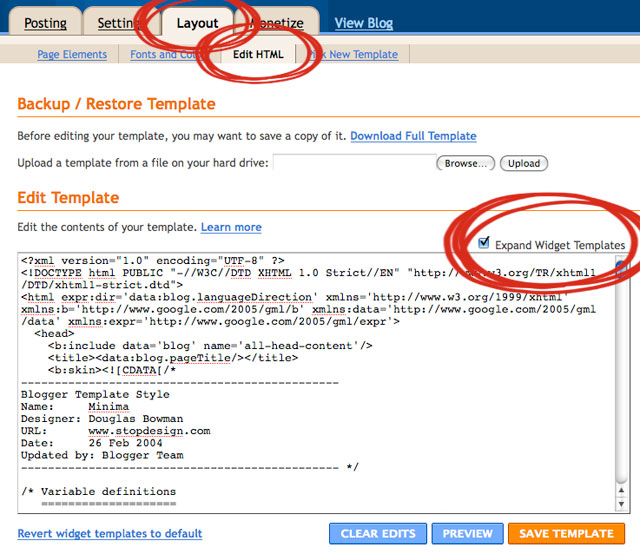
3. Click CTRL-F and copy and paste the line below in the search box to search for it in your code.
post-footer-line post-footer-line-1
It may say :
=’post-footer-line post-footer-line-1>
OR
=’post-footer-line post-footer-line-1′>
Or something similar- either is fine. Just look for that line.
4. Under that line, paste this code and change IMAGE URL to the url address of your signature image (it’s the Direct Link on Photobucket).
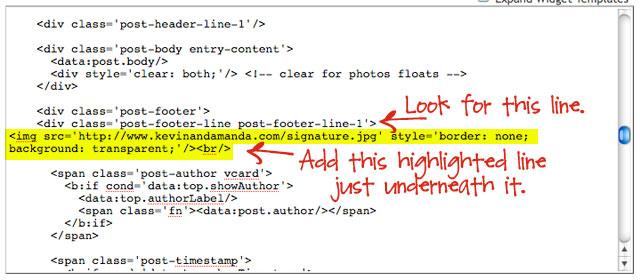
5. Preview it and Save it! You’re done!
How To Add A Signature If Your Background Isn’t White
This tutorial doesn’t cover the making of the actual signature, but I will give this tip for blogs that don’t have white backgrounds- here’s how to make a signature so it doesn’t have a white background around it and it will blend in with any background! :)
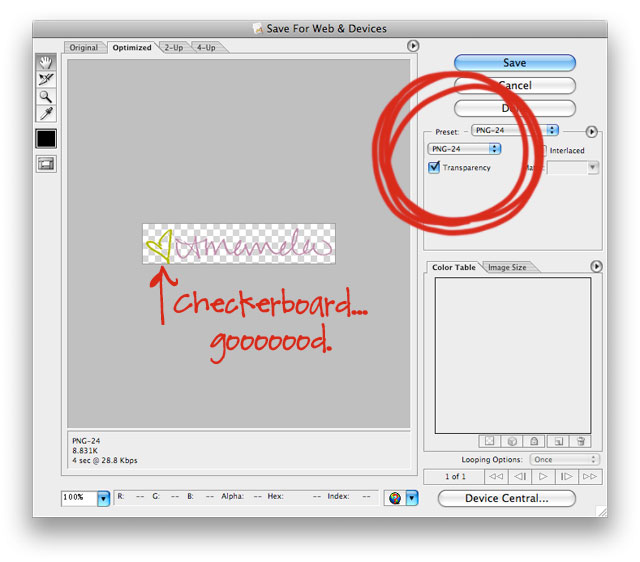
If you use Photoshop, when you create a new image, make sure the “Background Contents” says Transparent. Then create your signature, and when saving, go to File > Save for Web and Devices.
Make sure you save the file as a PNG-24 and that Transparency is checked. The white and grey checkerboard must be around your signature for it to work! :) If you save it like this, then no matter what background you put your signature on, it will blend in (and not have a white background around it).
How To Add A Post Divider After Your Blog Posts
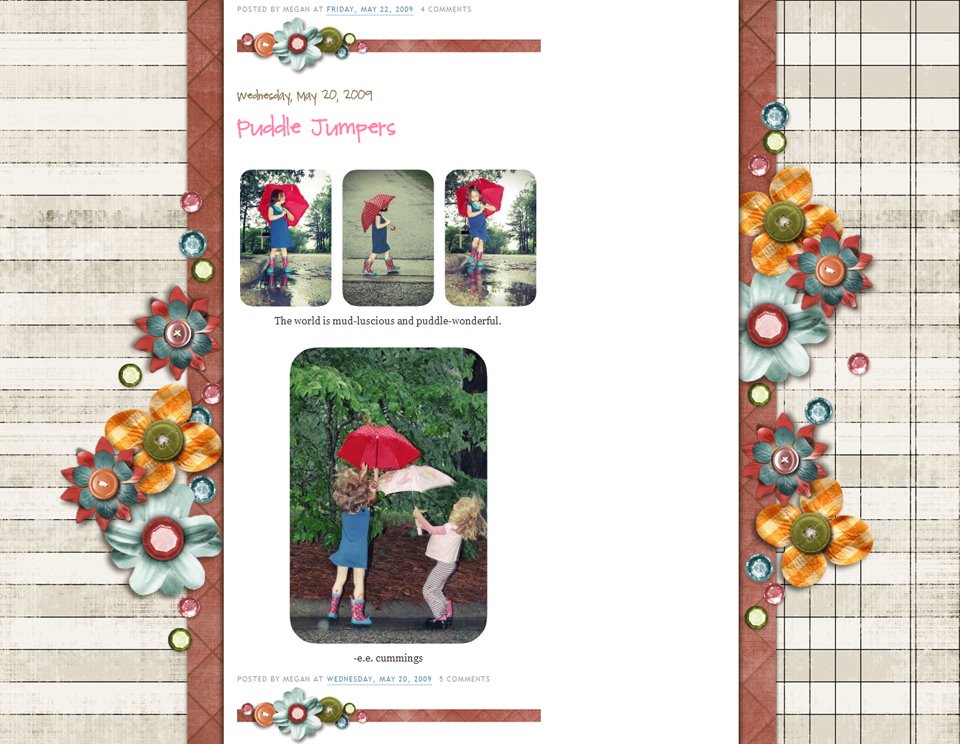
Follow this super-easy, thorough, and beginner-friendly tutorial from Megan at Shabby Blogs!
While you’re there, take a look around! :) Don’t forget to check out her *awesome* shabby blog backgrounds and shabby blog extras!! :)
Here’s one of the new backgrounds she just added. Wouldn’t this make the *cutest* recipe blog background *ever*??? :)

If you’ve been thinking about starting a recipe blog, now is the time to do it!! And gosh darn it, send me the link to it ASAP!!! ;)
Thanks for looking!! :)




AWESOME.. ?
[…] I am the happiest lady on earth right now, My Ex has reconcile with me.. thank you R.buckler 11 gmail……com […]
This is a really good post. Must admit that you are amongst the best bloggers I have read. Thanks for posting this informative article.
I don’t have any words to appreciate this post…..I am really impressed ….the person who created this post surely knew the subject well..thanks for sharing this with us.
I have been reading your posts regularly. I need to say that you are doing a fantastic job. Please keep up the great work.
This is a good site to spent time on .I just stumbled upon your informative blog and wanted to say that I have really enjoyed reading your blog posts. I will be your frequent visitor, that?s for sure.
I don’t have any words to appreciate this post…..I am really impressed.Must admit that you are amongst the best bloggers I have read. Thanks for posting this informative article.Just read your post and would like to thank you for maintaining such a cool blog.
Hi Amanda, Thanks for this quality post. Thumbs up!!
Great tutorials.I just would like to say thanks for your great efforts.Creative Clipping Path UniverseI actually
appreciate your excellent post.
Hi! I just tried this for the post signature and it didn’t work. I’m wondering if I did something wrong. I was able to find the footer line in the HTML, added the line as you said, and the IMG code from PhotoBucket but the image doesn’t show on any of my posts. Any suggestions?
thanks for share post to every one and me so i very happy,,,
I am computer illiterate. I your instructions as best as I could. I could not find the box “expand template widgets” which is probably why nothing shows up when I preview my picture. I think I am in the new blogger, but as I am a new blogger… I really don’t know. Any suggestions??
Please, help!
I am computer illiterate. Although your post was very clear and concise, I found it a little confusing even with pictures. This may be because of the new blogger. Does it not work on the new one? I have done everything right… I think. When I try to preview it, the signature is not visible. One thing that may affect this was the absence of the box that says “expand widget templates”.
Help?
This has been so helpful, thank you!
Thelifeofaglasgowgirl.blogspot.co.uk
oh! i love this signature style its awesome
i never seen anywhere its look pretty.
Thanks so much for this…I’ve designed my blog myself learning about HTML and other technical things from others. Thanks for putting this out there for folks like me to learn!
amazing tutorial thanks so much for sharing your knowledge!! The only problem I have run into is that the signature is showing up on my home page on every blog post – I have it set up so just the beginning of the post shows up on the home page and you can to click “read more” to go the post. I don’t want the signature to show up there just at the end of each blog post… is there a way to change this?
Great article, love to have such great information. keep sharing articles like that.
Hey Amanda, I am trying to update my blog with a signature and possibly even changing the font. With the new blogger, and webs no longer does HTML editing only I am not finding a simple way to make these changes. Do you have some tips?
So unbelievably helpful! Thank you!
Hi thanks for sharing this, really helpful! I accidentally found it and I tried it successfully. However, I can’t align it to the center, it keeps appearing on the bottom left corner. I’ve already had a hard time eliminating the borders, but you made it quite simple actually :) Is there anything I can do to have my signature at the center? Thanks in advance,
Audreysglams.blogspot.com
Oh, I figured it out, ok ;) The only problem is that it appears way too low and not only after my posts but on the main page as well (after the jump link “continue reading”. Anyone has any ideas on how to fix that??
Hi, I’m in the process of starting a new blog with my sister and mom and I’m wondering if there is a way for us each to have our own signature?
I need a little help! I used this awesome tutorial several years ago to create a signature image. Unfortunately, I do not have photoshop so the signature image is not translucent and frankly, I’ve just grown tired of the image I currently have. This signature has carried through from the older Blogger to the new blogger.
Can anyone help me understand how to delete it?
http://fallenfarfromglory.blogspot.com
anyone know how to delete the signature? I used this tutorial before the new blogger came out and I am unsure how to delete it now.
Hi Amanda,
This post is really old, so I don’t know if you can answer this question but here goes. I used this tutorial for a friend a couple years ago and it worked wonderfully. I recently added a Pinterest button to all of her images but she doesn’t want her signature to have a Pinterest button. I know how to remove it as long as I can find the signature image tags. Her signature is still in tact, she still has her minima template, but I can’t find it anywhere. I look in that same section where I posted it, I remember the spot, but the image tags are gone. Blogger has changed since then so that is probably what has caused this. I don’t know if you know how I can find the image tags, but if you do, I would love some advice. Thank you!!
Sorry about my long previous comment….I figured it out. :)
Hello Amanda,
Thank you for this post! I seem to be having trouble somewhere along the way. I followed each step precisely and my signature doesn’t show up. :( I have tried logging out and re-logging in, refreshing my page and the cashe but still nothing appears. Could you help me?
Thank you again for the post, it was really clear and concise.
Thanks for all the wonderful blogger help` your site is amazing! I don’t know if you’ll see this post, but if ya do- I’m having a heck of a time getting my signature to work. I followed all of your instructions- but I must be doing something wrong-ack!
Hi! I love your tutorials, they’re great! I was wondering if you could help me out… I used your tutorial last night to add a signature to my blog posts via blogger…but today I used your super cute fonts and wanted to change my signature. I created a new png image and have tried to follow your directions just changing the image url to the new signature…but the old one still appears. Any thoughts as to what I’m doing incorrectly? Thanks!!
this tutorial is so idiot proof, but for some reason the signature just will not show up. any thoughts?
Hey, I just tried to do this and it looks like the lines of footer code you’re asking us to find aren’t in the current version of blogger. I tried searching and looking manually through the code and there was nothing like this as far as I could tell. Just to experiment I tried pasting the code other places that seemed related and it would show up in the footer of the whole page, not in the footer of the post. Update please? Thanks!
Completely agree with you. I’ve been trying a number of tutorials recently from various sites to do various things but none work anymore as Blogger have changed the way their HTML looks :(
Thanks for the easy to understand tutorials. I created my own blog bkgd and today added my signature! Love your site and all the helpful info. @http://atime4allseasons.blogspot.com
Thank you for the tutorial. Is the process the same for wordpress?
Thank you so much, you are Awesome!
Hi Amanda! First of all, I LOVE your blog and all of your tutorials!! I was wondering what font you used in your picture with you signature example of how to work it if your background isn’t white. I LOVE that font. I have looked through all of your fonts, I think and still didn’t see it. Am I overlooking it? Thanks so much! :)
Thank you!!!
I just did this and it worked :) thanks for sharing.
I really enjoy your blog. I just started a blog myself, and this is a real help! You are very inspiring. I am also a teacher, and I love your fonts! Thank you!
Thank you so much for this tutorial! I just added my signature and blogged about your site! :) http://edukateandinspire.blogspot.com/2012/06/blogging-101.html
Hi Amanda, the tips sounds interesting. I tried to do it in my blog but i could not find the html code you have given to place the signature link underneath it. I using blogger.
I too couldn’t find the html place as well, I think the layout section now looks different in blogger. Please post an update to this, thanks!
i guess i’m doing something wrong because i can’t get my blog to actually upload the changes :( it keeps going to an error screen. any ideas why?
Thanks so much for the tutorial. I’ve been trying to get rid of the drop shadow/white box around all my pics, signature, etc. But, I can’t get it out. Could it be something in blogger like a code that puts that border around the pics? I’ve tried everything.
i used this a while back and it worked like a charm!
http://helplogger.blogspot.com/2012/04/how-to-remove-blogger-pictureimage.html
hope that helps :)
Thanks for posting this! It was very helpful and easy to do!
:( I can’t get this to work. I know it is totally something I did. But, when I saved it when your directions it just will not show up in my blog. Now, when I go back into edit the HTML for the post footer I can not even find it. What in the world have I done? “/ *tear*
wow! i did it! i now have my very own siognature for my posts in my blog. thanks so much!! :)
LOVVVVVVE Your Blog & its been very helpful. Keep up the Great work!
I just redid mine and had to use your blog again to figure it out. But my signature is SUPER BIG!!!! How do I downsize? I’ve tried decreasing the image size and the resolution, I’m out of ideas!! You can see its enormous size: http://greatexpectationsjune82008.blogspot.com/ Thank you for any suggestions!
I love your blog!!! Thank you for all the great tips! I have created a signature for our blog but it leaves a huge space under the post and below the signature. Any suggestions?
Thank you sooooo much. I tried this last week and didn’t work. Today it worked!! Thanks a lot. You made it simple – I just forgot to find the code by using control F, so I tried to find it by eyeballing it. Tough.
Thank you so much… I was searching through Google to see how to add sigs to posts and came across your post it was real easy to do tyvm!! I had a friend who did it for me in my blog and I asked her to help I wanted to change my sig. But getting through to her is a pain … now I don’t need help thanks to you… Awesome :-)
Thank you for helping with adding a signature for dummies …lol
I found you as a recipe blog, and am so excited to see you do tutorials also. How awesome are you!! I have a recipe blog also. Calicookingcouple.blogspot.com.
But I’m also looking to see how to make an ad to place on someone’s blog. Do you have a tutorial for that.
Thanks
Thank you thank you thank you. That was just what I was looking for. You rock!
Votre site est trés intéressant merci beaucoup.
Thanks for this tutorial! I think I’d like to add something like this to my blog…only thing I’m wondering is if it will work if I have a guest blogger? I’ll have to experiment to find out.
Feel free to stop by my cooking blog anytime! :)
Consumed: My Culinary Adventure
Ohmygoodness! I’ve been wondering how everyone has these cute little signature buttons, and now I’ve been able to create my own!!!! You are the absolute best and I so love everything about your blog, even your posts from 2 years ago!!! :o)
thank you so much! that was super easy!!
Excelente, excelente mesmo!!
me ajudou demais… Obrigado Amanda
Help! I can’t find a <p or <div class= 'p anywhere! I tried it in my finder and it doesn't show up :(
Any help?
Thanks For This Lovely Tip,
Many Bloggers would Love to have signatures on file with Their Blogger Posts.
I have been looking on Google about how to include a signature on my post and I came across your website and now I am hooked browsing around it. I have used your signature tutorial to add my signature at my blog @ http://www.threesixfivehisptamatic.blogspot.com
You guys are so awesome thank you so so much! :)
I tried this but I never end up getting the signature to show. I’ve been fighting with this for over an hour . It shows the URL to the image, but not the actual image. How is this fixed? What am I not doing right?
hey was just wondering, my signature thing looks like a page footer that is the size of my blog posts, so i decided to use as my signiture, thing is, the picture url does not allow me to state what alignment i want, i want it centre or right… it automatically places it left…
Somebody had asked how to remove the custom signature from static pages. Was this ever answered? My blog/site isn’t live yet as I want to get everything ironed out first before I go live.
I solved the problem on my own.
Thanks for the code to add the signature.
I’m stumped by this too — would you mind to share how you hid the signature from the static pages?
THANK YOU!
This is the 2nd time I’ve come to your site for help. Success each time. Thanks so much!
Great tutorial – thanks. Another FREE prgramme to use is: INKSCAPE, which is really good.
Just used your tutorial to load a signature onto my blog! Thanks for helping this blogging newbie!
Kelly
Thank you! Very helpful!
Thank you SO MUCH for the signature tutorial!!!! I LOVE mine ~ all thanks to YOU!!!!!!!!!!!
Seriously Primary
I tried out the signature and changing of the titles. The titles of the blogs changed but not the side ones but oh well :) Love this. Thank you so much.
Amanda, I know I’m behind the bandwagon but I finally jumped on and I LOVE the way it turned out. I’ve been a faithful reader of your blog for a while now and I’m never disappointed. Thank you for your help!
Hi! I’m Rachel and I’m Not the Modeling Type.
Thank you so much! I had been suing the Post Template way before and it is SUCH a pain to change the signature down the road. I changed mine on one of my blogs last month and had to go back through 1300 posts and delete the old ones manually. It is SO much better to do it this way! *hugs*
Thank you so very much! I’ve been fooling around with the signature for HOURS…couldn’t get the border to go away no matter how much I messed with the code.
It would have driven me nuts for sure.
THANK YOU! Your directions are VERY easy to follow and it worked perfectly! I am so proud of myself for being able to do it myself! Thank you for sharing these easy to follow instructions!!
Sarah
So helpful …
Thanks!
I finally got my own sig!
XOXO from:
Niña
thanks for this tutorial… it works 4 me.. :)
so i’ve tried this 3 times now and can’t get my signature to show. any new tips?
also, have you considered doing a tutorial on how to have the reply option on the comments? maybe that’s way hard but if not i’d love to know how! :) thx!
got it!! just needed my image in a different format. and it worked. at least i think that was it.
thanks brittany #134 on the tip of how to center it!
Dear Amamanda,
Thank-you for this post and it DOES work, but I am very disappointed because the text that you put in under the signature that has the link to your website gets in the way of MY text of the next post’s title. So I had to make the signature smaller, which was a lot of work, and now you can’t read it and your text STILL gets in the way of mine. I tried to delete your text in the “Edit HTML” page but it said that it could not be saved because the HTML wasn’t right. So I just tried to delete the signature and your text all together but I still got the same message. How do you delete the signature? I would’ve kept it but your text…..
Please help me!
-Hallie
Hey Amanda,
This really helped me! Thanks so much. I do have one question. Is there any way i could get the direct url from picnik? All of the other websites i have tried aren’t working correctly.
Thanks!
Mary
Hi Mary!
I just wanted to answer your question because it not likely that Amanda will answer your question because she is so busy getting so many comments! ^.^
Anyway, I used picnik, too, to make my signature. Just be sure to make the picture really small when you save it, I’d say about… 100-200 on the top box, I forget which one it is.. Haha I think it’s height but I could be wrong. Anyway, save the picture and then go to photobucket.com. Make an account, it only takes a few seconds, and click on the big green upload button. Upload the signature, go to your albums, and click on the direct link for that picutre. Hope I helped! :)
-Hallie
Amanda-Just wanted to say thank you for this super easy-to-follow tutorial! I was able to add a signature to my blog easily with your help. Thanks for saving me time and frustration trying to figure it out myself!!
Hi Amanda! I Can’t Find the Tags, Please Help Me! I Use Your Theme “Spring Colors 2 Collumn” Hope You can Help Me. Thanks :)
I was trying to add the signature line to my blog, but for some reason it didn’t work. And where the signature image should be its been replaced with this…
Read More http://www.kevinandamanda.com/tutorials/add-a-signature-to-every-blog-post-on-your-bloggerblogspot-blog.html#ixzz1Lc8UPyYB
Could you please tell me why this is happened and how I can get rid of it :)
Thankyou for your time and you have some reallllllly helpful tips!
Flora x
Amanda~ your tutorials are so helpful. I just love them. I was wondering if you could steer me in the right direction. I have way too much space between my “labels” and my post divider. Not sure how to fix that. http://www.southernutahautism.blogspot.com
thanks
Allyson
Thank you for this! You’re turning the look of my blog into an awesome one.
Thank you so much for the tutorial on blog sigs!!! Soooo easy to follow! You guys rock!
thanks for sharing this tutorial!
Thanks Amanda, your tuts help me every time. I really appreciate your hard work. Love it. Hugs, Andi
this a great post and web site. the signature fonts look fantastic.
Thank you so much, this is an awesome tutorial! Is there anyway to get the signature right justified instead of left, however?
Never mind, through the power of Google I got it :) For anyone that’s interested, I just put in front of Amanda’s code & at the end of her code (see this website if that’s not clear enough: http://www.anshuldudeja.com/2009/06/how-align-widget-to-centre-left-or.html.
Thanks again for the tut Amanda!
Hi! I tried to use the directions above for my blogger blog but it didn’t work. HELP!!!
PS I have a recipe blog http://www.cookingwithcourt.blogspot.com
THANKS!
Courtney
Awesome…simple…did it…CHECK….THANK YOU!!!
All of your blog tips have helped SO much! As well as your links! You are a LIFE SAVER!!!
Thanks for great instructions!
Hi Amanda! Thanks so much for ALL of your amazing tips and tricks! I wanted to say that your step by step instructions are so great! I do not have Photoshop editor or anything of that nature. I downloaded the Paint.net, and sadly wasn’t too impressed. I was able to create a signature, but couldn’t get the transparency to work. I did a little more digging and found a great site that took less than 2 minutes total, that I thought you might like to know about. The website is http://www.mylivesignature.com and in just a few clicks and easy steps I was able to create a stylish transparent signature and directly link it into the HTML code based on your directions. :) Thanks so much for all you do! Felicia
I am having some trouble finding a good (and free) photo editing program so I can do a lot of the fun stuff! Any suggestions?
Oh you are life saver! I have been trying to fix my signature that a friend did for me for over a year and this did it!
Hi Amanda!I am absolutely in love with your website! I am so thrilled I happened upon it! Thank you so much for taking the time to upload all the fonts and all the tutorials! They helped me out tremendously and give my blog such a personal flare! I had no idea how to work in HTML (much less what it was!), but you made it do-able. Thank you again!
Please check out my blog. I’ve added your button and referenced you in one of the entries. Oh, and maybe you could help me out with the whole outer-wrapper thing-y…to match my inner-wrapper (does that make sense?) I can’t seem to figure it out. I would appreciate any help you throw my way. :) Thank you, thank you, thank you!
I can’t figure this out? My image won’t show up? Am I doing something wrong?
Hi Amanda, HELP!
I’ve been trying this out several times, but all I end up is a tiny thumbnail on top of the “posted by” line
here’s the link to the screenshot of my preview:
http://picasaweb.google.com/104367427027306798304/PublicFolder#5537880472663624034
Can you please figure out what I’m doing wrong?
omg! what a tutorial! Even me did this :) Thank you for sharing :)
Amanda… Thanks so much for the instructions… for some reason my signature is not working.. I tried saving it as a jpeg and as a png but none of them work… you can only see a little square in the bottom but no signature :(
my blog is http://daniellasewcrafty.blogspot.com/ and as you will see I am only starting :)
thanks for your help!
hi there…
just stumble upon your site and it’s really helpful… i’m in my work to deco my blog so eventhough the background might look almost the same but yet it’s still look different and a hint of personal..
thank you again!
Thank you! Took me a while to find the right spot in my template but I did it. Can you message me though and tell me how i can hyperlink that signature so when you click on it it send you back to my homepage? That way when people copy/paste my page onto theirs their readers can click on my signature and automatically be taken to my page? Please! :) Thanks!
survivingateacherssalary@gmail.com
I love this too! I have linked within at the bottom of my posts and for some reason my signature will only appear after the linked within. Is there anyway to change the HMTL so I can sign my posts write after the content and then have linked within appear?
Thanks!
I love how you did the screen shots and everything! Most tutorials don’t do that!
Love your site(s) and generosity. Without you, I wouldn’t have been able to create my own blog banners, so thanks so much! Since you asked, I maintain not one, but two recipe sites: the first one is my own, the second one is The Best of Inn Cuisine. I hope you’ll enjoy them both as much as I enjoy maintaining them!
http://abloggablelife.typepad.com/recipes/
http://abloggablelife.typepad.com/inn_cuisine/
Thanks again! Sandie
Great tutorial Amanda…it worked for me…Thanks a bunch !!!!!!!!!
Thankyou thankyou thankyou!! a tutorial that makes sense! you are wonderful x
Ok, I figured it out!
I am using the “Watermark” template in blogger. When you are in the “edit html” page, scroll down until you find the following code:
.post-footer {
margin: 10px 0 0;
padding: 10px 0 0;
Directly underneath the last line of code you see above, add the following code:
background: url(http://yourimage.jpg) repeat-x 0 0;
My divider is the needle sewing thread if you visit the site so you can see that it actually works!
Found this tutorial here:
http://www.google.sk/support/forum/p/blogger/thread?tid=1a02888f64bb92a9&hl=en
I followed your instructions but keep getting this error message:
Invalid variable declaration in page skin: Variable is used but not defined. Input: bordercolor
The code on my template looks like this:
.post-footer {
margin: 10px 0 0;
padding: 10px 0 0;
color: $(post.footer.text.color);
border-top: dashed 1px $(widget.alternate.text.color);
}
I’m using a template from the new template generator on blogger. It looks like it is written using CSS.
Not quite sure how to apply your tute to get this to work.
Any help would be much appreciated!
Hi Kevin & Amanda,
Thank you very much and I found your site which offers me some tips to my blog. Your site is really great!!!
by:
Jay
Thank you for this! I’ve used this tutorial and the one for custom fonts for the blogger titles. You are amazing!
You’re amazing! Thanks!
Amanda,
Is there a way to center the signature under the post? I normally center my post and would it right under verses to the left.
Thanks for the super-easy tutorial!!
Thanks for the info! I’ve wondered for a long time how to do the signature. I’m thrilled to finally know.
Thanks, too, for all the fonts – I LOVE ’em!
I did it! woohoo! thanks so much for these super EASY to follow instructions! I love it! ;)
amy in peru
AHH! You rock!!!
I didn’t think this was going to work because flickr did not like my .png image, but I just uploaded it from photobucket instead and it worked!!!
THANK YOU THANK YOU!!!
thank you for posting this. I try to add my name to my blog but i’m having a hard time, blogger is not letting me add my name. I have tried doing what you posted at least five times now and it’s that same thing over and over..its just not letting me. anyways thank you for posting about this I find it helpful even if blogger wont let me put my name on my post.
Thanks so much for doing this tutorial! I have been trying to figure out how to do this and your tutorial was so detailed and easy to follow!
I love your blog. Just came across it. Your tutes are VERY helpful. I also have a recipe blog @ http://www.readit-and-eat.blogspot.com. Thanks!
Bless You! I have been tring to figure this out FOREVER!!! Your directions were SOOOOO SOOOO easy. Thanks so much.
I’m not sure if you will even see this comment, but I was curious to find out how you get your comment ling so large. (Like the part I click on that says ’97’ Comments) Is that just part of a template you use or can the html be edited for mine to do that? Just let me know if you can help me! Thanks so much! and P.S. i LOVE your blog!
-Whitney
Hey Amanda! I just wanted to say how much your blog has helped me re-kick-start my blog (also megan from Shabby Blogs). I’m just overjoyed when I see it now! THANK YOU! Love & Joy ~ Ms. Fee.
Hey Amanda,
Brand new to the world of blogging – and your site has been VERY helpful in customizing my new blog. I added the signatures at the end of each post (looks great), however I DON’T want the sig to show on my static pages. Can you offer any suggestions here?
Appreciate the help,
Jaime
Hi Amanda, THANK YOU SO MUCH FOR THE HELP! I love your blog/website – you are my inspiration! :) My blog looks great thanks to YOU! Have a look – thebestmomentsinlife.blogspot.com …. Still got lots to do, but enjoying this whole experience!
Thanks again!
Fiona
Thanks for all your tips! You are awesome!
okay, i followed it to the letter and it didnt work. i tried taking my background off and that didnt help. thanks all the same. iguess it just wasnt meant to be!
Same thing to me….I m so clueless!
I tried many ways and didn’t work.
But I will keep trying to make it work =)
Hi Amanda! Im SOOOO glad to have found your site! I don’t know how in the heck you know how to do all these things but i am so glad to know how to do them! thanks!
I am trying to add my signature to my posts but my image always comes up with black around my name. it doesnt look like what it did in photoshop. im sure its something in photoshop i did wrong. can you help?
thanks,
kristen
So I am not so computer savvy. I want to have a signature at the end of each of my posts, but I don’t even know for sure how to create a signature image with photoshop. Any suggestions?
Hey girly!
I came to your blog when I wanted to create my own layout and change my font….and NOW…I am wanting to add my signature! You are SERIOUSLY making my blog look SOOOO awesome!
I followed all of your directions….and tested it out on my “test blog” and it worked GREAT!! Here’s my question – on the blog listed above, we have twelve authors….I know there is a way for EACH of us to have our own signatures….but I am afraid that if I use the directions above on THAT blog, then they will all have MY signature at the bottom of their posts. Is that what will happen??
I found another website that said to do this:
This is very simple way to add a personal touch to your blog. First make your signature with any photo editing software, I used PaintShopPro. For the image I used png format, so it’s transparent.
And then upload it to your web host, I used Picasa Web Album, to get url address.
And then go to Settings > Formating > Post Template
And paste this code to that Post Template box:
….and that works too, but the image is scooted to the left..
SO – what would you recommend??
Thanks for ALL of your help! I think a LOT of blogger out there owe their fabulous-looking blogs to YOU! I know I do! Luvs, Tara
Thanks so much for the great tutorial. Love your blog! Super helpful.
Wow, thanks for the tutorial. I was able to follow it pretty easily. I am going to link your tutorial to my blog. Hope that is ok.
Thank you so much for taking the time to post these tutorials. I’m new to blogging, html, etc and your tutorials were invaluable! You’re my new favorite website. :)
Thank you SO much for this!
Hey.
I have just started my first blog. I used your tutorial for background design and signature as a foundation to create those elements in my blog. Thanks so much for the post as well as the link to shabbyblogs for the post dividers.
came across your site a couple of days ago and wanted to let you know i appreciate your tutorials and free fonts. i’m a font junkie and you’ve made my blog a happier place for me ;) thank you thank you!
@ Anna Williams & Rachel
I had the same problem with my date headers. The easiest way I have found to solve that is by looking in your CSS for the:
h2.date-header {
It should be right under the Posts header in the CSS. Now all you have to do it add:
font-size:85%;
You can change the percent to match your blog. But that is what worked for me.
Also, Amanda, I do have a recipe blog. There are only two recipes on it though. I just started it a couple of days ago. Feel free to check it out.
http://goodeatsblogger.blogspot.com/
I look through the comments but I don’t think my question has been answered. I just added the signature but there is this HUGE white space underneath of it…what did I do wrong? I tried changing the canvas size on my orignal design but that didn’t change much…I’m using just regular old paint to design the signature since I must be crazy and can’t figure out the paint.net. :( help!
Thank you so much for the info!!!
http://macygoode.blogspot.com
Oops. Pertaining to my questions above, my blog is http://sawyersinthesun.blogspot.com.
My blog needs your help! I’ve had success adding cute font, signature and dividers, but there are a few things I would like to fix but don’t know how.
1) I wanted the date for my posts to use the default font so deleted the lines in the blogger-sifr.js code, taking away the cute font and it worked, but the date in the default font is REALLY BIG and I can’t see where to make it smaller.
2) How can I make my profile picture larger? It is ridiculously small and I can’t see where/how to adjust the size of the image. The picture I have on there right now is oriented vertically, and I think a horizontal one would be better, but right now it doesn’t matter because the pic is so small you can’t see anything anyway.
3) How do you get rounded edges on your photo images?
I think that you are brilliant and appreciate all that you offer. Thanks a bunch!
I LOVE your blog! I took your advice and used that background for my recipe blog. Try a recipe if you have time!
Thank you SOOO much for your great blog design tutorials! You are the best and explain them so well!
For creating the signature, do you insert picture into word documen, type in your name and arrange them both as needed? Then take a snapshot and post image to Photobucket?
OMG, I unsubscribed to Feed Blitz cuz I couldn’t remember what it was or why I had subscribed. I just discovered it was my link to receiving your emails. I wondered why they had stopped arriving! Needless to say I have re-subscribed…
Also, I have been trying to figure out how to add Comment Pages:
« Previous 1 2 at the bottom of my blog?
I won’t remember where I posted this, will try bookmarking and hope.
Like everyone else, can’t thank your enough!!!
I absolutely love your blog and your fonts! I’m not too sure if you can help, but I am trying to figure out how to change my date stamp at the bottom of each of my posts. If you go to http://www.meetthewilliams.blogspot.com, you will notice that my date stamps are HUGE and the font in my posts is not. Do you have any suggiestions on how to fix this?
Hi!! I have a problem here. (again) The signature worked! But my links suddenly turned un-clickable. And I noticed my HTML codes are different from yours. HELP! :(
Thanks Amanda! I used your fonts for my titles too…My blog is so cute now, thanks to you!
You guys are amazing! So talented, generous, and helpful! That’s it ~ I’m posting your button! Gotta spread the word!
Cheers! jenn @ rookno17.blogspot.com
I want a new signature . How do I create a signature image ?
Thanks so much! I tried a few other ways, but for some crazed reason they don’t seem to work…
I did it! Thanks for your help. next stop….making my own backgrounds!
Hey Amanda! First off – I LOVE what you do – you have been so helpful to me in so many ways.
Currently, I am using a blogger template designed by http://www.ourblogtemplates.com and so the coding is a tad bit different than what you used in your tuturial. I tried to no avail to add my signature within that code but it never showed up. I’m posting a copy of the post-footer coding just so you can get an idea of what it looks like. How should I adjust it?
I had to use the following to find the html coding to change my signature < p class…. not < d class. Why is that?
i love ur information…its clear & user friendly..<3 it!!!! thx u soooo much.. nice day friend~
Oh no-help! I am new to this whole blogging thing and just signed up for a photobucket account too. How do I make a signature to even put on photobucket? I am in serious need of assistance! Thanks to anyone who can help :)
Thanks so much for this…I’ve designed my blog myself learning about HTML and other technical things from others. Thanks for putting this out there for folks like me to learn!
How do you delete it once you have it on? I don’t like the one I have up and I don’t have time to make a new one so I just need to delete it but can’t figure it out. Help?!
What a great tutorial, and the only one I found that automatically adds the signature to each post! You are amazing!
BTW, for those of you making these signatures, I made mine 200px wide for my 1000px wide blog and that was perfect.
Thanks so much! Rita
Lol! I actually have this background on my cooking blog at the moment! Here’s the link: http://mycookiesandcream.blogspot.com
I’m the one who asked for header help a while back – thanks Amanda, it worked!! :)
I love reading your blog, it’s so much fun. Your puppies are adorable, and your peanut butter/chocolae cake looks WAY too good. :D
Blessings,
Julia
Thank you so much for this easy how to!!! I just did it on my blog! :)
I got a signature to work, and it looks great! thanks for your help amanda! i love your website!
Hi,
Amanda i am new to blogging i have been searching in google for so many topics to learn blogging and to clarify my doubts. Surprising to my observation about blogging i came to know that you are one of the world’s best “Blogging Tutor”. Thanks a lot…you covered a lot of topics in your blogs.
If anybody want to learn about “Advanced Blogging” i suggest them your blog.
Loving,
Ramesh
India
This was SO helpful! Thanks Amanda! Check out my new sig I created HERE! :)
Thanks so much for your tutorials. I finally was able to get my signature up and running on my blog. It took me a little while only because I couldn’t decide which fonts I wanted to use! :)
I’m new to your site, I was introduced to it through my sister. Your blog is great! It is so fun to browse and see the fun things you can do with your blog! I also have to tell you that your reese’s cake looks amazing! I will be trying that one this weekend
Thanks for the tutorial on adding the signature. It took me a minute because i had to add extra ‘ in before and after my photobucket url but I figured it out!! Thanks a lot :)
HI Amanda,
Thanks so much for sharing everything you have! I love your blog! How can I create a signature post on a Imac? I can’t figure out how to do the background so it is not white? Please help!!! THank you so much!!
Amy
Thank you so very much for your post. I am going to use it to make my blog even more spiffier!
:D
Amber
Thank you so much! Your generosity is so very much appreciated!
When I tried adding a signature to the bottom of my post, all I got was a little blue square with a question mark in it. What am I doing wrong?
xo
jeanne
thank you so much for the help on a signature. your blog is the only one that really breaks it down for “blog retards” like myself…
thanks again
@Alexa
That is Pea Sarah Lynne. She has several cute fonts from her handwriting! :) Check them all out here! :)
I meant font! Sorry!
Hello Amanda! I love your blog! Many thanks for all the awesome tips! I have a question, which one is the red letter that you used for the comments in the script?? I loved it!
I totally took the shabby blogs template – it’s so cute!!! – and put it on my recipe blog.
http://www.makeamealforme.blogspot.com
Hi Amanda;
thanks for the tut – it worked out perfect for me, but of course with your easy to follow steps it was super easy!
thanks again for all your help to make our blogs look so pretty!
How do you do this on a wordpress blog? Does it work the same way?
Ok, this is probably totally a silly question – but how do you create the custom signature that you will upload to photobucket or flickr? What program do you use?
OK my post didn’t got hrough, but I figured it out. I had to look for this instead, so for those of you who can’t find that code in your HTML coding look for this instead!(No spaces after the
OK I figured it out and had to finde something else! SO those of you who can’t find it you need to search for this code:
Loved this tutorial, it worked in my one blog that has 3 columns but in my family blgo it can’t find the coding in the template and it’s the same template :o( so I can’t add a signature to our posts in our family website. Please email me with any help thanks!
Thanks so much for you help! I really needed it!
PS I do have a recipe blog and here it is
http://bewitchinkitchen.blogspot.com
Hi Amanda! I just wanted to say thank you for your Fonts for Peas section, they are such awesome fonts! I used a few of them on a new header for my blog (http://culinarycollegestudent.blogspot.com/ if you want to check it out). I’m also going to try your recipe for the best chocolate cake today! :)
Thanks again,
mikaela
Hi. This was amazing. very helpful. Quick question… I’m getting the signature but also another line on top of it. Anyway of getting rid of that?? Please let me know imizznana@aol.com
Thank you so much. I am always having problems adding or changing things on my blog and this will help.
@Shannon
It shouldn’t make a difference whether it’s a p or a div… If you copy the code exactly like it is, and paste it right after or directly underneath the line, it shouldn’t have an incomplete error.
BTW, I shouldn’t have pulled up your blog in front of Kevin… Now he wants me to make everything on it! :D
HELP…I try to search for it to add my signature but mine has a “p” instead of the “div” so I try to change it and it tells me it’s incomplete can you help me? Thanks
That background is AWESOME lol
I love to cook and find recipes – http://www.tummyummys.blogspot.com!! Hope you find something you like!:) LOVE YOUR BLOG!!
Your site rocks!!!!!!!!! Thanks for the FREE info & fonts!
Thanks again Amanda for all you do! Can’t wait to add my signature :)
This is all adorable. I love this site!
Can someone please tell me the name of the font that the Shabby blog uses as their main font? I have seen others use it and I can’t find out its name anywhere! Thanks :)
Just found your site! I am amazed by how easy your tutorials were!
Thank you, I now have a new signature and your cute fonts as Post Titles! I will share your site by putting a button in a post on my blog!! ;)
I don’t have a recipe blog but I have a link for it on my site. Someday I hope to be as skilled in the kitchen as you are! :D
http://justhavingaball.blogspot.com/search/label/Recipes
We love that you share this neat-o make your blog your own secret!
We linked you on our new crafty blog (www.threesimplegirls.blogspot.com) because we love your style and creativity and all your cute fonts!
-Sarai (of 3SG)
Thank you for the Tutorials! They are great and so easy to follow! I had fun making my blog look much better with your help. :)
I am so happy to have found you!!
Thank you so much for the wonderful tutorials. I have had so much fun today dolling-up my blog. Love it! You are awesome to share your talents with the rest of us!!
ok, am I just an idiot??? Why can’t I seem to get the signature? I made it on photobucket but can’t seem to find a url to post. I have tried a million times and it keeps denying it…. anyone else use photobucket???
After all that talk about how I used one of your fonts and your directions to change my font color/style/size on all my posts, I forgot to post a link in case anyone wants to see how it worked out! (I know if you click on the name it will take you there, but that’s easy to overlook! :) )
http://www.bethandraja.blogspot.com
I started a recipe blog a few weeks ago. I tried to use that background when I first started, I loved it too! But it’s for a computer with a wide screen. It doesn’t scale down and didn’t work on my blog. :(
Yaaay! I’m so excited to add these to my blog. Thank you!
I followed your directions and my signature worked perfectly! I even used one of your fun fonts to do it. :) I also used your tutorial for changing the style/color/font of all of my post titles and dates, and it worked so well on the first try! You have a way with giving instructions that are easy for people to follow.. I can’t thank you enough. :) (I’ll be putting a link on my blog to head people your way.)
Thanks Amanda! The signature tip was great and I have now figured out how to make it work. :) I really enjoy your blog and all your great tips! Thanks again!
thanks for another great tutorial! I did it but couldn’t make the option for a colored blog backround work; when I save my sig as a transparent PNG-24, I can’t upload it to photobucket (it will only upload .jpgs). I must be overlooking some basic option…any thoughts/tips? I think my sig would look so much better if it were on a transparent layer…
thanks again for all the great blog info… you are the Queen of Tutorials; Queen Tut!! ( :
i have been devouring your tutorials today, along with shabby blog, and i just wanted to thank you! your information is awesome and so helpful. i’ve done a complete blog makeover today and have made sure to direct my friends to your website for help! thanks again :)
THANK YOU THANK YOU THANK YOU!!! I just started my blog and wondered how people made theirs so cool!!! Now I can make mine prettier.
The tutorial is so great! And the blog background is SO CUTE!!!
I’ve just recently come across your website and I am loving it! I followed your instructions and added a signature! Thank you for sharing how to do it! I’ll be checking back regularly for other neat tips!
Yea! I did it!
Thanks for the amazing tips!
Ah, I love it! I’ve got the signature down, but the dividers always threw me for a loop! Thanks for all the lovely tutorials. My blog would be the most visually boring site on Earth if were not for you and Megan, Amanda!!!!
THANKS AGAIN!
I totally LOVE this website! I’m on here often checking out any new things to learn and everything you post is insightful. Today I made my attempt with adding a signature on my blog and it took me some time trying to figure it out. When using Safari browser, the search function (ctrl+f) doesn’t work effectively so I recommend using IE or FireFox. On another note, when imputting the code for your image that you’ve uploaded in photobucket, flickr or tinypic, be sure to select the DIRECT LINK option. =) Anyway, I’m loving my stylish blog with the new signature.
Finding best Immigration Consultant in Canada? So we will help to apply Student, Work, Immigrant, sponsorship, visitor visa in Canada. Apply Now!
Thanks for the tutorial on the signature.
My friend started this recipe blog up and she invites whoever wants to contribute to it when they come up with something tasty! Check it out!
http://taylorfamrecipes.blogspot.com/
I need to get your pulled pork recipe put on there.. I still have yet to try it out, but have wanted to ever since I saw the photo!
This is very helpful. I was wondering why I was getting a nasty strobing outline around my signature when I used the red on a dark background, although it doesn’t happen when I use the light grey (sort of like chicken tracks). Even though I saved as a png. Of course, I didn’t know about saving as png-24 (I think mine was set at 16) so will go back in and deal with this.
A very clear and easy to understand tutorial – thanks so much! I will also be adding your sig method to my other blogs, then I can have a nice heavy border round my pix, but not my signature as well, which has happened with the “template” version.
My sister just started a blog for different recipe’s she’s trying out and it could use some love.
http://thechefwannabe.blogspot.com/
Thank you, thank you, thank you! I have been trying to find a way to add a cute little signature like yours for a while.
I am adding this on my to-do list today.
Your the best!
Love it! Thanks so much for posting this handy info :)
Oh, and that background from Shabby Blogs is just GORGEOUS! Wish I blogged about food, haha! :)
I thought it will be difficult but with your amazing tips everything is simple:)Thanks a lot.
Those are great tips! Thanks Amanda :)
You are AWESOME. I’ve been wanting to figure this out but haven’t gotten around to Googling it to figure it out for myself. You have just saved me a lot of time. Thanks so much! And p.s. I’m new to your blog. Loving it!