February 16th, 2010

The Basics of Photoshop, Part 1: Layers

free intro to photoshop tutorial

This is part one in a series of tutorials which will cover the very basics of Photoshop. It’s perfect for the beginner Photoshop user- and written in plain English, so it’s simple enough even for someone who has never used Photoshop before! :)

This tutorial, Part 1: Layers, will show you how to give your photos unique, customized enhancements by using actions- but most importantly, how to get the most out of your actions by editing the individual layers generated by those actions.

free intro to photoshop tutorial

Start by opening an original, full sized photo (straight from the camera) in Photoshop. I’m using this beautiful photo my friend Cynthia took of her daughter Abby.

The first thing you want to do is make sure you have a few windows open in Photoshop- you’ll need Layers, Actions, and History. They are probably already opened by default and located on the right side of your screen- but if you don’t see them, just look at the top of the screen and click on Window and then Layers, Actions, and/or History.

free intro to photoshop tutorial

Now, the first thing I think any photo needs, especially if it’s a photo from a DSLR, is a good sharpening. We are going to jump right in and make our first new layer. Click CTRL-J (*If you are using a Mac, substitute CMD instead of CTRL in this tutorial) to create a duplicate layer- it’ll appear as Layer 1 in your Layers Palette. Then, at the top of your screen, click on Filter > Sharpen > Unsharp Mask.

free intro to photoshop tutorial

Change the settings to:

Amount: 150%
Radius: 2
Threshold: 0

And click OK.

free intro to photoshop tutorial

Now, for this image, the full amount of sharpening was a little too much. See how it’s looking a little grainy? (It’s kind of hard to convey, since these images have been resized for web, but I’ll do the best I can :)).

But luckily, since you had the foresight to create a new layer, you can easily adjust the amount of sharpening just by changing the Opacity of the sharpened layer, Layer 1.

free intro to photoshop tutorial

Just click on where it says 100% and change that to any number- or you can click on the blue drop down arrow and use the slider. I changed mine here to 66%.

free intro to photoshop tutorial

Just right. Her eyes are nice and crisp, but her hair isn’t too crunchy-looking. Some photos will need the full amount of sharpening- no shame there at all. Some will only need 50%, some less. It’s totally up to the photo, and you- the photographer! :)  And what you think looks best.

When your photo is just right, look at the top of the screen and click Layer > Flatten Image. That merges all your layers to one single layer, just like it was at the beginning. You only want to do this when you’re sure you’re done tweaking. :)

Now, let’s start with our first action. For this tutorial, we will be using the free actions from The Pioneer Woman. You can download sets 1 and 2 here: The Pioneer Woman Actions. Follow her 4 short, easy steps to download, install and play your first action.

*UPDATE* You can now download The Pioneer Woman actions for Photoshop Elements!

free intro to photoshop tutorial

This is what the Abby’s photo looked like after I played the action Fresh & Colorful. Not exactly the look I’m going for, but it definitely has potential. Fresh & Colorful is one of my favorite, go-to actions- but I always tweak it before saving the final image.

free intro to photoshop tutorial

First let’s start with the Soft Light layer- click on the Soft Light layer in the Layers palette and adjust the opacity to 15%.

For some more color, click on the Hue/Saturation layer and adjust the opacity to 85%.

Finally, for just a little more brightening, click on the Light layer and adjust the opacity to 50%.

free intro to photoshop tutorial

And that gives us this. Beautiful. Bright. Fresh & Colorful lives up to its name. :)

Now every photo is different-50% on the Light layer may be too bright- or too dark- for the next photo. 85% on the Hue/Saturation layer may be wayyyyyyyyyyy too saturated. That’s what’s great about layers. You don’t have to do the exact same thing for every single photo, because no two photos are exactly alike. I do almost always at least set the Soft Light layer back to 33% or less though- even if I leave the other two layers alone.

Now what else can we do? I think this photo could be a little warmer… in the Layers palette, click on the Background layer. Now play a new action, from set 2 of The Pioneer Woman actions, called Warmer. When the Warmer layer is at 100%, it’s a little too warm- but change the opacity to 44% and we have this:

free intro to photoshop tutorial

Ahhh- Perfect. We’ve lightly highlighted her sweet rosy cheeks, those gorgeous red curls, and her stunning blue eyes- without making it look too fake and over processed.

Now we could certainly stop here, and I do recommend you Save the photo at this point and also create a Snapshot (click on the History tab and then click on the little camera to create a snapshot of your image as it is right now- so that way, no matter what you do to the picture after this, you can always come back to this point, as long as you don’t close the photo.)

free intro to photoshop tutorial

But while we’re here, let’s have a little more fun. :) In the Layers palette, click on the little arrow next to the Fresh & Colorful folder to close it. Then, from set 2 of The Pioneer Woman actions, play the Seventies action.

free intro to photoshop tutorial

Oh goodness gracious- so sweet! So pink! So Valentiney. Meep. Open up the Fresh & Colorful folder and play around with the layers again. I set the Soft Light layer to 0% here. Click on the Hue/Saturation layer and click CTRL-J for a double saturation boost. Click on the eye next to the layer to hide it if you don’t like it. When you love it, definitely save it and take another snapshot! :)

How about Black & White? In the History tab, go back to the first snapshot you created, Snapshot 1.  Then play PW’s B & W from the first set, adjust the Light layer like it says to do when the window pops up, and then click Play again to finish the action.

free intro to photoshop tutorial

Classic. I adjusted the Quick Edge Burn layer to 44% here.

So that’s it! If this was your first time editing a photo in Photoshop, congrats! Thanks for following along! :)

Effectively using layers is one of the most basic, but most important Photoshop tools you can equip yourself with. Actions are great, but without the ability to edit them specifically for your photo- you’re just kinda stuck with the basic, cookie-cutter look- and that may not always work. So now, hopefully, after this tutorial, you can achieve the customized look you want for your photo- everytime! :)

Thanks for looking! :)


Filed Under: Photoshop, Tutorials64 Comments


December 20th, 2009

Must-Get Christmas Pictures Before the Tree Comes Down!

The Christmas tree can provide an excellent background for some really unique photos- here’s a tutorial on how to get some great shots before that tree comes down!

Christmas Tree Bokeh - Top Christmas Pictures to Get Before the Tree Comes Down!

1. The Christmas Tree Classic Bokeh

Canon 85mm 1.8
f/1.8
1/40 sec
1600 ISO

To get those big, beautiful, blurry lights, use your lens with the lowest aperture- For this picture, I used the 85mm 1.8, but the 50mm 1.8 or 50mm 1.4 would also work nicely.

Place your subject as far away from the tree as possible- we moved some furniture around so Howie could be about 8 ft away from the tree. The farther away the subject is, the bigger (and better, in my opinion! :)) the lights will look.

To take the picture, get as close to the subject as possible. You know how you can be so close to the subject that the lens won’t focus? I found that if I got that close, then scooted back just enough so that the lens would focus, the lights looked better. I have no idea why that is- I just preferred the ones that I took like that! :)

Christmas Tree Custom Bokeh - Top Christmas Pictures to Get Before the Tree Comes Down!

2. The Christmas Tree *Custom* Bokeh

Canon 50mm 1.8
f/1.8
1/15 sec
1600 ISO

Meep!! Little Howie surrounded by Christmas Hearts!! :) Custom Bokeh is my favorite new technique! :) No, I don’t have little heart-shaped Christmas lights on my tree… and I didn’t have to buy any special lenses or filters to get this look, either! All I had to do was use a little tape, scissors and paper- all the stuff I already have in my scrapbook room! :) And the best part is, you can have custom bokeh in any shape you can cut out- hearts, stars, mini Christmas trees- I even tried a snowflake! Come on, I’ll show you…

custom-bokeh-tutorial-1

Supplies You’ll Need

1. SLR Camera
2. 50mm 1.8 lens
3. Black cardstock
4. Removable adhesive
5. Scissors / decorative shape punches
6. Pencil
7. Tape

custom-bokeh-tutorial-2-3-4-5

1. To begin, take a strip of paper and form a ring around your 50mm lens- tape the paper together so that it fits snugly around the lens.

2. Take the ring off the lens, place it on a piece of black cardstock and trace a circle around the ring.

3. Cut out the circle

4. Cut a square in the middle of the circle (I used an Xacto knife, but you could just use scissors too. It doesn’t have to look pretty! :)). If you’re going to use a decorative punch to cut out your shapes, your square just needs to be as big as your biggest shape.

custom-bokeh-tutorial-6

5. So, now you have a ring and a circle with a square cut out of the middle. Tape them together like pictured above to form a “hood”. For the benefit of the picture, I put the tape on the inside so you can’t see it, but you could tape it on the outside too- it’s easier and it works just as well! :)

custom-bokeh-tutorial-7-8

6. Now it’s time to cut out your shapes! :) You can use scissors or an Xacto knife (or even a die cutting machine!) to cut out any shape you can imagine- I had these little punches that made it really easy.

7. Cut out your shape, being sure to leave enough room on the edges so you can attach it to the “hood”. I used removable adhesive so I could easily switch between shapes on the hood.

custom-bokeh-tutorial-9

8. Attach the shape to the hood and put the hood on your lens- when you’re all done, it should look like this! :)

Of course, I used a heart punch for the picture of Howie! :) Now I will warn you, I did have to use a tripod to take the custom bokeh pictures. Using the hood lets in less light, so you have to set your shutter speed slower to compensate- in my case, too slow to hand hold! But you don’t have to have a tripod. You could set your camera on a coffee table, tv tray, chair, bench, ottoman, whatever! Anything steady you can get your hands on! :)

custom-bokeh-snowflakes

Canon 85mm 1.8
f/1.8
1/8 sec
800 ISO

I loved how the snowflake punched turned out! Unfortunately by this time my models were thoroughly uncooperative, so I just had to take pictures of the tree. :P

Christmas Tree Bokeh - Top Christmas Pictures to Get Before the Tree Comes Down!

The size of your cut-out will affect size of your custom bokeh- so play around with different shapes and sizes for all kinds of neat looks! :)

custom-bokeh-monogram

I even tried punching out a letter “B”! The possibilities are endless! :)

I would LOVE to see your Christmas Tree Bokeh pics!! :) Leave me a link to your pics in the comments- or share with me on Facebook! I would love to leave a comment for ya!! :)

Thanks for looking! :)


Filed Under: photography90 Comments


November 13th, 2009

A collage of clothes . . .

I was messing around making a collage the other day, and I came across this pretty cool action. It’s called Panos’s BnBig Picture- you can get it by clicking here and scrolling almost all the way down to the bottom of the page- look under the header “Frames and Mattes” and it’s #42.

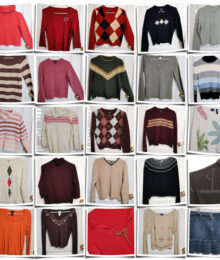
It’s pretty easy to use- here’s what my image looked like before I ran the action. Basically you just put a bunch of square pictures side by side, with no extra space around any of the pictures.

This image has been shrunk down for web-sized viewing, and the action will still work on a web-sized image (you can grab this one and try it to test it out if you want), but I think the shadows turn out better if you start with a bigger image. Mine was like 2400px x 2400px originally.

When you have all your square pictures set up, just run the BnBig Picture action and it turns into this!

Pretty sweet, huh? :)

Now you can just use Photoshop, or Gimpshop or whatever to put your square images together, no problem- but if you have Lightroom 2, it’s even easier to make grids of pictures like the one above. Basically you just select all your pictures and choose “Print to File”- then you can pick one of their premade contact sheets and it’ll put all your images in a grid for you. Even if they’re not already square, you can just click a button and it will make them all square for you. :) Then instead of printing it out on your printer, it’ll just make a large JPG image of what you see on the screen. Super easy! :) I learned more about that trick from this tutorial here.

Now why on earth am I making a collage of a bunch of clothes?? :p

Well, it’s out with the old and in with the new! :)

abercrombie & fitch, j. crew, GAP, Old Navy, Ann Taylor LOFT, BEBE, American Eagle, Izod sweaters on eBay

I’m cleaning out my closets- and these are all going up for sale on eBay if you see one that catches your eye. ;) 

abercrombie & fitch, j. crew, GAP, Old Navy, Ann Taylor LOFT, BEBE, American Eagle, Izod sweaters on eBay

I’ve got sweaters, tops, jeans, skirts…

abercrombie & fitch, j. crew, GAP, Old Navy, Ann Taylor LOFT, BEBE, American Eagle, Izod sweaters on eBay

from Abercrombie & Fitch, J. Crew, GAP, Bebe, The Limited, Ann Taylor LOFT and too many more. :blush: 

abercrombie & fitch, j. crew, GAP, Old Navy, Ann Taylor LOFT, BEBE, American Eagle, Izod sweaters on eBay

My eBay Auctions

Ok, I’ll stop now. ;)

Well, I hope you found this little mini-tutorial fun and helpful! :) Thanks so much for looking! :)


Filed Under: Everything Else, Tutorials18 Comments